

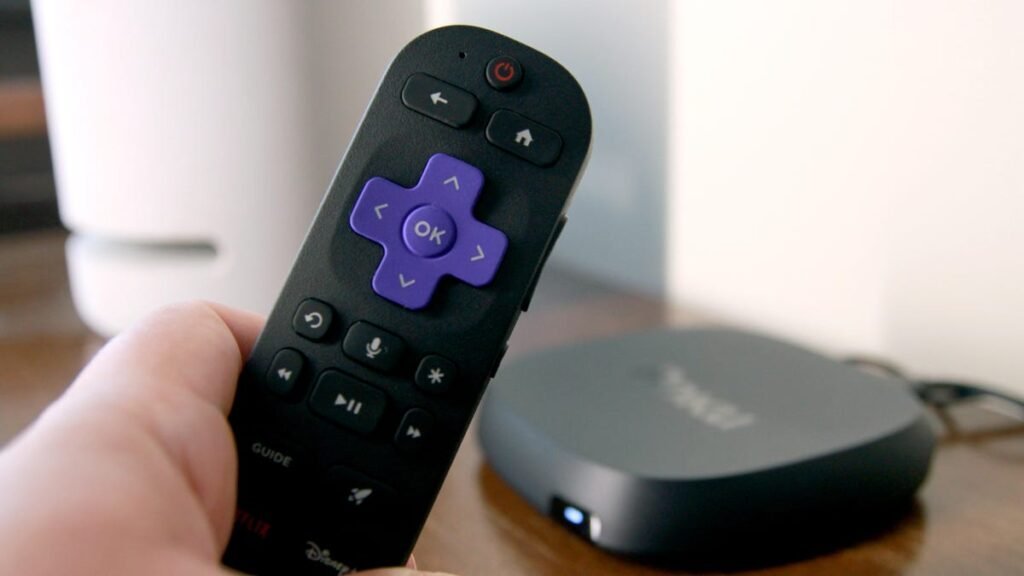
Can you believe that the first Roku device launched 17 years ago? It was initially developed in partnership with Netflix to stream its “Watch Instantly” service. Since then, the company has released numerous generations of streaming players and its very own Roku TVs — which means you might own one of these older devices.
What is a cache?
Just like your computer or smartphone, your Roku TV also stores temporary data (the cache) to help apps load faster. It’s like a digital shortcut; when you open an app, instead of redownloading everything from scratch, your Roku remembers certain elements, like images or login information.
Over time, this cache can become cluttered, corrupted, or just plain too full. When that happens, it can lead to sluggish performance, apps freezing, audio-video sync issues, or even those dreaded error messages that pop up right when the show you’re watching is getting good.
Also: Every Roku user should know these 20+ hidden menus and shortcuts for the best experience
While Roku is somewhat unique compared with other smart TVs that might have a direct “clear cache” button buried in the settings, it’s still an option, and an important one to check now and then. Below are the two quickest and most effective ways to clear your Roku cache.
Soft reset your Roku using the remote
This operation reminds me of the cheat codes you’d punch into an original Nintendo game pad — a bit antiquated, but also nostalgic. To be clear, this isn’t a factory reset; you won’t lose your downloaded apps or login information for your various streaming services. Grab your Roku remote and:
- Press the Home button five times.
- Press the Up arrow once.
- Press the Rewind button twice.
- Press the Fast Forward button twice.
If you’ve entered the sequence correctly, your Roku TV will freeze for a moment and then restart, clearing out that troublesome cache. It might take a minute or two to fully reboot, so be patient and let it do its thing.
Also: How to clear your TV cache (and why you shouldn’t wait to do it)
Once your Roku TV is back up and running, try opening the last app that was giving you grief. More often than not, you’ll find it’s behaving much better. The sluggishness is gone, the crashes have ceased, and you can get back to your regularly scheduled binge-watching.
Restart your Roku system
If that specific button combination doesn’t seem to do the trick, another simple yet surprisingly effective method is the classic “turn it off and on again” maneuver — but with a slight twist for a more thorough cache-clearing. Keep in mind this is also not a hard reset, so it won’t uninstall your channels, reset your network settings, or erase your personalized preferences.
- Go to Settings on your Roku.
- Select System.
- Select Power (if you don’t see Power, go straight to System Restart).
- Select System Restart, then Restart.
- After it restarts, unplug your Roku TV from the power outlet. This is key.
- Wait for about 60 seconds. This allows any electrical charge in the capacitors to dissipate, ensuring the cache is fully cleared.
- Plug your Roku TV back in and turn it on.
Also: Which Roku streaming stick should you buy in 2026? I recommend only these models
This power cycle method ensures that all temporary files are wiped clean.
If all else fails…
If your Roku is still having issues, there’s the atomic-bomb option of a true hard (factory) reset. I hate even recommending it because it is a pain to re-enter your account details, data, and settings. But, before you go shopping for a newer Roku device or a new TV altogether, give this a try first.
- Go to Settings.
- Select System.
- Select Advanced System Settings.
- Select Factory Reset.
There might also be a physical reset button on your Roku TV (often a small recessed button you need a paperclip to press) that you can hold in for about 10-30 seconds while the TV is powered on.
Also: I changed 6 settings on my Roku TV to instantly improve the user experience
Clearing the cache isn’t a one-time fix that lasts forever. If you’re a heavy streamer or notice performance starting to degrade again, don’t hesitate to repeat the process. The first two processes above are easy maintenance tasks that can save you a lot of headaches and delay your next big streaming device purchase. The third option will definitely clear your cache, but you’ll have to start over with your Roku account.
Source: www.zdnet.com
About this article: GeekBlog covers U.S. technology news, AI, phones, smartwatches and gaming. Every story is written and checked under our Editorial Policy. Spotted a mistake or have a story tip? Contact our editors.
