

Follow ZDNET: Add us as a preferred source on Google.
ZDNET’s key takeaways
- AI sketchnotes look great until the text starts breaking.
- Nano Banana 2 often mixes numbers, symbols, and nonsense words.
- With patience, you can still generate useful visual summaries.
There is a small, slightly sad discussion on Reddit from four years ago about what to call someone who loves graphs and charts. Book lovers are called bibliophiles; they reason, shouldn’t charts and graphs fans have a name, too? Redditors proposed several neologisms (new, made-up words), including cartographile, diagraphophile, visophile, graphophile, and infographophile.
All these terms apply to me. On election nights, I constantly switch between all the major networks, not even to see the results, but to catch a glimpse of their new charting styles. I love me some charts.
Also: The best AI image generators of 2026: There’s only one clear winner now
One type of diagram I particularly love is called sketchnoting. A sketchnote is exactly what it sounds like: a mixture of sketches and notes to impart information. I love this style because it’s both informal (the sketching and hand-written notes) and very formal (it carefully represents data). I get excited just thinking about it.
I’ve tried to use AI to generate sketchnotes in the past, but since AI graphics tools have tended to fail at producing words properly, those past attempts ultimately proved futile. But with Nano Banana 2’s promise of better text, I decided to give it another try.
I started with a simple prompt in Gemini. I have a $20/mo Google AI Pro tier that used to default to Nano Banana Pro but now uses Nano Banana 2 (which is very similar). My prompt was, “Make me a sketchnote of the US Bill of Rights.”
I chose the Bill of Rights because it contains 10 rights, each of which lends itself to visualization. I also didn’t have to enter that information into Nano Banana 2 for my testing.
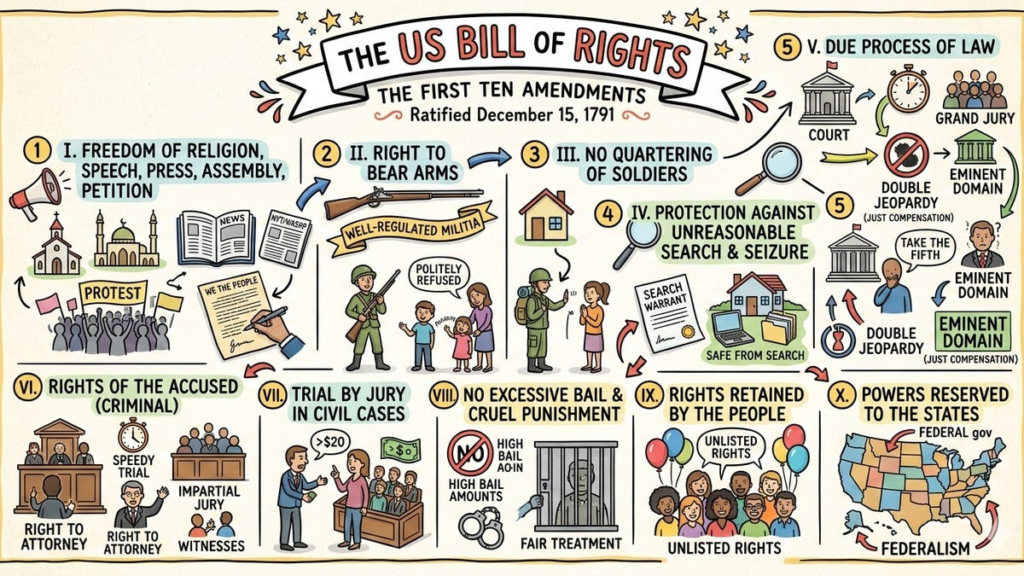
Here’s what the AI did right out of the gate. I have to say, it’s fantastic. Almost:
Note the use of pastels that look like they’re from highlighters. Also, the font choice is perfectly appropriate to this kind of diagram, as are the illustrations. But the summary duplicates the number five inside a circle in two locations. It repeats parts of the Fifth Amendment. After the Fifth Amendment, it switches from Arabic to Roman numerals.
I wanted to correct the errors. I also thought it might be nice to have the title in the middle, and the various rights shown around the outside.
Also: Ditching ChatGPT for Claude? How to easily transfer your memories and preferences
So, here’s my second prompt: “Make me a sketchnote of the US Bill of Rights. Center the title in the middle, in a hand-drawn shape or object. Present the various data elements around the outside.”
The results look good, but ouch. The rights are out of order. Also, for some reason, the AI switched randomly between Roman numerals and Arabic numerals, with Roman numerals next to them:
Interestingly, the actual Bill of Rights uses neither Roman nor Arabic numerals. It actually spells out each article, as in “Article the first,” “Article the second,” and so on. For graphical representation, numerals fit better, so I refined the prompt to:
Make me a sketchnote of the US Bill of Rights. Center the title in the middle, in a hand-drawn shape or object. Present the various data elements around the outside in order, using Arabic numerals to indicate each article.
The result was this:
That output didn’t work right either. First, the articles were not presented in numerical order, but I only specified “in order,” not “in numerical order”. Second, Article one had a 1 in a circle followed by a 1 outside it. Article eight was followed by a Roman VIII, and Article three was followed by a 7. The AI also didn’t highlight the titles as nicely.
I decided to try one more time. This time, instead of repeating the entire prompt, I corrected its previous results.
Also: Why I stopped using ChatGPT for everything
I told Gemini, “That last graphic had some errors. Please present the articles in numerical order, starting with 1 and ending with 10. Do not repeat the article number outside the little colored circle. Highlight the titles using classic highlighter pen colors. Before presenting the image, double-check the order of the articles and avoid duplicating representations.” Here’s the result:
The AI got the title highlighting right, but still couldn’t handle the order.
I gave it one more try saying, “You got the image mostly correct, but place articles 1, 2, 3, and 4 in that order along the top, then put article 5 on the left of the the centered title and article 6 on the right of the centered title, and then put articles 7, 8, 9, and 10 in that order on the bottom row. Do not use Roman numerals anywhere in the diagram. Do not use two of the same number anywhere in the diagram.”
It took six tries, but I eventually got a perfect sketchnote. Check it out:
Sketching my articles
Next up, I decided to try generating sketchnote summaries of some of my articles. I started with ‘7 AI coding techniques I use to ship real, reliable products – fast,’ because that sort of itemized article lends itself to the sketchnote style.
Also: I tried to save $1,200 by vibe coding for free – and quickly regretted it
I gave the AI this prompt: “Make a sketchnote of the article below. Highlight the sections using classic highlighter pen colors. Do not use Roman numerals anywhere in the diagram. Do not use two of the same number anywhere in the diagram.” After the prompt, I just pasted the full text of my article.
In response, I got this:
WTF? Clearly, I did something wrong, probably in how I pasted in my article. So I took my previous prompt and instead of saying “of the article below” I told it to read the URL. That worked.
Notice how it’s centering the headline. This approach seems to be a holdover from my previous session prompts:
Nano Banana 2 again had a problem with ordering the data items. This time, I decided to correct the problem by telling it not to number the data elements. Here’s my new prompt:
Make a sketchnote of the article above. Highlight the sections using classic highlighter pen colors. Do not use Roman numerals anywhere in the diagram. Do not number the headlines.
And, here we go. The AI listened to my instructions, but only for the first two headlines:
This time, I decided to try to be more precise. Instead of “Do not number the headlines,” I said, “Do not use numbering for any of the headlines. Each headline should be text only.” Here’s the result:
This one is so close. You can see the AI really wanted to number the last four because it had some space to the left of the headlines for numbers. It also skipped the heading “Bonus” in the bonus section. When you count the techniques, you get eight sections.
So, one more try, this time with the added instruction, “Put the word Bonus: in front of the code review section heading.” In response, I got this:
This output appears to be internal instructions to the graphics subsystem. I decided to reprompt the entire instruction (rather than mentioning “the article above.”). My final prompt was:
Make a sketchnote of the article at https://www.zdnet.com/article/ai-coding-techniques/. Highlight the sections using classic highlighter pen colors. Do not use Roman numerals anywhere in the diagram. Do not use numbering for any of the headlines. Each headline should be text only. Put the word Bonus in front of the code review section heading.
And… I broke Gemini:
Let’s itemize some of the text generated. These are the exact words Gemini used in this last sketchnote:
- ADIUK SALIRE BAT DIANCIORE, TOUMSKISS IT MEAL KUAKE DIATIEN.
- AUDE OF YOUR, AD БАВЕВК YOTKEE SHORT. RIUR TOUPURE.
- SOGUAND PAGEIVE, WISH INSTRILOF GASSONG FARE SOUD MIAT.
- RODN-INIGSWISING GOES TOY ALPCKTOBNF SCIDRO LESSONS MERE PRREAEMOIN DSONE DESTIEN.
And so on. It was clear that Gemini was hurting. But I wasn’t daunted. I gave it one last try, and this was worth it.
Also: You can turn off Gemini in Gmail, Photos, Chrome, and more – here’s how
First, I launched a new session. I reasoned that perhaps I had exceeded Gemini’s context. I pasted in the exact prompt above. This time, Gemini responded with a summary of the article in text form. I then told it to generate the graphic.
Here’s what came out. With one exception, it’s great:
I do take issue with how it represented user design. It showed “the maker” as male. Instead of the word “sewist,” which I use in the article, it used “the seamstress” and used an icon of a woman. I was very careful to avoid using gender for either of the project users I’m building for, but Gemini decided to stereotype my target users.
That output says a lot about the quality of AI training data, right there.
One more try
I decided to try making sketchnotes for one more article. I fed the AI the URL for the article, ‘Is an AI subscription worth it? How to choose your premium chatbot plan – and what not to do.’ I kept the limitations on not using numbers in the headings. Here’s what I got back:
In some ways, it’s not too bad. I like that the AI went out and found the ChatGPT, X, and Google logos and used them in the graphic. Then again, we ran into inconsistent headline numbering (even when prompted not to number). And, of course, there’s this: “FIVF PROCES & LGIULE-TROCTERY USE A PILTCH THEYKIT FOR GOOGLE (MPROPS) USE ALA rOVAL & PORTFORT,” which Nano Banana 2 listed as the reasons to upgrade from the free tier.
Win some. Lose some.
What have we learned?
We have learned that it is possible to create pretty nice sketchnotes using Nano Banana 2, but you have to work at it.
Also: Is ChatGPT Plus still worth your $20? How it compares to Free, Go, and Pro plans
As Heinlein put it, “TANSTAAFL.” There ain’t no such thing as a free lunch. Even if you’re paying $20/mo for the Google AI Pro plan.
I’ll leave you with a set of five recommendations if you want to make sketchnotes:
- Give the AI the source material, and let it summarize it and process it before trying to create a sketchnote.
- Expect to revise the sketchnote repeatedly to get it right.
- Be very specific about the changes you want.
- If “do this” doesn’t work, also add “don’t do that” to your prompt.
- Start over in a new session as soon as it’s clear Gemini is losing its mind.
Still, this process was a lot of fun. I could probably spend a whole day making sketchnotes out of my articles. Welcome to the future.
You can follow my day-to-day project updates on social media. Be sure to subscribe to my weekly update newsletter, and follow me on Twitter/X at @DavidGewirtz, on Facebook at Facebook.com/DavidGewirtz, on Instagram at Instagram.com/DavidGewirtz, on Bluesky at @DavidGewirtz.com, and on YouTube at YouTube.com/DavidGewirtzTV.
Source: www.zdnet.com
