

There is no “perfect” mouse. Even Logitech’s long-rumored MX Master 4 and its tried-and-tested blend of form and function won’t be everybody’s everything. A mouse is merely a computer controller, one that should have enough switches and buttons neatly at your fingertips. The older MX Master mice had most of what any productivity-minded wannabe professional required. The new $120 MX Master 4 has one extra feature with a haptic button that could offer a bounty of extra options. If you already have your necessary keyboard shortcuts etched into your brain like the Ten Commandments carved in slate, you’ll find the rumble in your thumb wholly unnecessary.
Logitech MX Master 4
There aren’t so many true upgrades, and the Action Wheel may not be all that, but the MX Master 4 is an excellent successor to the best-feeling wireless work mouse.
- Excellent ergonomic feel
- Satifsfying haptics
- Free-spinning and side scroll wheels
- Works on almost everything
- Action Wheel has surprising use cases
- Not enough apps for Action Wheel
- No compartment for Bolt receiver
- Bigger and heavier than ever
The design for Logitech’s “perfect” mouse didn’t need to change. If you’re a proud user of a Logitech MX Master 3 or 3S (the latter retailed for $100 in 2023), and you haven’t worn away the silicone thumbrest with your affections, you don’t need another mouse. Then again, the new MX Master 4 is so nice, so precise, and so feature-rich, I can’t think of another mouse I’d rather drag my cursor around with. The smooth operation on my desk, combined with the near-silent clicks and free-spinning magnetic aluminum scroll wheel, feels as satisfying as it ever did. You simply can’t expect any real upgrades from this mouse. Even with haptics and software features, the MX Master 4 will still be a companion that’s so thick and heavy it will rarely, if ever, leave your desk.
The same MX Master you know
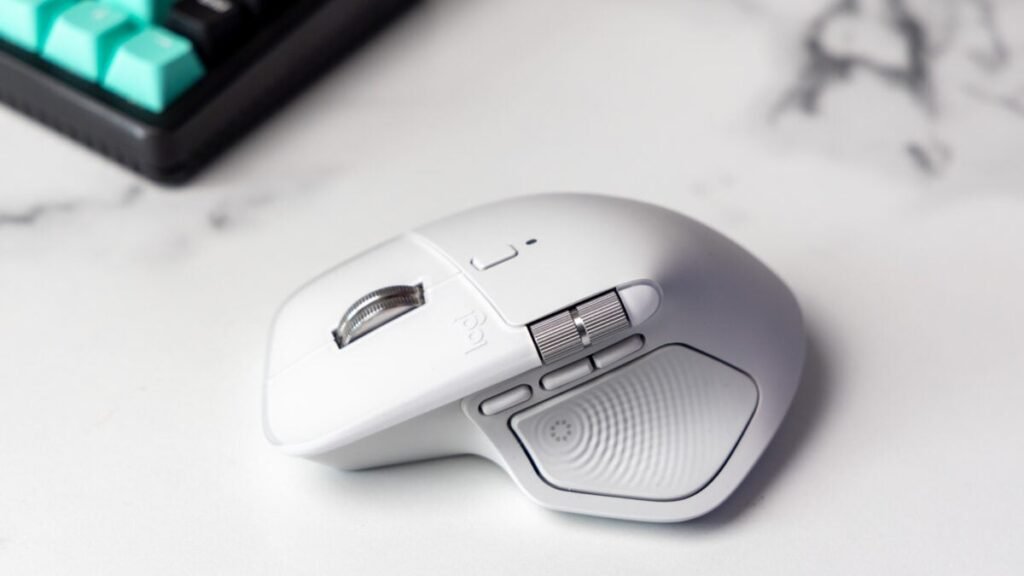
There are a few minimal visual design changes to differentiate the MX Master 4 from the MX Master 3S. Logitech dragged the left and right click below the scroll wheel. That moves the middle “Shift wheel mode” button slightly downward, which swaps from a free-spinning wheel to something more traditional. There’s also a new clear plastic ring around the twin click buttons. There are an additional three programmable side buttons and the lovely side-scrolling wheel that’s handy for both spreadsheets and video editing. The shelf for the thumb sticks out more compared to previous generations, making the MX Master 4 appear even larger than the two-year-old MX Master 3S even though they’re nearly equivalent in stature. There’s one odd thing about the revised design. I was using a MacBook Pro, and the height of the mouse was just enough that the left-click button sat at exactly the height of the opened laptop. This would halt a click, leading to an odd moment of confusion. You can’t call this a flaw, exactly, but just a small thing to note considering just how well it works with the average Mac.

The MX Master 4 is a heavy mouse at 150g, and more hefty than the previous version, though it rolls as smooth as a buttered chicken on a water slide over most surfaces. Just like previous iterations, the mouse lacks the long begged-for compartment for the Bolt USB-C receiver. Ignoring ways Logitech could have improved the overall design, it feels ergonomic in a way that’s not completely as extreme as a full vertical mouse. Your hand slides into its shape with the thumb cupped in the cradle of the new textured silicone that doubles as the new haptics button.
Logitech didn’t want to enhance the base specs to entice buyers. Indeed, the company didn’t boost the polling rate—how often the mouse communicates with the computer—or DPI, the dots per inch that measure accuracy, compared to the MX Master 3S. The MX Master 4 is stuck at a maximum 125Hz polling rate—whether you’re using Bluetooth or the Logitech Bolt USB-C dongle—and a respectable 8,000 DPI. The DPI dictates how well the mouse tracks on various surfaces, and the MX Master 4 routinely proves it’s good for everything, from mouse pads to wood and even glass. That polling rate pales in comparison to the specific gaming mice designed for the most precise experience. For instance, Logitech’s upcoming G Pro X2 Superstrike gaming mouse with its haptic click is based on an 8,000Hz polling rate sensor. Can you still use the MX Master 4 for gaming? It’s a far heavier mouse than any game-specific controller, and it’s hard to exclaim “boom, headshot” when your mouse clicks are as silent as the grave, but you do you.
I’ve got a rumbly in my thumbly

Instead of working out the usual mouse upgrades of better polling rate or DPI, Logitech focused mostly on the new haptics in its new top-of-the-line mouse. The button has a capacitive sensor that doesn’t physically depress, even though it feels like it does when you squeeze it. You’ll now feel a little rumble, depending on your settings. Your thumb might shudder if you move the cursor between two displays, for instance. The haptics belie the most important control change. Logitech hopes you’ll use the new software feature called Action Ring. If you hit the haptic button with your thumb, you can mouse over a ring full of customizable actions. On a Mac, by default the ring brings up options for a Finder window, a shortcut to screenshot the page you’re on or create a note, or summon up AI chatbots (because Logitech still thinks mice need an AI button like its M750).
To customize the ring, you need to dig into the Logi Options+ app. The interface is minimal and clean. Here, you can also set the level of haptics from minimal to thumb-shuddering. It’s here you can enable multiple different profiles for the Action Ring. Logitech includes one setup for Photoshop (it’s enabled for Adobe’s other apps like Lightroom and Premiere), Zoom, and more. You can look through the applications on your device and set up shortcuts for those apps, or else just create your own. Each action on the ring can also contain multiple folders, in case you want to bury specific actions all from your mouse.

I can see how this is useful, though in the weeks I spent using the mouse for work, I only ever hit up the Action Ring when I was trying to get it to work with outside apps. In my day-to-day grind, I have all the necessary keyboard shortcuts down pat. When I’m typing out a new review or getting my text onto Gizmodo.com, I’m not jumping to my mouse first, at least most of the time. What’s the time difference between sliding the cursor down to the Mac’s dock to open up Finder versus hitting a button and then clicking on the shortcut?
However, if you are using an app with more annoying controls, it can be especially handy. The Logi Marketplace currently houses 39 apps for application-specific controls, though most of them are Adobe apps. You may not make much use of the Action Ring on Spotify or Apple Music, unless you want to pause or play without opening the app first. Take Discord, for example—exchanging audio or mic input and output is annoying to access in the best of times, and having that accessible from the MX Master 4 can be incredibly handy. We’ll have to wait for more apps available in the store to show what the feature is fully capable of.
Built to last

Logitech claims the MX Master 4 has an optimized antenna placement that results in better connectivity, but the mouse still won’t work outside the usual 30-foot range for both Bluetooth and 2.4GHz connections. The MX Master 4 makes up for it with an “Easy-Switch” button on the bottom of the mouse. You can pair it with up to three devices and hit the button to swap between them. This means you could have it paired with your phone (it’s compatible with iPadOS, iOS, and Android) and two computers. Pressing the switch swaps between each device. The Logi Options+ app also lets you see which devices are paired. Easy Switch was already a positive mark for the MX Master 3S, but it’s made even better thanks to the Action Ring, which lets you swap between devices without flipping the mouse onto its back.
Battery life among high-end mice is already at the point where most of us won’t be plugging our devices in for months. The MX Master 4 promises a 70-day battery life. I’ve used the mouse for three weeks, nearly every day in the office, and I’ve been incapable of running through its battery just by myself in that time. It came out of the box at a little more than 50%, and by the time I was done writing my review, it was stuck at 45%. Even if the mouse does run out of juice, the MX Master 4 supports quick charging with up to 70% from 3 hours of charging, or up to three hours of use from one minute of charging.
I won’t stop using the MX Master 4 anytime soon, though that’s because I didn’t already have the MX Master 3 or 3S at home. Logitech didn’t spend time putting real physical hardware upgrades into its new mouse. Unless you have a very specific use case for the Action Wheel, you’ll be perfectly serviced with your older working MX Master mouse. Instead, if you want the best wireless mouse and you’re tired of your old crusty work one, this is easily the best one—still—perfect or not.
