

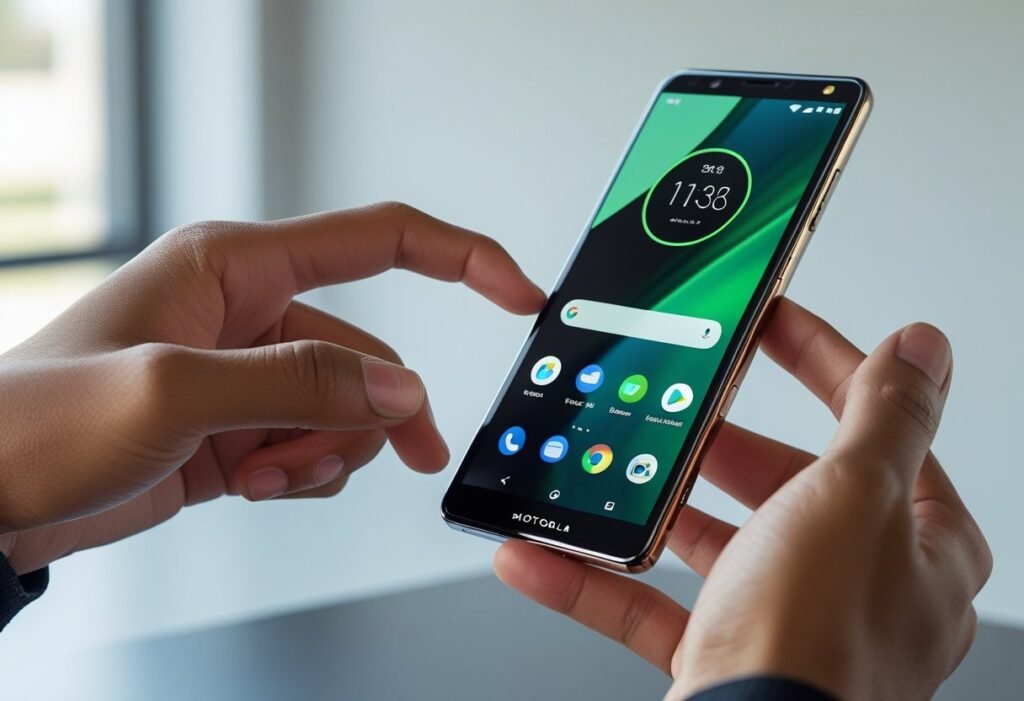
Want the quickest way to capture a moment on your Motorola Razr? Press the Power and Volume Down buttons together for a fast screenshot, or swipe your screen edge depending on your Razr model and settings. This gives you an instant image to edit, share, or save without digging through menus.
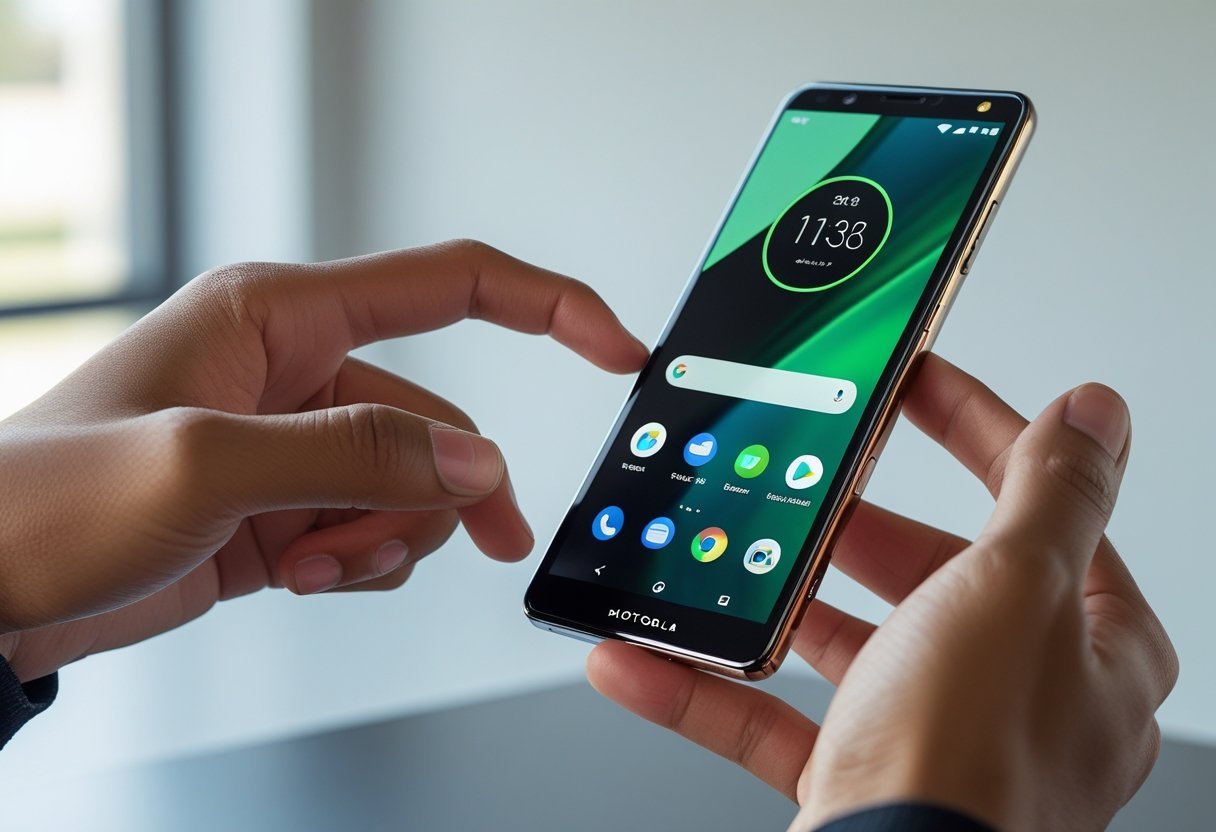
You’ll also learn alternative methods—gesture shortcuts, quick settings tiles, and Google Assistant commands—so you can choose the approach that fits how you use your phone. The article will walk through editing and sharing options, troubleshooting common problems, and practical tips to manage screenshots efficiently on your Motorola Razr.
Methods to Screenshot on Motorola Razr
You can capture your screen using button combos, touch gestures, voice commands, or the Quick Settings tile. Each method works on Motorola Razr models running Android, including Razr 2025, and the steps below show exactly what to press or tap.
Using Physical Buttons
Press and hold the Power and Volume Down buttons at the same time for about one second. Release when you see the screen flash or hear a shutter sound; the image saves to Photos > Screenshots.
If the phone is folded or using an app with custom button behavior, press the buttons firmly and slightly apart to avoid triggering other controls. On some Razr builds the Power menu appears instead; if that happens, tap Screenshot from the menu immediately.
Use a stable grip to prevent motion blur on foldable displays. After capture, tap the floating thumbnail to edit, crop, or share before it auto-saves.
Three-Finger Gesture Method
Enable three-finger screenshot in Settings > System > Gestures (or Settings > Display > Advanced on some Razr software versions). Toggle “Three-finger screenshot” on, then place three fingertips on the screen and swipe down swiftly to capture.
This gesture works well when the phone is in one hand or propped open. If the gesture fails, reduce screen protector thickness or retrain your swipe angle—make a straight downward motion starting near the top third of the display.
The image saves to Photos automatically and offers the same editing options as the button method. This is useful on Motorola Razr 2025 for quick captures without using physical keys.
Google Assistant for Screenshots
Activate Google Assistant by saying “Hey Google” or holding the Home/Assistant button (or swipe from corners if configured). Say “Take a screenshot” and Google Assistant captures the visible screen and places the image in your Photos app.
Assistant works across apps, including Chrome, Maps, and home screen panels, but it may not capture secure content like certain banking screens. If voice capture fails, grant Assistant the necessary microphone and screen permissions in Settings > Apps > Assistant.
After capture, Assistant may offer to share the screenshot immediately. This method is hands-free and handy on Motorola devices when your hands are occupied or the phone is in a stand.
Screenshot from Quick Settings Menu
Swipe down from the top to open Quick Settings, then swipe again for the full panel. Look for a Screenshot tile; tap it to capture the current screen. If the tile is missing, tap the pencil icon to edit tiles and drag Screenshot into the visible area.
This method is quick when on the home screen or within apps where gestures might conflict. The tile performs the same capture and saves to Photos > Screenshots, and it works reliably on Razr models running recent Android builds.
If you use the foldable cover screen, open Quick Settings there and use the same tile; the saved image reflects the active display.
Editing, Sharing, and Managing Screenshots
You can edit a screenshot immediately after capture, send it through apps like Messages or Gmail, and find all saved images in the Photos or Files app. This section explains how to crop, annotate, share via Google services or other apps, and locate screenshots on your Motorola Razr.
Editing Screenshots Instantly
After you take a screenshot on your Motorola Razr, a small thumbnail appears in the lower corner; tap it to open the editor. Use the built-in tools to crop, draw, blur, or add text without leaving the preview.
Tap the crop icon to remove unwanted edges precisely. Use the pen or highlighter to mark up parts of the image, and the text tool to add captions or labels with adjustable font size and color.
If you need to obscure sensitive info, use the blur or pixelate tool; apply it directly over faces, numbers, or passwords.
When you finish editing, tap Save or Share. Saving writes the edited image to your Photos (Google Photos if enabled). Sharing sends the edited file, not the original.
Sharing Screenshots Easily
Tap the Share button in the screenshot preview to open Android’s share sheet and choose an app. Common targets include Messages, Gmail, Google Drive, and social apps like WhatsApp or Instagram.
For quick sharing with a contact, select Messages or Gmail and pick recipients; the screenshot attaches automatically. To upload to cloud storage, choose Google Drive—set folder and access permissions before upload.
Use Nearby Share to send screenshots to nearby Android devices without attaching files to messages.
If you share frequently to a single app, pin that app in the share sheet for faster access. Remember that sharing routes through the app you choose; check privacy settings in Google and other apps before sending sensitive images.
Accessing Saved Screenshots
Open the Photos app (Google Photos) to find screenshots in the “Screenshots” album automatically created by Android. If you prefer file view, open Files by Google and navigate to Internal storage > Pictures > Screenshots.
In Photos you can tap an image to edit further, view details (date, size), or tap the three-dot menu to move it to a different album. Files lets you rename or copy the PNG/JPEG file and shows exact storage location.
To free space, select multiple screenshots in Photos or Files and delete them; check Google Photos trash if you use cloud backup to permanently remove items.
Motorola Razr Screenshot Tips and Troubleshooting
These tips explain gesture setup, capturing long pages, and how to fix common capture problems. Follow the steps exactly and check Android settings if a gesture or shortcut doesn’t work.
Enabling Three-Finger Screenshot
Open Settings > System > Gestures to enable the three-finger screenshot if your Razr supports it. Toggle Three-finger screenshot on; some Razr models list it under Motions & gestures or Advanced features instead.
To use it, place three fingers on the screen and swipe downward quickly. You’ll hear a shutter and see a thumbnail in the corner. If nothing happens, confirm you aren’t using a screen protector that blocks motion sensors and that you have the latest Android security and system updates installed.
If the option is missing, check Settings > About phone > Software info for your build number and search Motorola’s support site for model-specific gesture support. As an alternative, use Power + Volume Down for a manual capture.
Long (Scrolling) Screenshots
Open the page you want to capture (webpage, chat, or settings). Take a normal screenshot with Power + Volume Down or the three-finger gesture, then tap Capture more or Scroll on the screenshot preview that appears.
The phone scrolls automatically; tap Done when you captured the full area you need. Save location defaults to Photos > Screenshots or Gallery > Screenshots depending on Android on your Razr.
If the scroll button doesn’t appear, the app may block long screenshots (some banking apps or DRM-protected content). Try saving the page as PDF in Chrome (Share > Print > Save as PDF) as a workaround.
Common Screenshot Issues
If screenshots aren’t saving, check Storage > Files to confirm available space and permissions. Go to Settings > Apps > Photos (or Gallery) > Permissions and make sure Storage permission is allowed.
If the thumbnail doesn’t appear or screenshots are delayed, reboot the device and test again. Boot into Safe Mode to rule out third-party apps conflicting with gestures or shortcut keys. If Power + Volume Down or three-finger gestures trigger Assistant or other shortcuts, reassign or disable those in Settings > System > Gestures.
For blurred or low-quality captures, confirm Display Settings aren’t using extreme zoom or accessibility enlargement. If problems persist after updates and reboots, contact Motorola support with your Razr model number and Android build for device-specific diagnostics.
Legal Information and Trademarks
This section explains who owns the names and logos you see on your phone, what rights they have, and how you may use or reproduce those marks. It clarifies the distinction between Motorola’s branding and Google’s Android marks to help you avoid misuse.
Motorola Mobility and Trademark Notices
Motorola Mobility and Motorola Mobility LLC own the Motorola brand names and the stylized “batwing” logo shown on your device and packaging. You must treat those marks as registered trademarks; do not use the Motorola name or logo in a way that implies endorsement, sponsorship, or affiliation without written permission from Motorola Mobility.
When reproducing Motorola trademarks in text, follow common legal practice: capitalize the mark and include the ® or ™ symbol where appropriate. If you post screenshots or photos showing the Motorola logo, keep them factual and avoid altering the logo in a way that could mislead viewers about source or authenticity.
For commercial or promotional uses, contact Motorola Mobility’s legal or licensing department for written authorization. Personal, noncommercial use such as sharing screenshots for support or instruction is generally allowed, but avoid using trademarks to sell products or services.
Google and Android Trademarks
Google owns the Android name and many Android-related logos and marks that appear on your Razr, including references to Google apps and services. The Android robot and “Android” word mark are protected; you must not use them to suggest official integration or partnership with Google without permission.
When you mention Android in documentation, include the proper capitalization and, where practical, the appropriate trademark symbol. If you redistribute screenshots that include Google app icons (Gmail, Play Store, Maps), respect Google’s brand guidelines and the apps’ terms of service.
For developers or businesses, Google provides specific branding and logo usage rules on its site; follow those rules for marketing, packaging, or UI mockups. For everyday personal use—like troubleshooting or sharing how-tos—showing Android in screenshots is acceptable, provided you don’t alter trademarks or imply commercial endorsement.
Frequently Asked Questions
These answers show the exact button steps, quick-setting taps, and built-in options for capturing and handling screenshots on a Motorola Razr. You’ll find where screenshots save, how to edit or share them immediately, and whether scrolling or voice/gesture capture is available.
What is the button combination for taking a screenshot on a Motorola Razr?
Press the Power and Volume Down buttons at the same time and release quickly. Hold for too long and you may trigger the power menu instead.
Do this while the content you want is visible on screen. You’ll hear a shutter sound and see a brief animation when the screenshot succeeds.
How can I capture a screenshot using Motorola Razr’s quick settings?
Swipe down from the top of the screen to open Quick Settings. Tap the Screenshot or Capture button (it may appear as a scissors or phone icon).
If you don’t see the button, tap the pencil or edit icon to add Screenshot to your Quick Settings tiles.
Can I take a scrolling screenshot on my Motorola Razr, and if so, how?
Yes. After taking a normal screenshot, tap the “Capture more,” “Scroll,” or “Expand” option that appears in the screenshot preview.
Keep tapping or use the on-screen control until the preview includes all content you want, then save.
Some apps restrict scrolling screenshots, so the option may not appear in those cases.
Where are screenshots saved on the Motorola Razr and how can I access them?
Screenshots save to the Pictures > Screenshots folder in internal storage by default.
Open the Photos or Google Photos app and look for the “Screenshots” album to view them quickly.
You can also open Files or My Files and navigate to Internal storage > Pictures > Screenshots to copy, move, or delete files.
Is there a voice command or gesture to take a screenshot on the Motorola Razr?
You can use Google Assistant by saying “Hey Google, take a screenshot.”
Some Razr models support three-finger swipe or Quick Capture gestures if enabled in Settings > System > Gestures; availability varies by model and software version.
Confirm gesture settings in System or Moto app if a gesture doesn’t work.
How do I edit or share my Motorola Razr screenshots right after taking them?
Tap the screenshot preview that appears briefly after capture to open the editor.
Use crop, annotate, or share icons to make edits or send the image via messaging, email, or social apps.
If the preview disappears, open the Screenshots album in Photos to edit or share from there.
