

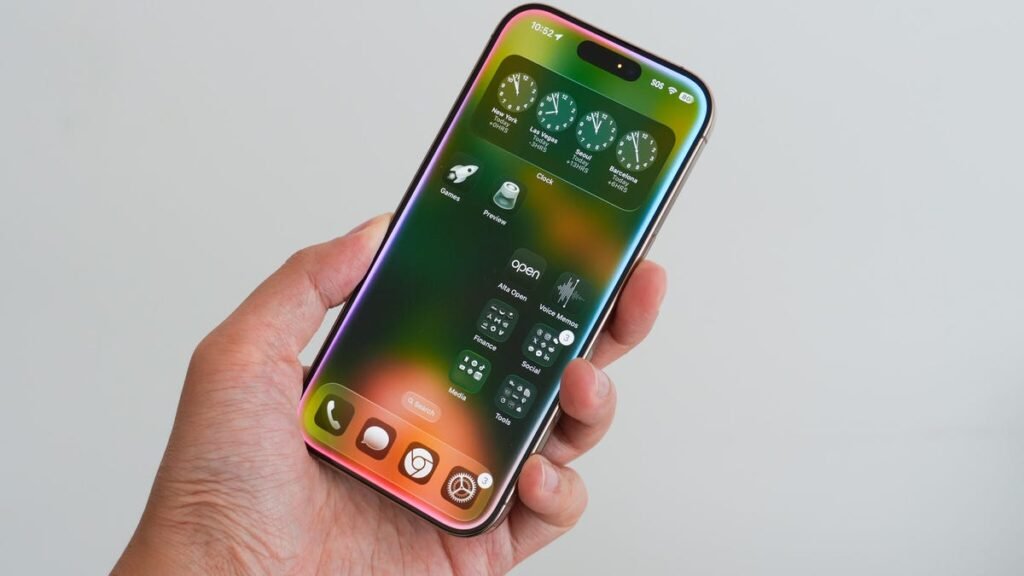
Apple has been busy prepping iOS 26 for its likely debut in September. Until then, the iPhone’s upcoming new OS has been accessible for anyone to try via a developer beta (now up to version 5) and the initial public beta. Though iOS 26 still has at least a month of tweaks before it’s finalized, the beta flavors already provide a peek at what to expect.
You can download iOS 26 beta on your iPhone now. Here’s how to install it — and which models support it.
Also: My biggest regret after updating my iPhone to iOS 26 (and how to fix it)
I’ve been running the public beta since its release on July 24. Among the new and improved features in iOS 26, these are my five favorites so far.
1. Liquid Glass
Adding a new translucent design to the interface, Liquid Glass gives the impression that you’re looking at your screen elements through glass. With this new aesthetic enabled, icons appear more three-dimensional and layered, while menus are semi-transparent. I’ve read some negative comments about Liquid Glass, but I like the new design.
Also: The best MagSafe accessories of 2025 for your iPhone
I feel the interface draws me in and engages with me in an artistic but practical way. Comparing my test iPhone with iOS 26 and my current phone with iOS 18, I can clearly see and appreciate the differences with Liquid Glass.
2. Camera app
For iOS 26, Apple tweaked the camera app to help you more quickly and easily access certain controls and settings. By default, the app shows you the two most common modes — photo and video. To segue to other modes such as portrait, pano, slow-mo, and time-lapse, swipe your finger left or right or press down on the control to move from one mode to another.
Even better, the key settings are now more easily accessible and configurable. To display settings such as flash, exposure, filter, and timer, you can still swipe up from the bottom as always, or simply tap the button with the name of the mode. Up pops a Liquid Glass menu with icons for all the settings. Tap a specific icon to adjust it. Depending on your current mode, controls also appear at the top for you to view and adjust.
3. Photos app
With iOS 18, Apple altered the layout in the Photos app to display both your library and collections on the same screen. Though that may sound convenient, it upset many iPhone users who now have to swipe up and down to switch between the two views. With iOS 26, Apple has rectified that error.
Also: Apple finally added my most-requested iPhone feature (and you’ll love it, too)
Open the Photos app in the new OS and you’ll see two icons at the bottom — one for your Library and another for your Collections. By default, the app opens in Library view so you can easily scroll through all your photos or view them by year or month.
Tap the Collections icon and you’ll then see your photos organized by memories, albums, people, and other criteria. You can also reorder the different collections to place your favorite ones at the top of the screen.
4. Screen your calls
To help you better combat scam and spam calls, iOS 26 adds a helpful new option to the Phone app. You can now screen a call from an unknown number by asking the caller for certain information. Before you choose whether to pick up the call, the person on the other end is asked why they’re calling. That information then flashes on the screen to help you decide how to handle the call.
Looking for the next best product? Get expert reviews and editor favorites with ZDNET Recommends.
To enable this, head to Settings, select Apps, and then tap the Phone app. Swipe to the section for Screen Unknown Callers and tap the option for “Ask Reason for Calling.” The next time you receive a call from a stranger, the person will be prompted to explain why they’re calling. You can then answer or ignore the call.
5. Set your default apps
Apple hasn’t made it easy to change your default apps. In the past, you had to drill down to each app that you wanted to change or set. Now with iOS 26, you can choose all your default apps in one place. For this, go to Settings, select Apps, and then tap Default Apps. From here, you’re able to modify the defaults for email, messaging, calling, call filtering, browser, translator, passwords, contactless payments, and keyboard.
