

If the centered taskbar, the cluttered Start menu and the flat right click menu of Windows 11 leave you cold, you do not have to switch operating systems to get a desktop you like. A handful of free tools, plus a few settings already built into Windows, can give your PC a dock and top bar in the style of macOS, a tiling layout borrowed from Linux, or a classic Start menu. This guide covers the tools that are current in October 2026 and how to use them without breaking anything.
Start with what Windows 11 already lets you change
Before installing anything, use the built in options. They are safe, they survive updates and they get you surprisingly far.
- Move the Start button to the left. Open Settings, go to Personalization, then Taskbar, expand Taskbar behaviors and set Taskbar alignment to Left. This alone makes Windows 11 feel closer to a traditional Linux panel.
- Hide the taskbar. In the same Taskbar behaviors section, turn on Automatically hide the taskbar. Combined with a dock app, this gives you a clean macOS style screen.
- Switch to dark mode and pick an accent color. Go to Personalization, then Colors. Set Choose your mode to Dark, turn on Transparency effects and choose an accent color that matches your wallpaper.
- Remove taskbar clutter. Under Personalization, then Taskbar, switch off Widgets, Task view and the Search box if you never use them.
- Use Snap layouts. Hover over a window maximize button or press Windows key plus Z to arrange windows in a grid. It is not a full tiling manager, but it covers the basics.
The best free tools to change the look
| Tool | What it changes | Cost |
|---|---|---|
| Seelen UI | Dock, top toolbar, tiling windows, launcher, widgets | Free, open source |
| ExplorerPatcher | Classic taskbar and Start menu behavior | Free, open source |
| Open Shell | Classic style Start menu | Free, open source |
| TranslucentTB | Clear, blurred or acrylic taskbar | Free, open source |
| Rainmeter | Desktop skins, clocks, system monitors | Free, open source |
| Nilesoft Shell | File Explorer right click menu | Free, open source |
| Start11 | Start menu styles, taskbar position | Paid, with a free trial |
Seelen UI: the all in one option
Seelen UI is a free, open source desktop environment that runs on top of Windows and is listed in the Microsoft Store. It replaces the stock look with a dock that can sit on any edge of the screen, a toolbar at the top with live CPU, memory, network and battery readouts, its own app launcher and an Alt plus Tab switcher with live thumbnails. Its tiling window manager offers several layouts and keyboard navigation, which is the closest thing on Windows to a Linux tiling setup. Put the dock at the bottom and the toolbar at the top and you have a layout that resembles macOS. Turn on tiling and drop the dock, and it starts to look like a minimal Linux desktop.
ExplorerPatcher and Open Shell: bring back the classic layout
If what bothers you is the Windows 11 taskbar and Start menu themselves, ExplorerPatcher restores older taskbar behavior and lets you change the Start menu style. Its current releases list testing on the build branches used by Windows 11 24H2 and 25H2. Open Shell does one job well: it replaces the Start menu with a classic design that can resemble the menus of older Windows versions or a traditional Linux application menu.
TranslucentTB, Rainmeter and Nilesoft Shell: finishing touches
TranslucentTB makes the taskbar clear, blurred or acrylic, and can change its look when a window is maximized or Start is open. Rainmeter places skins on the desktop, from simple clocks to hardware monitors and audio visualizers, and is the classic way to get a Linux style information panel. Nilesoft Shell rebuilds the File Explorer right click menu so you can remove entries you never use, add your own commands and style it to match the rest of your setup.
Recipes for a macOS look and a Linux look
Seelen UI dock at the bottom, toolbar at the top, Windows taskbar set to auto hide, TranslucentTB on clear, a light or dark wallpaper with a soft gradient.
Seelen UI tiling manager on, top bar with system stats, no dock, Rainmeter widgets, dark mode and a minimal Nilesoft Shell menu.
Taskbar aligned left, Open Shell or ExplorerPatcher for the Start menu, Start11 if you want a supported paid option.
Back up before you customize
Most of these tools hook into File Explorer or the taskbar. A Windows feature update can change those internals, and when that happens the tool may stop working until its developer catches up. Protect yourself first:
- Type Create a restore point in the Windows search box and open it.
- Select your system drive, click Configure and turn on system protection if it is off.
- Click Create, give the restore point a name and wait for it to finish.
- Back up your personal files to an external drive or cloud storage as well.
How to undo everything
Every tool here can be removed from Settings, then Apps, then Installed apps. If the taskbar or Explorer misbehaves after an update, uninstall the most recent tool first and restart. If Windows will not start normally, hold Shift while you click Restart, choose Troubleshoot, then Advanced options and System Restore, and pick the restore point you created.
FAQ
Can I make Windows 11 look exactly like macOS?
Not exactly. You can get very close with a dock, a top bar, hidden taskbar and the right wallpaper, but apps keep their Windows title bars and menus.
Is Seelen UI safe to use?
It is open source and distributed through the Microsoft Store, which is the safest way to install it. As with any shell tool, create a restore point first.
Do these tools slow down my PC?
Lightweight tools such as TranslucentTB and Nilesoft Shell have little impact. Full environments and heavy Rainmeter skins use more memory, so start small on older hardware.
Will Windows updates break my setup?
Sometimes. Tools that patch Explorer are most at risk after big feature updates. Keep them updated and keep a restore point handy.
The verdict
You can reshape Windows 11 without leaving it. Start with the built in taskbar and color settings, then add Seelen UI for a dock and tiling, and finish with TranslucentTB, Rainmeter or Nilesoft Shell. Take a restore point first, add one tool at a time, and you can always roll back.
Updated October 2026: rewritten as a current guide to free Windows 11 customization tools, built in settings and safe backup steps.
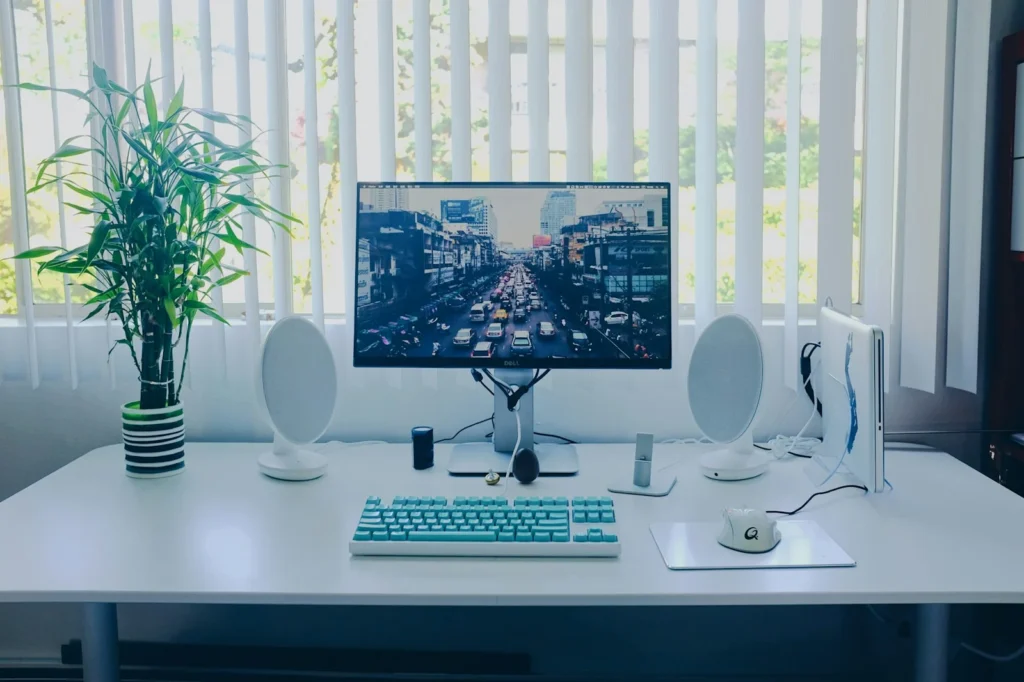
Featured photo: Ryan Yao on Unsplash.
About this article: GeekBlog covers U.S. technology news, AI, phones, smartwatches and gaming. Every story is written and checked under our Editorial Policy. Spotted a mistake or have a story tip? Contact our editors.
