

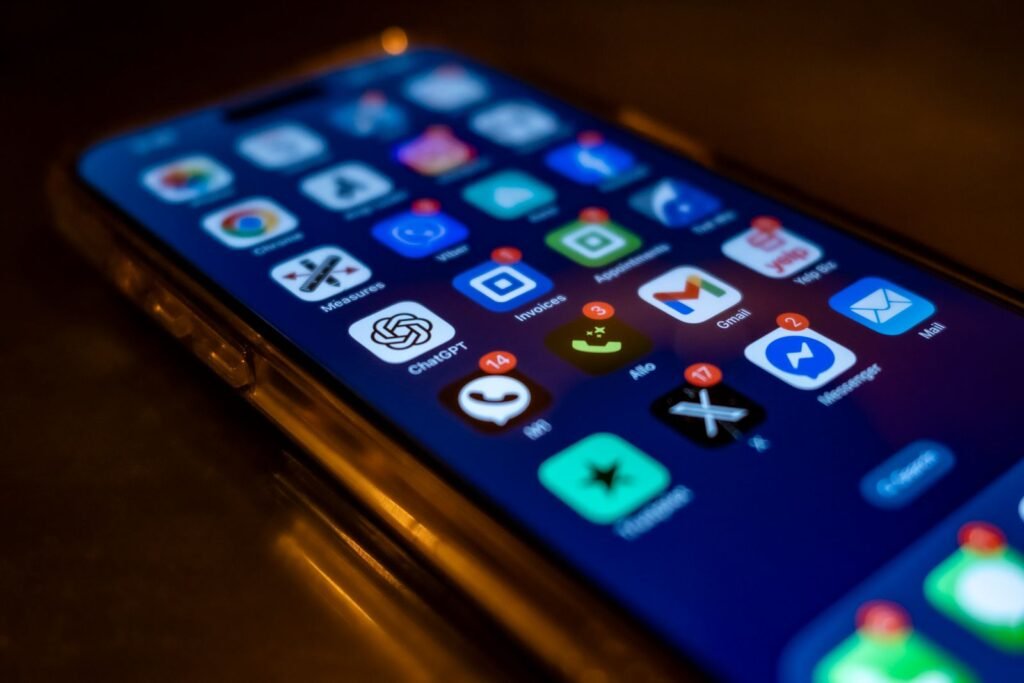
To turn off Facebook notifications, go to Settings & privacy → Settings → Notifications and switch off the categories you do not want, then block Facebook at the operating system level in iOS Settings → Notifications → Facebook or Android Settings → Apps → Facebook → Notifications. Doing only one of those two is why most people stay annoyed.
The reason “I already turned off notifications and they keep coming” is such a common complaint is that people fix one layer and assume the job is done. Facebook’s own category list controls what generates an alert. Your phone’s settings control whether that alert makes a sound. Email and SMS are two more independent channels with their own switches. And Messenger, despite being the same account, is a separate app with a separate notification stack. Work through them in order and you will not have to come back.
| Notification type | Where to turn it off | What you will still get |
|---|---|---|
| Comments, tags, reactions, birthdays, People You May Know | Facebook Settings → Notifications, per category | Nothing in that category, on any device |
| Phone buzzes and lock screen banners | iOS or Android system notification settings | In-app red badge and the bell list when you open Facebook |
| Notifications → Email, or the unsubscribe link in any Facebook email | Security and account emails, if you choose that option | |
| Text messages | Notifications → SMS or Text message | Login codes you request yourself |
| One noisy post or group | The post’s three-dot menu, or the group’s notification settings | Everything else, untouched |
| Messages and calls | Messenger app, Notifications and sounds | Facebook alerts, which are separate |
Step 1: Turn off notification categories inside Facebook
Start here, because a category switched off at the source cannot reach you by push, email or SMS. On desktop, click your profile picture then Settings & privacy → Settings → Notifications. In the app, tap the Menu icon, then Settings & privacy → Settings, and find Notifications under the Preferences heading.
You will see a long list of categories with a switch or a sub-menu for each. The exact set depends on your account and what you use, but it typically includes Comments, Tags, Reminders, More activity about you, Updates from friends, Friend requests, People You May Know, Birthdays, Groups, Events, Pages you follow, Marketplace, Video, Fundraisers and Facebook Dating. Open each one you do not care about and switch it off. Some categories, Reminders being the usual example, have a single master toggle rather than per-channel options.
Inside most categories you also get separate delivery choices, usually Push, Email and SMS. That granularity is worth using. Keeping Comments as an in-app notification while killing its push and email is a much better outcome than nuking the category entirely, because you still see replies when you choose to look.
Step 2: Cut push notifications at the OS level
This is the layer that stops your phone lighting up, and it works regardless of what Facebook’s own settings say.
iOS and iPadOS
- Open the Settings app, tap Notifications, then scroll to Facebook.
- Switch off Allow Notifications to silence everything, or leave it on and uncheck Lock Screen, Notification Center and Banners selectively.
- Set Sounds to off and Badges to off if the red number is the part that bothers you.
- For a softer option, choose Scheduled Summary and pick your delivery times.
Android
- Open Settings → Apps → Facebook → Notifications. On Samsung devices the path is Settings → Notifications → App notifications → Facebook.
- Turn off the master Allow notifications switch, or go channel by channel.
- Android exposes Facebook’s individual notification channels, so you can silence Marketplace or group activity and keep direct interactions. Set the ones you want to keep to Silent rather than off.
- Long-pressing a Facebook notification as it arrives is the shortcut: it opens that exact channel’s settings.
If you use Facebook in a desktop browser, browser notifications are a third thing again. In Chrome, click the icon to the left of the address bar, open Site settings, and set Notifications to Block. Edge keeps the same control under Cookies and site permissions → Notifications, and Safari under Settings → Websites → Notifications.
Step 3: Stop the emails and texts
Email is the channel people forget, and it is the one that keeps arriving after the phone goes quiet. In Notifications → Email, Facebook offers a frequency choice. The setting you want is the option that limits mail to only about your account, security and privacy. That kills the digests, the “you have notifications pending” nudges and the suggested-content mail while keeping the messages that matter.
SMS lives in the same Notifications screen, usually as SMS or Text message. Turn the whole thing off. Facebook will still send a login code when you specifically request one, because that is a response to your action rather than a notification.
Every Facebook email also carries an unsubscribe link at the bottom, which is the fastest route if you are reading one right now. Facebook’s own reference pages, Adjust your email notifications from Facebook and Adjust your mobile push notifications, are kept current when the labels shift.
Step 4: Mute one post, one group, or one person
Most notification fatigue traces back to three or four specific sources rather than Facebook as a whole. Targeted muting is often all you need.
A single post
Tap the three dots in the top right of the post and choose Turn off notifications for this post. This is the fix for the thread with 200 comments you commented on once. It stops future alerts without deleting your comment or leaving the conversation.
A group
Open the group, tap the bell or open its notification settings, and pick a frequency. The choices are roughly All posts, Highlights, Friends’ posts and Off. Highlights is the sensible middle setting for a group you want to stay in but not hear from hourly. You can also snooze a group for a fixed period instead of switching it off permanently.
A person, without unfriending
Two options. Snooze for 30 days from the three-dot menu on any of their posts hides their content from your feed temporarily and quietly, and it expires on its own. Unfollow is the permanent version: you stay friends, keep messaging, and can still visit their profile, but their posts stop appearing in your feed. Neither notifies the other person. For a Page you follow, the same menu offers per-Page notification controls.
Step 5: Messenger is a separate app with separate settings
Turning off Facebook notifications does nothing to Messenger, which trips up almost everyone. Open Messenger, tap your profile picture, then Notifications and sounds. From there you can switch notifications off entirely, mute them for a set period, or turn off just the in-app sounds and vibration. Message requests, calls and reactions each have their own controls.
Individual conversations mute separately: long-press a chat in the list and choose Mute, then pick a duration. Messenger’s push also has its own OS-level entry, listed as Messenger rather than Facebook, so you may need to visit iOS Notifications or Android app notifications twice. If you are still finding your way around the app, our beginner’s guide to Facebook Messenger covers where these controls sit alongside everything else.
Troubleshooting
Notifications came back after an app update. This genuinely happens. New Facebook releases sometimes introduce new notification channels that default to on, and your old blanket setting does not cover a category that did not exist when you set it. After a major update, re-open the Notifications screen and skim for anything new. On Android, check the channel list too, since new channels appear there individually.
The badge count will not clear. Usually a stale count rather than a real notification. Open the bell menu and let it load fully, then pull to refresh. If it persists, force-close the app and reopen it. On iOS, toggling Badges off for Facebook removes the number for good, which is the practical fix if the count is chronically wrong.
Push is off but email keeps arriving. Expected. These are independent channels, and disabling push has no effect on mail. Go to Notifications → Email and set the account-and-security-only option, as in step 3.
Notifications only stop on one device. OS-level settings are per device, so silencing Facebook on your phone leaves your tablet and laptop untouched. Facebook’s in-app category settings are account-wide and sync everywhere, which is why step 1 comes first. If you own several devices, do the account-level work once and only use OS settings for the specific device you want kept quiet.
You turned everything off and still get a red dot. The in-app badge is not a notification. It reflects unread activity in the bell list and will appear even with every push channel disabled. Turning off badges in your OS settings is the only way to hide it.
Frequently asked questions
How do I turn off all Facebook notifications at once?
There is no single master switch. The closest thing is disabling Facebook notifications in your phone’s OS settings, which stops every push alert instantly. You still need to handle email and SMS separately inside Facebook’s Notifications settings, and Messenger separately again in its own app.
Why do I still get Facebook notifications after turning them off?
Almost always because a different layer is still active. Facebook delivers through in-app alerts, OS push, email, SMS and Messenger, and each has independent controls. Switching off push does nothing to email. App updates can also add new notification categories that default to on.
Does turning off Facebook notifications stop Messenger notifications?
No. Messenger is a separate app with its own notification settings, found under your profile picture then Notifications and sounds. Its OS-level push entry is also listed separately from Facebook. You have to turn both off if you want complete silence.
Can I mute a Facebook group without leaving it?
Yes. Open the group, go to its notification settings, and choose Highlights or Off instead of All posts. You remain a member with full access to the group and can post normally. Members and admins are not told that you changed your notification frequency.
Will turning off email notifications stop security alerts?
It can, which is why you should pick the option limiting email to your account, security and privacy rather than switching email off entirely. That keeps unrecognized-login warnings and password change confirmations arriving while blocking digests and suggested content.
How do I stop seeing someone’s posts without unfriending them?
Use Snooze for 30 days or Unfollow from the three-dot menu on one of their posts. Snooze is temporary and expires by itself; unfollowing is permanent until you reverse it. You stay friends either way, can still message each other, and they are never notified.
Wrapping up
If you only do two things, do these: set email to account and security only, and turn Facebook’s push off in your phone’s settings. That removes the two channels responsible for nearly all the interruption while leaving the bell list intact for when you actually open the app. Then mute the two or three specific groups and threads that generated the frustration.
Resist the urge to switch off every category. A silent account that you check on your own schedule is more sustainable than one where you have disabled so much that you miss a message you cared about and turn it all back on a month later. While you are in Settings, it is a good moment to tidy the rest of the account too, starting with hiding your friends list and understanding who can post on your profile, which is the other setting that quietly generates alerts you never asked for.
About this article: GeekBlog covers U.S. technology news, AI, phones, smartwatches and gaming. Every story is written and checked under our Editorial Policy. Spotted a mistake or have a story tip? Contact our editors.
