Close Menu
GeekBlog

    Subscribe to Updates

    Get the latest creative news from FooBar about art, design and business.

    What's Hot

    Binance Says Delete Any iPhone App You Didn’t Get From the App Store. Here’s the Bug Behind It.

    November 15, 2026

    The GTA 6 Soundtrack Leaked From Early Vinyl, and the Full 34-Song Tracklist Is Real

    November 15, 2026

    Jensen Huang Could Face Prison Only If One Thing Is Proven. Here’s What Congress Will Ask Him.

    November 15, 2026
    Facebook
    GeekBlog
    • Home
    • Mobile
    • Tech News
    • Blog
    • Gaming
    • Smartwatch
    • How-To Guides
    • AI & Software
    Facebook
    GeekBlog
    Home»Mobile»GIF Keyboard Missing From Your iPhone? Here’s Where to Find It
    Mobile

    GIF Keyboard Missing From Your iPhone? Here’s Where to Find It

    Olivia HartmanBy Olivia HartmanAugust 1, 2025Updated:October 10, 20265 Mins Read
    Share Facebook Twitter Pinterest LinkedIn Tumblr Email Copy Link
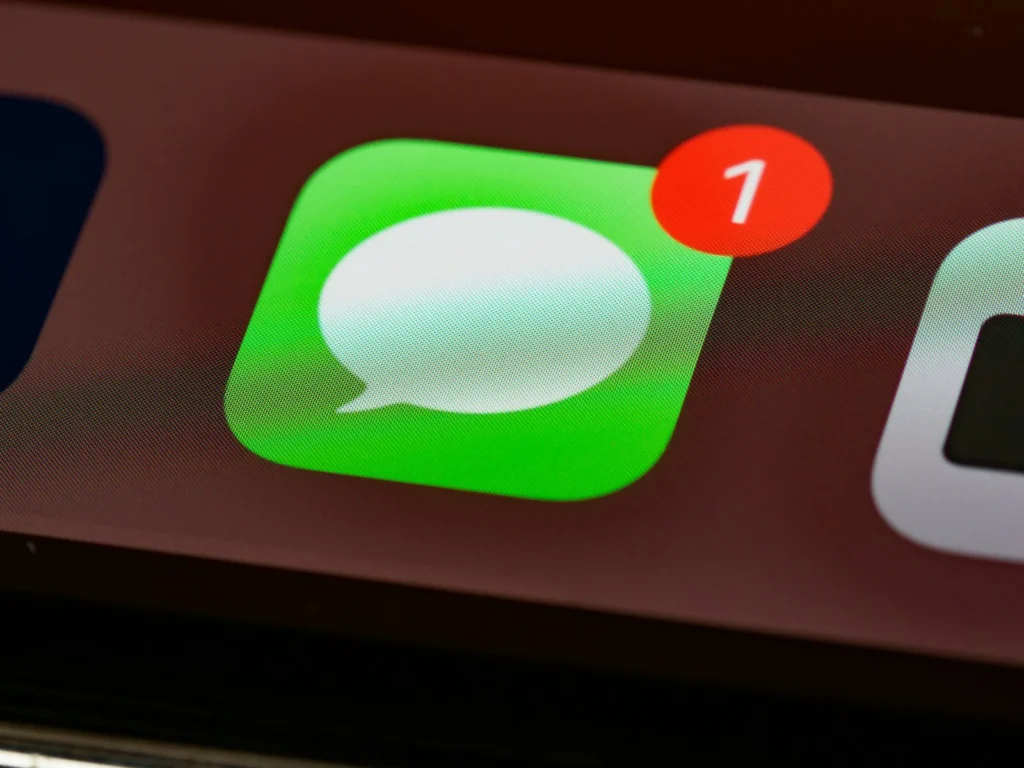
    GIF Keyboard Missing From Your iPhone? Here's Where to Find It
    Photo: Brett Jordan on Unsplash
    Share
    Facebook Twitter LinkedIn Pinterest Email Copy Link

    If the GIF option has vanished from Messages on your iPhone, it is almost always still there, just tucked away in a different spot or switched off in Settings. In iOS 26, Apple’s built in GIF search, called #images, lives inside the plus button next to the text field, not on the keyboard. Third party GIF keyboards such as GIPHY or GIF Keyboard by Tenor appear behind the globe key only after you add them as a keyboard. Here is where to look and how to bring each one back.

    Quick answer: Open a conversation in Messages, tap the plus button left of the text field, then swipe up on the list of apps and tap #images (the magnifying glass over a picture). If it is not listed, go to Settings, Apps, Messages, iMessage Apps and turn #images on. For a third party GIF keyboard, add it in Settings, General, Keyboard, Keyboards, Add New Keyboard.

    Where GIFs live in iOS 26 Messages

    Apple has moved the Messages apps around several times. Older versions showed a row of app icons above the keyboard, and many people still look for GIFs there. Since iOS 17, those apps are grouped behind the plus button, and that is still the case in iOS 26.

    1. Open Messages and start a new message or open a conversation.
    2. Tap the plus button to the left of the text field.
    3. The first screen shows common items such as Camera, Photos and Stickers. Swipe up on the list to see all your Messages apps.
    4. Tap #images, then tap the search field and type a word like happy or congrats.
    5. Tap a GIF to drop it into your message, add a comment if you like, and send.

    You can also move #images higher in the list. Touch and hold its icon until it shrinks slightly, then drag it to the top so it appears without scrolling.

    Built in #images versus a GIF keyboard

    Recommended for you:

    Apple Has Officially Sold 3 Billion iPhones Since 2007
    Mobile·Aug 1, 2025

    Apple Has Officially Sold 3 Billion iPhones Since 2007

    There are two separate ways to send GIFs, and they live in different places. Knowing which one you used before explains why it seems to have disappeared.

    OptionWhere you find itWorks outside Messages?
    Apple #imagesPlus button in MessagesNo
    Third party GIF app for iMessagePlus button in MessagesNo
    Third party GIF keyboardGlobe key under the keyboardYes, in most apps

    If you see a smiley face where the globe used to be, that is a clue. The smiley shows up when your iPhone has only one language keyboard plus emoji enabled. A globe appears once a second keyboard, such as a GIF keyboard, is added.

    How to add a GIF keyboard back to the globe key

    1. Make sure the GIF keyboard app is installed. Search the App Store for the one you used, such as GIPHY or GIF Keyboard by Tenor.
    2. Open Settings and tap General.
    3. Tap Keyboard, then Keyboards.
    4. Tap Add New Keyboard and choose your GIF app under the list of third party keyboards.
    5. Tap the newly added keyboard and turn on Allow Full Access, which GIF keyboards need to search online.

    Back in Messages, tap the globe key to cycle through your keyboards, or touch and hold it to pick the GIF keyboard directly from a list. To send a GIF, search, tap it to copy, then switch back and paste it into the text field if the keyboard does not insert it for you.

    Watch out: Allow Full Access lets a keyboard app send what you type to its developer. GIF keyboards need it to fetch results, but only grant it to apps you trust, and switch back to the Apple keyboard before typing passwords or sensitive details.

    Still no #images? Try these fixes

    • Turn it on in Settings. Go to Settings, Apps, Messages, iMessage Apps and make sure #images is switched on.
    • Check your region and language. Apple offers #images only in certain countries, including the United States, and it can go missing if your keyboard language or region is not supported. Check Settings, General, Language and Region.
    • Reinstall your GIF app. If a third party GIF app vanished from the plus menu, it may have been offloaded or deleted. Download it again from the App Store and it returns to the list.
    • Restart and update. Restart the iPhone, then install the latest iOS 26 update from Settings, General, Software Update.
    • Check your connection. GIF search needs a working cellular or WiFi connection, so a blank results screen often means a network issue.
    Tip: if you find a GIF you love, save it. Touch and hold a GIF in a conversation and choose the save option, and it lands in your Photos library where you can send it again anytime from the Photos button.

    FAQ

    Did Apple remove GIFs from iMessage?

    No. Apple’s #images GIF search still exists in iOS 26. It is located behind the plus button in Messages rather than on the keyboard.

    Why does my keyboard show a smiley face instead of a globe?

    Recommended for you:

    5 Ways to Repurpose Your Old PC Tower (and How to Recycle It)
    Mobile·Aug 2, 2025

    5 Ways to Repurpose Your Old PC Tower (and How to Recycle It)

    Your iPhone has only one keyboard plus emoji enabled. Add a GIF keyboard or another language keyboard and the globe returns.

    Can I use #images in WhatsApp or Instagram?

    No. #images works only in Apple’s Messages app. For GIFs in other apps, use a third party GIF keyboard or the GIF button built into that app.

    Why are GIFs not animating in my messages?

    An accessibility setting can pause them. Go to Settings, Accessibility, Motion and make sure the option to auto play animated images is turned on.

    The verdict

    The GIF option on iPhone is rarely gone, it is just in a new place. Use the plus button in Messages for Apple’s #images, enable it under iMessage Apps if it is missing, and add a GIF keyboard in Settings if you want GIFs behind the globe key in every app.

    Updated October 2026: rewritten for iOS 26 with current steps to find #images, add a GIF keyboard and fix missing GIF search in Messages.

    Featured photo: Brett Jordan on Unsplash.

    About this article: GeekBlog covers U.S. technology news, AI, phones, smartwatches and gaming. Every story is written and checked under our Editorial Policy. Spotted a mistake or have a story tip? Contact our editors.

    iPhone
    Share. Facebook Twitter Pinterest LinkedIn Tumblr Telegram Email Copy Link
    Previous Article30 Year Fixed Mortgage Rates Today: Latest Average and How to Shop
    Next Article Windows 11 Emergency Restart: How to Use the Hidden Option Safely
    Olivia Hartman

      Olivia Hartman is GeekBlog's general technology reporter, covering the wider world of tech beyond smartphones: AI and software, laptops and PCs, gaming, streaming, space, science, consumer gadgets, deals and the policy stories shaping the industry. A versatile journalist with a nose for what actually matters, Olivia turns breaking news and product launches into accessible, no-hype reporting for everyday readers.

      Related Posts

      8 Mins Read

      Apple Counts 100,000 iPhone Duo Apps. Venmo, DoorDash and Google Docs Still Show Black Bars.

      9 Mins Read

      Boost Mobile Now Takes the Fairphone 6 Plus. You Still Pay $649.99 Up Front.

      9 Mins Read

      The Redmi Note 15 Pro+ Out-Drops Samsung’s Rugged Phone. It Is Also 33g Lighter.

      10 Mins Read

      The Pixel Tag Is Finally on Sale for $29. Your Phone Decides Which Half of It You Get.

      9 Mins Read

      The Honor Magic 9 Pro Max Shoots in ARRI LogC3. ARRI’s $80,000 ALEXA 35 Has Moved On to LogC4.

      9 Mins Read

      The iPhone Duo Finally Takes an Apple Pencil. Only the $79 One Without Pressure Works.

      Top Posts

      Every iPhone Camera Ranked in 2026 (Best to Worst)

      July 6, 2026347 Views

      Best Browser for Android in 2026: Top Picks Ranked

      July 7, 2026268 Views

      iPhone Battery Replacement Cost: Every Model, Apple vs Repair Shop

      October 6, 2026193 Views
      Stay In Touch
      • Facebook

      Subscribe to Updates

      Get the latest tech news from FooBar about tech, design and biz.

      Most Popular

      MapQuest Now Shows the Plate Readers on Your Route. It Won’t Say Where the Map Comes From.

      October 19, 2026658 Views

      Apple Told Its Stores Not to Expect iPhone Duo Walk-Ins. Carriers Can Beat January by Weeks.

      October 20, 2026309 Views

      Apple Watch Black Friday 2026: Early Deals, Prices to Beat and When to Buy

      November 8, 2026185 Views
      Our Picks

      Binance Says Delete Any iPhone App You Didn’t Get From the App Store. Here’s the Bug Behind It.

      November 15, 2026

      The GTA 6 Soundtrack Leaked From Early Vinyl, and the Full 34-Song Tracklist Is Real

      November 15, 2026

      Jensen Huang Could Face Prison Only If One Thing Is Proven. Here’s What Congress Will Ask Him.

      November 15, 2026

      Subscribe to Updates

      Get the latest creative news from FooBar about art, design and business.

      HEICJPG.online - Convert HEIC to JPG online
      Facebook
      • About GeekBlog: Our Mission, Team and Editorial Standards
      • Contact us
      • Privacy Policy
      • Disclaimer
      • Terms and Conditions
      • Editorial Policy
      • Cookie Policy
      • Your Privacy Choices
      © 2026 GeekBlog

      Type above and press Enter to search. Press Esc to cancel.