

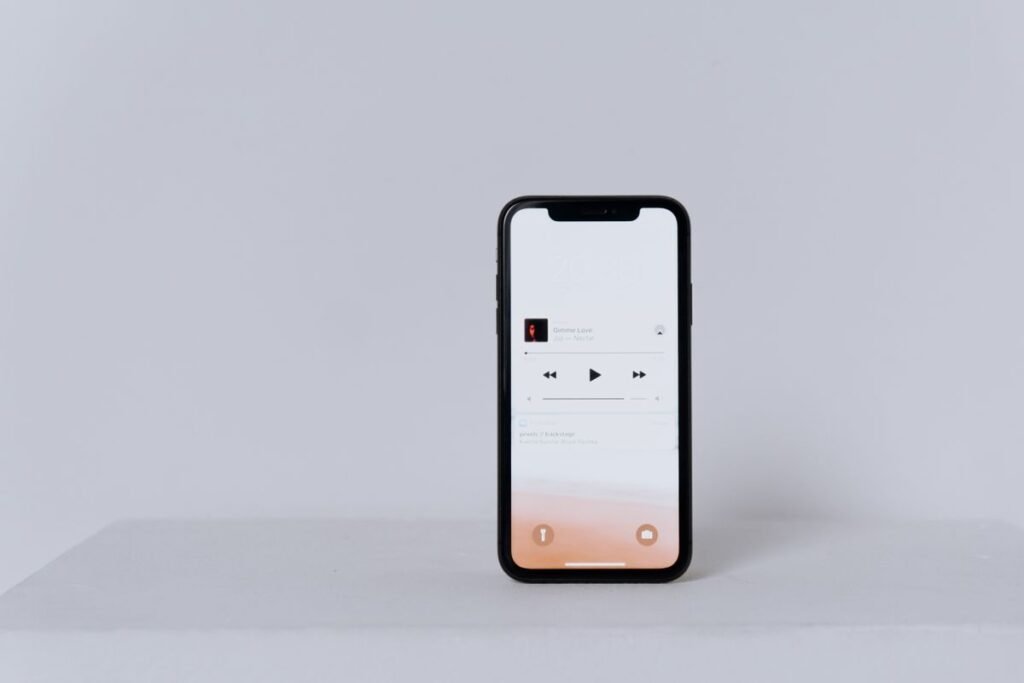
Learning how to use Apple Music is straightforward, whether you are on an iPhone, an Android phone, or a Windows PC. Apple Music is a subscription streaming service with more than 100 million songs, lossless audio, spatial sound, and a deep integration with Apple devices. Unlike some rivals, it does not have a permanent free tier, but it does offer a generous free trial so you can explore everything before deciding to pay.
This beginner’s guide walks you through starting a trial, finding music, building your library, and downloading songs for offline listening. We will be clear about what costs money so there are no surprises, and share tips that make the app easier to enjoy from day one.
Getting started with Apple Music
Apple Music comes preinstalled on iPhone, iPad, and Mac, and is available as a free download for Android and Windows. It is a paid service, but new users typically get a one-month free trial, and Apple sometimes offers longer trials with new devices or partner promotions. You will need an Apple Account (formerly Apple ID) to sign in, which is free to create.
The app is organized into a few clear tabs: Home for recommendations, New for fresh releases and playlists, Radio for live and curated stations, Search to find anything, and your Library for saved music. For more tutorials like this, browse our how-to guides.
Apple Music plans at a glance
Apple Music offers several plans. There is no ad-supported free tier, but the trial lets you test the full service at no cost.
| Plan | Cost | Best for |
|---|---|---|
| Free trial | Free (limited time) | Trying the full service |
| Individual | Monthly fee | One person |
| Family | Higher monthly fee | Up to six people |
| Student | Discounted | Verified students |
| Apple One bundle | Bundle price | Users of multiple Apple services |
How to use Apple Music step by step
Follow these steps to start listening and building your library.
- Open the Apple Music app on iPhone or Mac, or download it from Google Play or the Microsoft Store.
- Sign in with your Apple Account, or create one for free if you do not have it.
- Tap the offer to start your free trial, and review the terms before confirming.
- Use the Search tab to find any song, artist, album, or playlist.
- Tap a song to play it, and tap the plus or Add button to save it to your Library.
- Press and hold a song, album, or playlist and choose Download to listen offline.
- Explore Home and New for personalized mixes and curated playlists that match your taste.
Building your library and downloading music
Adding music to your Library keeps it in one place across all your devices. Once something is in your Library, you can download it for offline listening, which is perfect for flights or areas with poor signal. Turn on Sync Library in Settings so your music appears on every device signed in with the same Apple Account.
- Ad-free streaming of 100M+ songs
- Offline downloads on all devices
- Lossless and spatial audio
- Personalized playlists and radio
- No permanent free ad-supported tier
- Trial auto-renews to paid unless canceled
- Works on Android and Windows too
- Cancel anytime in your account settings
Frequently Asked Questions
Is Apple Music free?
Apple Music is a paid service with no permanent free ad-supported tier. However, new users usually get a free trial of about one month, which gives full access before any charge.
Can I use Apple Music on Android or Windows?
Yes. Apple Music has official apps for Android and Windows, and it also works in a web browser at music.apple.com. Your library syncs across every device you sign in on.
How do I download songs for offline listening?
Add a song, album, or playlist to your Library, then press and hold it and choose Download. Turn on Sync Library in Settings so downloads and your collection appear on all your devices.
What happens when my free trial ends?
Unless you cancel first, the trial automatically converts to a paid monthly subscription. You can cancel anytime in your account settings before the renewal date to avoid a charge.
Does Apple Music have lossless audio?
Yes. Apple Music includes lossless and high-resolution lossless audio, plus Spatial Audio with Dolby Atmos, at no extra cost on compatible devices and headphones.
