

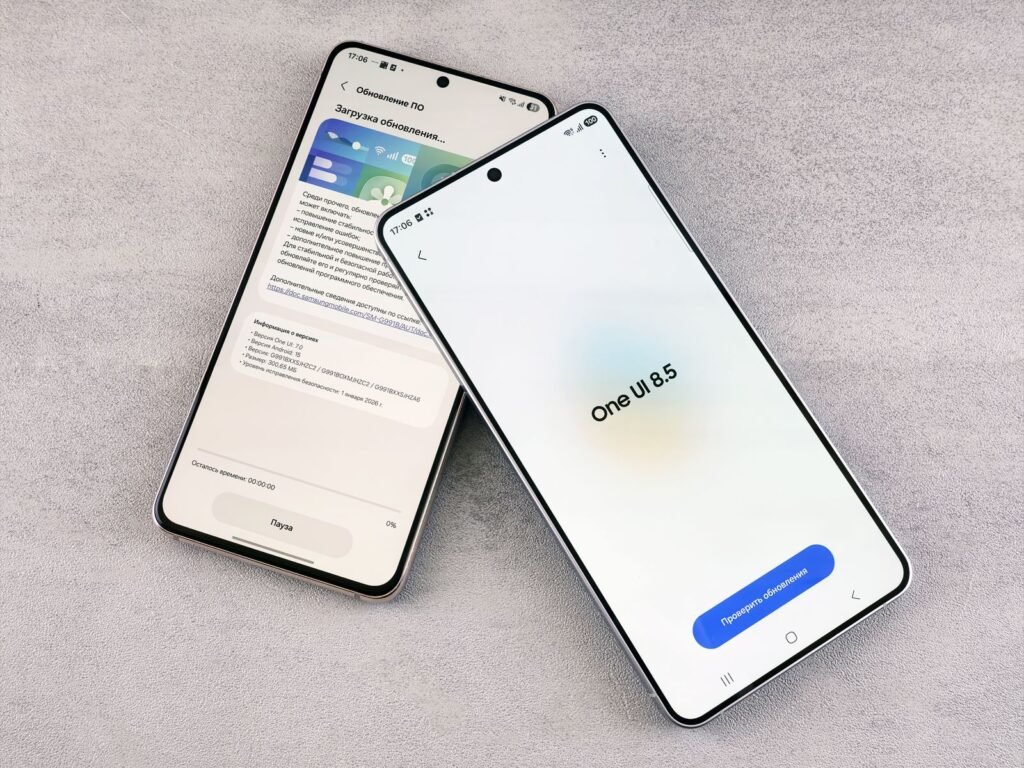
A new Galaxy arrives configured for a shop display, not for you. The screen is not running at its best refresh rate, the lock screen is burning battery on a clock you rarely look at, Samsung is serving you recommendations inside its own apps, and the side button opens an assistant almost nobody asked for. Ten settings fix all of it, and the whole pass takes about five minutes.
Quick answer: Set Motion smoothness to Adaptive, turn off Customization Service and ad personalisation, switch Always On Display to tap to show, remap the side button away from Bixby, move to swipe gestures, enable Auto Blocker, cap charging with Protect battery, and cut the animation scale in Developer options. Everything lives in Settings and nothing here needs root.
Menu wording shifts a little between One UI versions and between the A series and the S series, so treat the paths below as the route rather than the exact letters. If a name does not match, the search box at the top of Settings will find it. It is also worth checking how healthy the battery already is before you start tuning.
The five minute setup
1. Motion smoothness
Settings, Display, Motion smoothness. Choose Adaptive. Standard locks the panel at 60 Hz, which is what many phones ship with. Adaptive lets the display scale up for scrolling and drop down for static content, so you get the smoothness you paid for without the battery penalty of holding a high rate constantly.
2. Animation scale
This is the change people notice most. Enable Developer options first: Settings, About phone, Software information, then tap Build number seven times. Go back to Settings, Developer options and set Window animation scale, Transition animation scale and Animator duration scale to 0.5x.
Nothing gets faster in a benchmark. Everything feels faster, because you stop waiting on a third of a second of decoration between every tap.
3. Customization Service and ad personalisation
Settings, Security and privacy, More privacy settings, Customization Service. Turn it off. This is the feature that lets Samsung analyse your usage to personalise content inside its own apps, and it is opt out rather than opt in on many devices.
While you are there, open Settings, Security and privacy, More privacy settings, Ads and choose to delete or reset the advertising ID.
Tip: Samsung Free, Samsung Push Service and recommendation panels inside Samsung Internet are separate switches. If you still see promotional cards after turning off Customization Service, open the offending app and look for Notifications or Marketing information inside its own settings.
4. Always On Display
Settings, Lock screen and AOD, Always On Display. Set it to Tap to show. Leaving it permanently on keeps a portion of the panel lit all day for information you glance at a handful of times. Tap to show gives you the same clock when you actually want it.
5. The side button
Settings, Advanced features, Side button. Set Press and hold to Power off menu rather than Bixby, and set Double press to Quick launch camera. The double press camera shortcut is the single most useful gesture on the phone and it is not always enabled by default.
6. Navigation gestures
Settings, Display, Navigation bar. Choose Swipe gestures, then open More options and enable Swipe from sides and bottom if you want the back gesture on both edges. You reclaim the strip of screen the three button bar occupies, which on a tall panel is a noticeable amount of reading space.
7. Auto Blocker
Settings, Security and privacy, Auto Blocker. Turn it on. It blocks app installs from sources other than the official stores, scans apps for malware, and blocks commands sent over USB when the phone is locked. If you deliberately sideload, leave it off and understand the trade, but for most people it closes the exact door that Android banking trojans walk through.
8. Protect battery
Settings, Battery, Battery protection. Pick Adaptive if the phone is usually on a charger overnight, or Maximum to hold the charge at 80 percent if it lives on a desk. Lithium cells age fastest when held near full, so a cap is the cheapest way to keep capacity healthy over a phone you now expect to keep for years.
9. Notification behaviour
Settings, Notifications, Advanced settings. Turn on Show notification icons and set it to All notifications, and enable App icon badges with numbers if you triage by count. Then open Notification history and switch it on. Nothing is more annoying than swiping away something important, and history makes that recoverable.
10. Screen resolution and Edge panels
On S series Ultra models, Settings, Display, Screen resolution ships at FHD+ rather than the panel’s native QHD+. Switch it up if you value sharpness, leave it if you value runtime. Then go to Settings, Display, Edge panels and turn them off unless you use them, because the handle intercepts swipes at the exact edge many apps use for their own gestures.
| Setting | Where | Change to |
|---|---|---|
| Motion smoothness | Display | Adaptive |
| Animation scales | Developer options | 0.5x, all three |
| Customization Service | Security and privacy | Off |
| Always On Display | Lock screen and AOD | Tap to show |
| Side button | Advanced features | Power off menu, camera on double press |
| Navigation | Display | Swipe gestures |
| Auto Blocker | Security and privacy | On |
| Battery protection | Battery | Adaptive or Maximum |
| Notification icons and history | Notifications | On |
| Edge panels | Display | Off unless used |
Warning: Leave the rest of Developer options alone. The animation scales are safe and reversible. Toggles further down that page change how the graphics stack and the USB configuration behave, and a wrong one can leave you with a phone that will not connect to a computer or renders incorrectly.
What I deliberately leave alone
Half of the value of a setup pass is knowing where to stop. These get touched constantly in videos and almost always make things worse.
Aggressive background restrictions. One UI already manages background apps assertively. Adding a third party task killer, or putting messaging apps to sleep, produces the classic Samsung complaint of notifications arriving hours late. If a message app matters to you, do the opposite and mark it as never sleeping under Battery, Background usage limits.
Turning off all animations completely. Setting the scales to zero rather than 0.5x removes the visual cue that a screen changed, which makes the interface feel broken rather than fast.
Disabling system apps through developer tools. Removing packages over a debug bridge can break updates and, on some models, the camera or the phone dialler. Disable what the Settings screen lets you disable and leave the rest.
Blue light filters left on all day. Eye Comfort Shield at maximum warmth all day makes every photo you review look wrong. Schedule it for the evening instead.
Maximum brightness with adaptive brightness off. The panel is the largest consumer of battery on the phone. Leaving adaptive brightness on is worth more than every other battery tweak on this page combined.
Troubleshooting
Motion smoothness is missing. Some A series models have a 60 Hz panel, so the menu never appears. Nothing is wrong.
Animations came back after an update. Major One UI upgrades reset Developer options. Re enable it and set the scales again.
Auto Blocker keeps blocking an app you want. Turn it off temporarily, install, then turn it back on. Leaving it off permanently for one app is the wrong trade.
Battery life got worse, not better. Give it a week. A new phone indexes, syncs and updates in the background, and the first few days are never representative. If it persists, check which apps are running in the background before blaming the settings.
Frequently asked questions
Will turning off Customization Service break anything?
No. Samsung apps continue to work exactly as before. What changes is that they stop tailoring recommendations and promotional cards to your usage data. Nothing you paid for depends on it.
Does lowering the animation scale drain the battery faster?
No. It shortens the duration of animations that were going to render anyway, so the screen finishes drawing sooner. If anything the effect on battery is marginally positive.
Is capping charging at 80 percent worth losing the extra capacity?
If you charge overnight and rarely need a full day of heavy use, yes. Cells degrade fastest at high states of charge and high temperature, so a cap trades a little daily headroom for slower long term capacity loss. Samsung documents the behaviour in its own battery protection guidance.
Can I disable Bixby completely?
You can remove it from the side button and turn off the wake phrase, which covers the ways it interrupts you. The service itself remains installed on most models and cannot be uninstalled without a computer.
Do these settings apply to the A series as well as the S series?
Almost all of them. Screen resolution and some display options only exist on higher end models, but the privacy, battery, navigation and notification settings are identical across One UI. Our budget Samsung buying guide covers what the cheaper models leave out.
The bottom line
None of these changes are dramatic on their own. Together they turn a phone configured for a retail shelf into one configured for a person: faster to the touch, quieter in your notifications, harder to trick into installing something nasty, and gentler on a battery you now expect to keep for the better part of a decade.
