

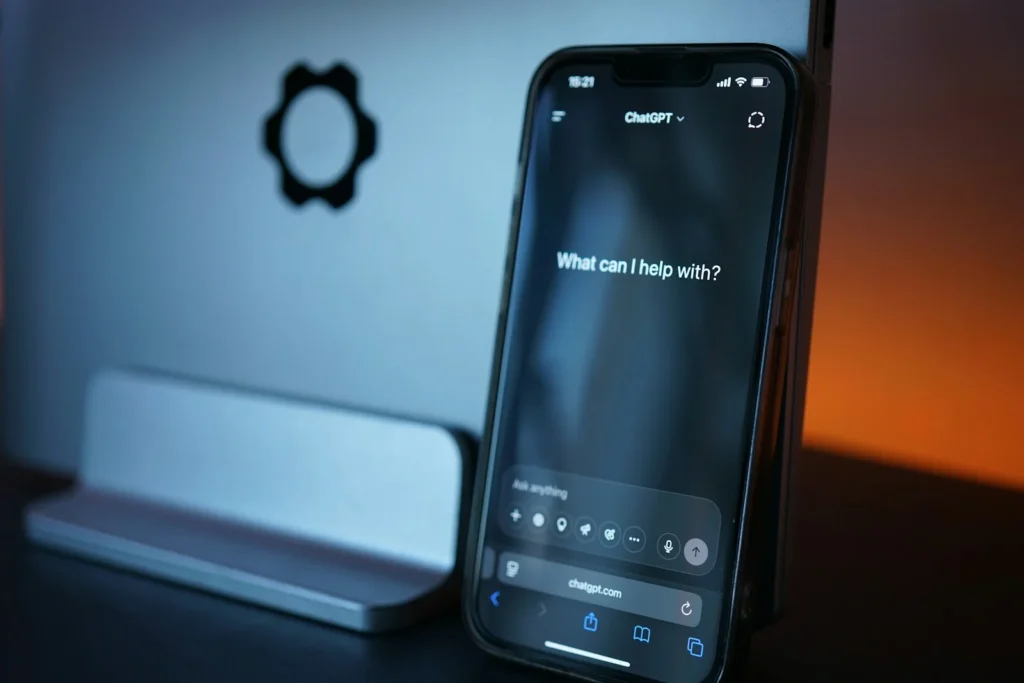
ChatGPT ships with sensible defaults, but a handful of settings decide how it talks to you, what it remembers and whether your chats help train future models. Changing seven of them takes about ten minutes and makes every later conversation better suited to you. Here is what each one does and exactly where to find it in ChatGPT as of October 2026.
How to reach ChatGPT settings
On the web and the desktop apps, click your profile name or icon in the sidebar and choose Settings or Personalization. Both open the same panel, just on different tabs. On iPhone and Android, open the sidebar, tap your profile icon and you land in Settings. Menu labels can differ slightly by plan, region and app version, and OpenAI notes that a setting may not appear on your account yet.
| Setting | Where it lives | What it changes |
|---|---|---|
| Custom instructions | Personalization | Standing context and rules for every chat |
| Base style and tone | Personalization | The overall voice of replies |
| Characteristics | Personalization | Warmth, enthusiasm, formatting, emojis |
| Memory | Personalization, Memory | What ChatGPT recalls between chats |
| Improve the model for everyone | Data controls | Whether new chats can be used for training |
| Apps | Apps | Which outside services ChatGPT can reach |
| Voice | Voice | Voice choice, language, background talking |
1. Custom instructions and 2. Personality
Custom instructions are the single most useful tweak. Go to Settings, then Personalization, switch on Enable customization and type into the Custom Instructions field. On mobile the same option sits under Customize ChatGPT. Tell it who you are, what you usually need and how you want answers shaped, for example: keep replies short, use US units, ask before making assumptions. Free and Go accounts get 1,500 characters, while Plus, Pro, Business, Enterprise and Education plans get 5,000.
Personality comes in two layers. The Base style and tone dropdown offers Default, Professional, Friendly, Candid, Quirky, Efficient and Cynical. Below it, Characteristics let you push four traits up or down: Warm, Enthusiastic, Headers & Lists and Emojis. If you find replies too chatty, try Efficient with fewer emojis. If you prefer flowing paragraphs over bullet points, turn Headers & Lists down.
3. Memory and 4. Data controls
Memory lives under Settings, Personalization, Memory. Two switches matter. Reference saved memories covers facts ChatGPT has stored about you, and turning it off also turns off the second switch. Reference chat history lets it draw on relevant past conversations. Switching chat history off schedules what it learned from old chats for deletion within 30 days, but your chats themselves stay in the sidebar. Open the memory list now and then to delete anything outdated or too personal.
Next, open Data controls. The Improve the model for everyone toggle decides whether new conversations on a personal Free, Go, Plus or Pro account may be used to train OpenAI models. Turning it off keeps your history intact. If you use voice or video, the same screen has separate toggles for including your audio and video recordings. Data controls is also where you request an export of your data.
5. Temporary chat, 6. Apps and 7. Voice
Temporary chat is the incognito mode of ChatGPT. Start a new chat, select Temporary and choose Personalized or Unpersonalized before your first message, because you cannot switch later. These chats stay out of your history, do not create or update memories and are not used for training, although OpenAI may keep a copy for up to 30 days for safety. Saving a temporary chat turns it into a regular one.
Apps, the connections to outside services such as cloud drives, calendars and email, sit under Settings, Apps. Review what is connected and disconnect anything you no longer use. On Free, Go, Plus and Pro accounts, information ChatGPT pulls from apps may be used for training if Improve the model for everyone is on, so the two settings work together.
Finally, Settings, Voice lets you pick one of nine voices (Arbor, Breeze, Cove, Ember, Juniper, Maple, Sol, Spruce and Vale), set the spoken language and, on mobile, turn on Background conversations so a voice chat keeps going while you switch apps or lock your phone. Supported mobile versions also offer Start with Voice.
Training off, chat history memory off, Temporary for sensitive topics.
Efficient tone, fewer emojis, clear custom instructions.
Memory on, useful apps connected, Background conversations on.
FAQ
Do these settings sync between devices?
Account level settings such as custom instructions, personality, memory and data controls follow your login, so changes made on the web show up in the mobile apps. A few options, like some voice features, appear only on mobile.
Does turning off memory delete my chats?
No. Turning off Memory or chat history reference does not remove past conversations. Delete individual chats separately if you want them gone.
Can I stop OpenAI from training on my chats?
Yes. Turn off Improve the model for everyone under Data controls. Business, Enterprise and Edu workspaces are excluded from training by default.
Why do I not see some of these options?
OpenAI rolls features out gradually, and availability depends on plan, region, platform and, for work accounts, workspace admin settings.
The verdict
Start with custom instructions and a base style that matches how you work, then spend two minutes on memory and Data controls. Those few switches shape every answer you get and decide how much of your activity stays private, which makes them the most valuable ten minutes you can spend in ChatGPT.
Updated October 2026: this version covers personalization, memory, data controls, temporary chat, apps and voice settings as they appear in current ChatGPT apps.
Featured photo: Tim Witzdam on Unsplash.
About this article: GeekBlog covers U.S. technology news, AI, phones, smartwatches and gaming. Every story is written and checked under our Editorial Policy. Spotted a mistake or have a story tip? Contact our editors.
