

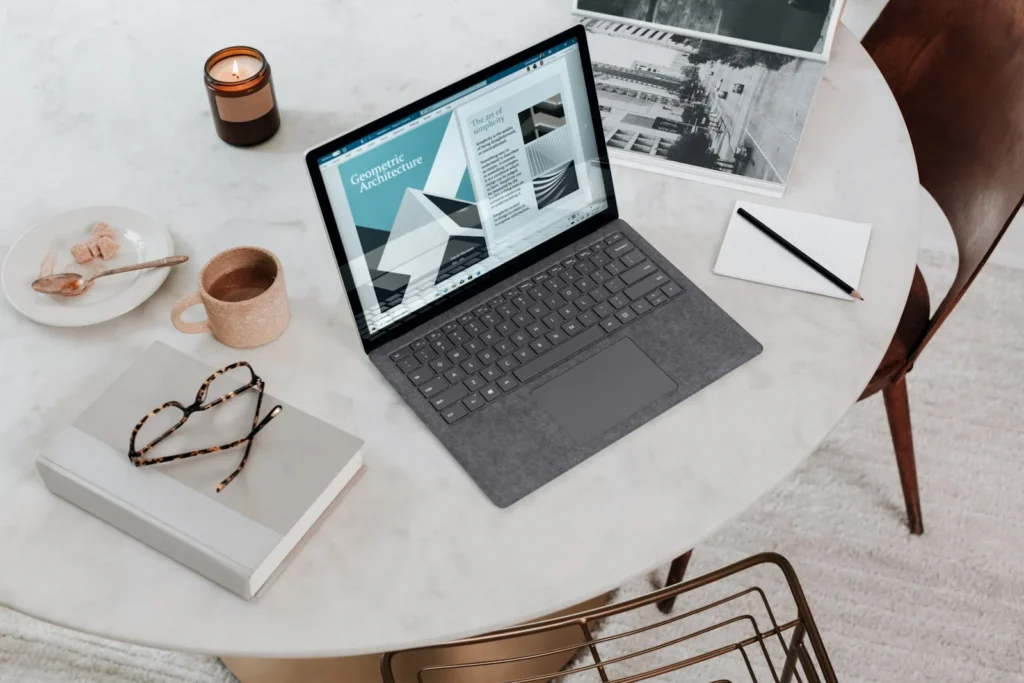
A Windows 11 PC that is running out of room usually is not full of your photos and documents. It is full of leftovers: temporary files, old update packages, a forgotten Recycle Bin, apps you never open and a hibernation file the size of your RAM. Clear those out and you can often reclaim many gigabytes without touching a single file you care about.
Start with the built in storage tools
Windows 11 version 25H2 keeps almost everything you need in one place. Go to Start, Settings, System, Storage. The top of the page shows how your drive is used, broken into categories such as apps, temporary files and documents. That overview alone tells you where the space went.
- Click Cleanup recommendations. Windows groups suggestions into Temporary files, Large or unused files, Files synced to the cloud and Unused apps. Review each list and click Clean up only for items you recognize.
- Go back and open Temporary files. Wait for the scan, tick the categories you want gone (Windows Update Cleanup, Delivery Optimization Files, Thumbnails, temporary internet files and similar) and click Remove files.
- Leave Downloads unticked unless you have checked that folder yourself. It is the one category in that list that can hold files you still want.
Turn on Storage Sense so it stays clean
Storage Sense is the automatic version of the cleanup above. In Settings, System, Storage, switch on Storage Sense, then click it to set the details:
- Keep Cleanup of temporary files enabled.
- Choose how often it runs, for example every week or when disk space is low.
- Pick how long files stay in the Recycle Bin before deletion, such as 30 days.
- Set the Downloads rule to Never if you use that folder as a working folder.
- If you use OneDrive, choose when unopened cloud files become online only again.
You can click Run Storage Sense now at the bottom of the page to apply it immediately.
Clear old Windows Update files with Disk Cleanup
The classic Disk Cleanup tool is still part of Windows 11 and it digs a little deeper than the Settings page. Search the Start menu for Disk Cleanup, choose drive C and click Clean up system files. After a second scan, tick Windows Update Cleanup, Delivery Optimization Files, Temporary files and Recycle Bin, then click OK. The update cleanup can take a while on a PC that has installed months of patches, so let it finish.
Other safe places to find space
Deleted files still use space until you right click the Recycle Bin and choose Empty Recycle Bin. In its Properties you can also cap how much space it may use.
Go to Settings, Apps, Installed apps, sort by size and uninstall games and programs you no longer open. Large games are often the single biggest win.
If you never use hibernate, open Terminal as administrator and run
powercfg /hibernate off. The hidden hiberfil.sys file, roughly as large as a big share of your RAM, disappears. This also disables Fast Startup.Search for Create a restore point, select drive C, click Configure and lower the disk space slider, or delete older points. Keep some space reserved so you can still roll back.
Two more checks are worth a minute. In File Explorer, open your user folder, switch to the details view and sort by size to spot forgotten video exports, installer files or old phone backups. And if your PC has a second drive, use Advanced storage settings, then Where new content is saved, to send new apps, music and videos there instead of drive C.
What not to delete
Some folders look tempting but should be left alone. Do not manually delete anything inside the Windows folder, the WinSxS component store, Program Files or the hidden ProgramData folder. Removing files there by hand can break updates or apps. Skip so called registry cleaners and system optimizer tools too, since Windows already includes everything you need. And avoid turning off the page file; it is part of how Windows manages memory, not wasted space.
If you have done all of this and the drive is still nearly full, the honest answer is that your files simply need more room. An external SSD for archives, or a cloud plan for photos, is cheaper than fighting the same full drive every month.
FAQ
Is it safe to delete temporary files in Windows 11?
Yes. Files listed under Temporary files in Settings are caches, logs and update leftovers that Windows can recreate. Just review the Downloads category before ticking it.
Does Disk Cleanup still exist in Windows 11?
Yes. You can still open it from the Start menu, and the Clean up system files button is the easiest way to remove old Windows Update packages.
Will turning off hibernation cause problems?
For most desktop users, no. You lose the hibernate option and Fast Startup, so cold boots may take a few seconds longer. Laptop users who rely on hibernate should keep it.
How much space should I keep free?
Leave enough room for Windows to install feature updates and for your apps to work comfortably. A good rule is to avoid letting the system drive fill up completely, and to clean up whenever Windows warns about low space.
The verdict
Freeing up space on Windows 11 is mostly about clearing what Windows leaves behind, not deleting your memories. Run Cleanup recommendations and Temporary files, switch on Storage Sense, use Disk Cleanup for old updates, then trim apps, hibernation and restore points. Do it once and set Storage Sense to keep it that way.
Updated October 2026: rewritten for Windows 11 version 25H2 with current Settings paths, Storage Sense options and safe cleanup steps.
Featured photo: Windows on Unsplash.
About this article: GeekBlog covers U.S. technology news, AI, phones, smartwatches and gaming. Every story is written and checked under our Editorial Policy. Spotted a mistake or have a story tip? Contact our editors.
