Close Menu
GeekBlog

    Subscribe to Updates

    Get the latest creative news from FooBar about art, design and business.

    What's Hot

    Patrick Stewart Chose Aquamation Over Cremation. Here’s How Water Cremation Works.

    November 21, 2026

    Garmin Gives Your Dog a Profile: New Watch Update Adds Dog Workouts, Badges and Better Swim Tracking

    November 21, 2026

    Ashton Kutcher Turned $435 Million Into a $7 Billion Anthropic Stake. His Track Record Goes Back to Skype.

    November 21, 2026
    Facebook
    GeekBlog
    • Home
    • Mobile
    • Tech News
    • Blog
    • Gaming
    • Smartwatch
    • How-To Guides
    • AI & Software
    Facebook
    GeekBlog
    Home»Tech News»Roku Secret Menus: How to Unlock Hidden Screens on Your Roku
    Tech News

    Roku Secret Menus: How to Unlock Hidden Screens on Your Roku

    Olivia HartmanBy Olivia HartmanJanuary 6, 2026Updated:October 10, 20265 Mins Read
    Share Facebook Twitter Pinterest LinkedIn Tumblr Email Copy Link
    Roku Secret Menus: How to Unlock Hidden Screens on Your Roku
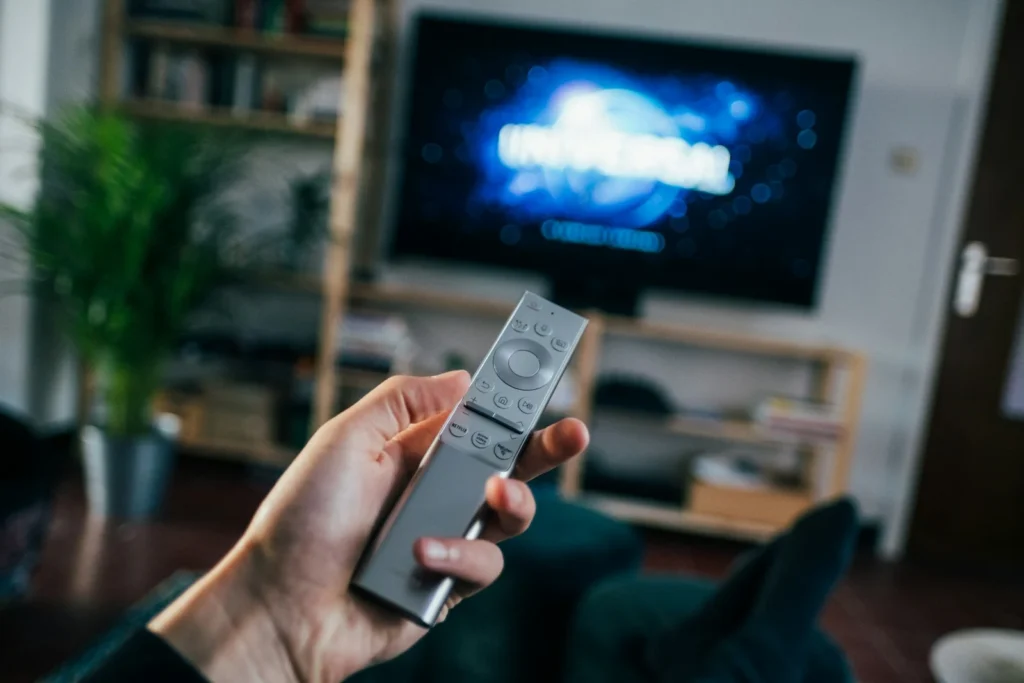
    Photo: Jonas Leupe on Unsplash
    Share
    Facebook Twitter LinkedIn Pinterest Email Copy Link

    Yes, your Roku has hidden menus. Short sequences of button presses on the remote open diagnostic screens that show your WiFi signal quality, HDMI details, app versions and more, and one of them is Roku’s official developer mode. Below are the sequences that are documented by Roku or consistently reported across Roku devices, what each screen does, and which options you should leave alone.

    Quick answer: Start on the Roku Home screen and press the buttons quickly in order. The most useful one is the wireless secret screen: Home five times, then Up, Down, Up, Down, Up. It shows signal strength and connection quality, which helps diagnose buffering. Developer mode, the only menu Roku officially documents, is Home three times, Up twice, then Right, Left, Right, Left, Right.

    Before you start

    • You need a Roku streaming stick, box or Roku TV and its remote. The free Roku mobile app works too, since its remote mimics the physical buttons.
    • Press the buttons in quick succession. If you pause too long between presses, the sequence resets and nothing happens.
    • Results vary by model and software version. Some screens look different on Roku TVs than on streaming sticks, and Roku can change or remove hidden screens in any update.
    • Press Home or Back to leave most screens without changing anything.

    Roku secret menu codes

    MenuButton sequenceWhat it shows
    Wireless secret screenHome x5, Up, Down, Up, Down, UpSignal strength, channel, glitch counts, WiFi tools
    Network infoHome x5, Right, Left, Right, Left, RightIP and MAC addresses, connection status, network setup
    Platform secret screenHome x5, Fast Forward, Play/Pause, Rewind, Play/Pause, Fast ForwardDevice details such as CPU temperature, plus remote diagnostics submenus
    HDMI screenHome x5, Down, Left, Up, Up, UpSupported resolutions, refresh rates and HDMI status
    App version infoHome x3, Up x2, Left, Right, Left, Right, LeftBuild and version numbers of installed streaming apps
    Developer modeHome x3, Up x2, Right, Left, Right, Left, RightEnables sideloading of one test app (official)
    Reset and update screenHome x5, Fast Forward x3, Rewind x2Factory reset, update checks, USB tests
    Secret screen 2Home x5, Up, Right, Down, Left, UpInternal toggles for screenshots, image and ad services
    Quick rebootHome x5, Up, Rewind x2, Fast Forward x2No menu; the remote stops responding briefly and the Roku restarts

    Recommended for you:

    A New Bridge Links the Strange Math of Infinity to Computer Science
    Tech News·Jan 5, 2026

    A New Bridge Links the Strange Math of Infinity to Computer Science

    The menus worth using

    Wireless secret screen for buffering problems

    If shows keep pausing to buffer, this is the first place to look. It displays signal strength and connection quality over time, so you can see whether the problem is a weak WiFi signal in that room or something further upstream. If the signal looks poor, try moving the router closer, switching to the 5GHz band if your router offers it, or plugging in an Ethernet cable on models that support one.

    Network info for quick troubleshooting

    This screen gives you the device IP and MAC address without digging through Settings. That is handy when you need to reserve an IP address in your router, set up parental controls on the network, or check that the Roku joined the right network. The same details are also available in Settings, Network, About.

    HDMI screen for picture issues

    If your TV shows a black screen, flickers, or will not display 4K or HDR, the HDMI screen helps you see which resolutions and refresh rates your TV reports. It is most useful for Roku sticks and boxes plugged into an external TV or receiver.

    Developer mode for app makers

    Roku’s own developer documentation describes this sequence. It lets you enable the Development Application Installer, set a password and then upload one test app through a web page on your home network. Unless you build Roku apps, there is no reason to turn it on.

    Watch out: hidden screens are diagnostic tools meant for engineers and support staff. Options such as factory reset, purging network settings or toggling internal services can erase your setup or change how the device behaves. A factory reset removes your accounts, apps and preferences, and you will need to sign in to every streaming service again. If you only want to look around, read the information and press Home to exit without selecting anything.

    Safer official alternatives

    Many hidden menu actions have standard equivalents in Settings, which is the better route for most people:

    • Restart: Settings, System, Power, System restart (on some models the restart option sits directly under System).
    • Check for updates: Settings, System, Software update, Check now.
    • Network check: Settings, Network, Check connection.
    • Factory reset: Settings, System, Advanced system settings, Factory reset.
    Tip: the remote in the Roku mobile app makes these sequences easier, because tapping on a phone screen is often faster than pressing physical buttons. Make sure your phone is on the same WiFi network as your Roku.

    FAQ

    Why does nothing happen when I enter a code?

    You were probably too slow between presses or did not start from the Home screen. Return to Home and try again quickly. Some screens may not exist on every model or software version.

    Recommended for you:

    RGB Stripe OLED Gaming Monitors: Why the New Layout Matters
    Gaming·Jan 5, 2026

    RGB Stripe OLED Gaming Monitors: Why the New Layout Matters

    Can these menus damage my Roku?

    Viewing information is harmless. Changing settings you do not understand, such as resetting or purging network data, can wipe your setup, so avoid selecting options unless you know what they do.

    Does Roku officially support these screens?

    Roku documents developer mode for app creators. The other screens are internal diagnostics that Roku does not publicly document and may change at any time.

    Do the codes work on Roku TVs?

    Generally yes, since Roku TVs run the same Roku OS, though some screens look different or show TV specific options.

    The verdict

    Roku’s secret menus are a fun peek under the hood and genuinely useful for diagnosing WiFi and HDMI problems. Stick to reading the information, use the regular Settings menu for resets and updates, and leave developer mode alone unless you build apps.

    Updated October 2026: rewritten as a guide to Roku hidden menu sequences, with safety notes and official Settings alternatives.

    Featured photo: Jonas Leupe on Unsplash.

    About this article: GeekBlog covers U.S. technology news, AI, phones, smartwatches and gaming. Every story is written and checked under our Editorial Policy. Spotted a mistake or have a story tip? Contact our editors.

    Share. Facebook Twitter Pinterest LinkedIn Tumblr Telegram Email Copy Link
    Previous Article6 Best Smart Watch for Seniors — Top Picks for Safety, Ease of Use, and Value
    Next Article Vivo V24 Review: Performance, Camera Features, and Battery Life
    Olivia Hartman

      Olivia Hartman is GeekBlog's general technology reporter, covering the wider world of tech beyond smartphones: AI and software, laptops and PCs, gaming, streaming, space, science, consumer gadgets, deals and the policy stories shaping the industry. A versatile journalist with a nose for what actually matters, Olivia turns breaking news and product launches into accessible, no-hype reporting for everyday readers.

      Related Posts

      6 Mins Read

      Patrick Stewart Chose Aquamation Over Cremation. Here’s How Water Cremation Works.

      5 Mins Read

      Ashton Kutcher Turned $435 Million Into a $7 Billion Anthropic Stake. His Track Record Goes Back to Skype.

      7 Mins Read

      Bryan Johnson Says Your Phone Is Hurting Your Eyes. Here’s What His Scans Found and What Actually Helps.

      7 Mins Read

      AI Flagged a Doritos Bag as a Gun and Police Came Armed. Now Four Students Are Suing.

      7 Mins Read

      A Former NASA Physicist Says Reality Only “Renders” When You Look. Here’s How His Parking Lot Theory Holds Up.

      7 Mins Read

      Reporters Had to Bag Their Phones on Air Force One Leaving China. Here’s What a Faraday Bag Actually Stops.

      Top Posts

      Every iPhone Camera Ranked in 2026 (Best to Worst)

      July 6, 2026393 Views

      Apple Watch Black Friday 2026: Early Deals, Prices to Beat and When to Buy

      November 8, 2026219 Views

      Best Browser for Android in 2026: Top Picks Ranked

      July 7, 2026188 Views
      Stay In Touch
      • Facebook

      Subscribe to Updates

      Get the latest tech news from FooBar about tech, design and biz.

      Most Popular

      Apple Watch Black Friday 2026: Early Deals, Prices to Beat and When to Buy

      November 8, 2026422 Views

      One UI 9 Watch: Which Galaxy Watches Get Wear OS 7, and Who Gets Left Behind

      November 6, 2026206 Views

      Garmin Lily 2 Review: Lily 2 vs Active vs Classic in 2026

      November 6, 2026118 Views
      Our Picks

      Patrick Stewart Chose Aquamation Over Cremation. Here’s How Water Cremation Works.

      November 21, 2026

      Garmin Gives Your Dog a Profile: New Watch Update Adds Dog Workouts, Badges and Better Swim Tracking

      November 21, 2026

      Ashton Kutcher Turned $435 Million Into a $7 Billion Anthropic Stake. His Track Record Goes Back to Skype.

      November 21, 2026

      Subscribe to Updates

      Get the latest creative news from FooBar about art, design and business.

      HEICJPG.online - Convert HEIC to JPG online
      Facebook
      • About GeekBlog: Our Mission, Team and Editorial Standards
      • Contact us
      • Privacy Policy
      • Disclaimer
      • Terms and Conditions
      • Editorial Policy
      • Cookie Policy
      • Your Privacy Choices
      © 2026 GeekBlog

      Type above and press Enter to search. Press Esc to cancel.