

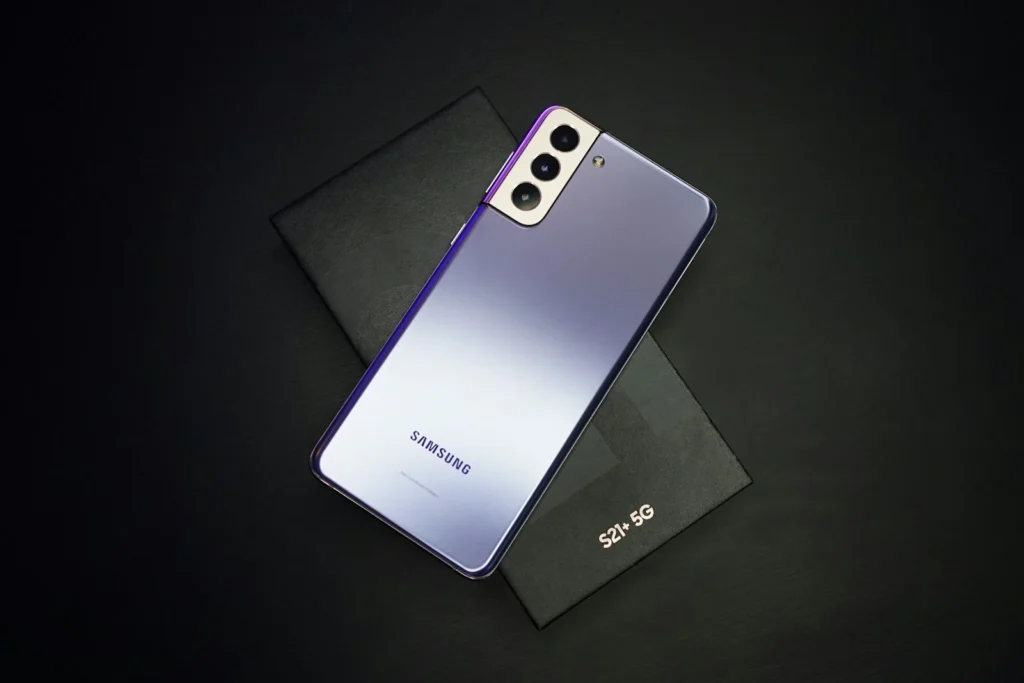
If your Galaxy phone struggles to last until bedtime, you do not need a new phone or a third party battery app. Samsung’s One UI already includes the switches that matter most, they are just spread across several menus. Here are nine settings worth changing on One UI 8 and One UI 8.5, with the exact path for each one.
Before you start: where the battery menu lives now
On current Galaxy phones, Battery has its own entry in the main Settings list. On older builds it sat inside Battery and device care, so if a path below does not match your phone, look there instead or simply use the search bar at the top of Settings. Samsung notes that menu names can vary slightly by model and software version.
It is also worth opening Settings, Battery once a day for a few days. The usage breakdown shows which apps actually drain power, so you can focus on real culprits instead of guessing.
Display settings: the biggest drain on most phones
1. Motion smoothness
Go to Settings, Display, Motion smoothness. Samsung offers three choices on supported models: Adaptive raises the refresh rate up to 120Hz only when it helps and lowers it when the screen is static, High locks a fast rate at all times, and Standard fixes the display at 60Hz. Samsung describes Standard as the option for the best battery life, while Adaptive is a sensible middle ground that keeps scrolling smooth.
2. Dark mode
Go to Settings, Display and tap Dark. Galaxy phones use OLED panels, where black pixels are simply switched off, so a dark interface and a dark wallpaper reduce how much power the screen needs. The gain is modest but adds up over a day of use.
3. Screen timeout
Go to Settings, Display, Screen timeout. Samsung’s own support guidance points to 15 seconds for the most savings, with 30 seconds as the default. Pick the shortest delay you can live with, and press the side key to lock the phone when you put it down.
4. Adaptive brightness
In Settings, Display, make sure Adaptive brightness is on and drag the slider a little lower than you normally would. The phone learns your preference and avoids running the screen brighter than the room requires.
5. Always On Display
Go to Settings, Lock screen and AOD, Always On Display. You can turn it off entirely, or open When to show and choose Tap to show, As scheduled or For new notifications instead of keeping it on all the time.
App and system settings
6. Background usage limits
Go to Settings, Battery, Background usage limits and switch on Put unused apps to sleep. Apps you have not opened in a while are then paused automatically. You can also add specific apps to three lists:
- Sleeping apps can still run in the background once you open them again.
- Deep sleeping apps never run in the background and only work while open. Good for shopping or travel apps you rarely use.
- Never sleeping apps are always allowed to run. Put messaging, alarm and fitness apps here so you do not miss notifications.
7. Power saving
Go to Settings, Battery, Power saving. On One UI 8 you get individual toggles that limit CPU speed, trim maximum brightness by 10 percent, drop to 60Hz, enable Dark mode and shorten the timeout. One UI 8.5 groups these into a Standard mode and adds a more flexible Maximum mode that blacks out the home screen, greys out most apps and lets you choose which apps stay available. Power saving can delay background syncing and notifications, so treat it as a tool for long days rather than an always on setting.
8. Connections you are not using
Open the Quick panel or go to Settings, Connections and switch off WiFi or Bluetooth when you are away from known networks and devices. It also helps to turn off automatic syncing for accounts you do not need updated constantly.
9. Battery protection
Go to Settings, Battery, Battery protection. This one does not stretch a single day, but it slows long term battery wear, which is what makes a two year old phone feel weak. The options are:
| Mode | What it does | Best for |
|---|---|---|
| Basic | Charges to 100 percent, then waits until the level drops before topping up again | People who need every percent each day |
| Adaptive | Adjusts charging to your routine, holding the battery lower overnight | Overnight chargers with a regular schedule |
| Maximum | Stops charging at a limit you choose, from 80 to 95 percent on recent software | Anyone keeping the phone for several years |
FAQ
Does Dark mode really save battery on a Samsung phone?
Yes, a little. Galaxy phones use OLED screens, which switch off black pixels, so darker interfaces use less power. The effect is larger with a black wallpaper and dark themed apps.
Is it bad to leave Power saving on all the time?
It will not harm the phone, but it slows performance and can delay notifications and background updates. Most people are better served by the individual settings above.
Will putting apps to sleep stop my notifications?
Deep sleeping apps will not send notifications until you open them. Keep chat, email and alarm apps in the Never sleeping list to be safe.
Why can I not find a setting on my phone?
Menu names shift between One UI versions and models. Use the search bar at the top of the Settings app and type the setting name.
The verdict
Most Galaxy battery complaints come down to the screen and background apps. Adjust Motion smoothness, timeout, Dark mode and Always On Display, then let Background usage limits put idle apps to sleep. Keep Power saving for long days and turn on Battery protection so the phone still holds a good charge years from now.
Updated October 2026: nine battery settings for Samsung Galaxy phones on One UI 8 and One UI 8.5, with current menu paths.
Featured photo: Anh Nhat on Unsplash.
About this article: GeekBlog covers U.S. technology news, AI, phones, smartwatches and gaming. Every story is written and checked under our Editorial Policy. Spotted a mistake or have a story tip? Contact our editors.
