

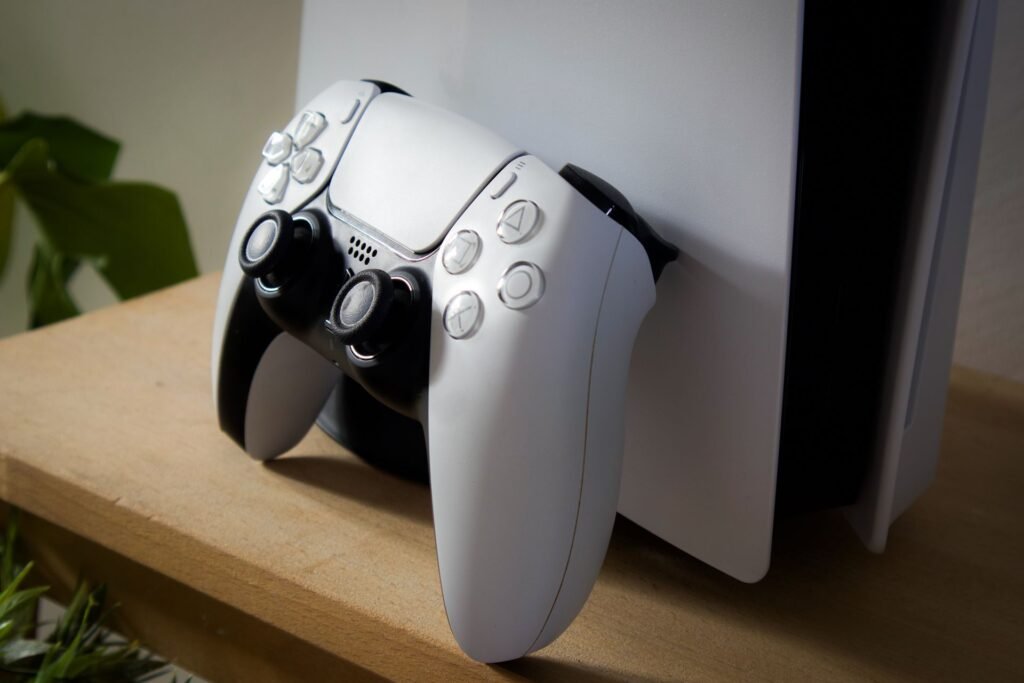
Grand Theft Auto VI arrives on PlayStation 5 and Xbox Series X|S on November 19, which means you have just over two weeks to get your console ready. Most console games are built to look fine straight out of the box. GTA 6 is different. It’s expected to push current hardware about as hard as any game ever has, and a few minutes in your settings menu can decide whether Leonida looks stunning or slightly washed out and juddery.
UNILAD Tech and Engadget both published lists of console settings worth changing before launch. We went through them, checked the menu paths on both consoles and added a few that are easy to miss, including the ones that make preloading on November 12 happen without you lifting a finger.
The short version
- Turn on VRR and 120Hz output, and plug your console into an HDMI 2.1 port on your TV.
- Calibrate HDR on the console, and enable HGIG on your TV if it has it.
- On PS5, set up a personalized 3D Audio profile if you play with headphones.
- Set up automatic downloads in rest mode or sleep mode so the roughly 210GB preload starts on November 12 by itself.
- Keep your system software updated. You won’t be able to play without the latest version.
Why these settings matter even at 30fps
GTA 6 is widely expected to run at 30 frames per second on consoles at launch. How the PS5 Pro version runs is still unclear. It’s tempting to think that makes display settings irrelevant, but the opposite is true. At 30fps, every hiccup in frame delivery is easier to notice, so you want the frames that do arrive to land evenly.
That’s where your TV’s refresh rate comes in. Engadget points out that 30fps fits into a 120Hz signal perfectly, with each frame held for exactly four refreshes. At 60Hz, each frame is held for two. Either is even. Problems start when the game dips below its target and the timing stops lining up, which is exactly what variable refresh rate (VRR) is designed to smooth over.
1. Turn on VRR
VRR lets your TV change its refresh rate on the fly to match what the console is actually producing. When GTA 6 slows down during a busy chase or a crowded street scene, a fixed refresh display shows torn frames or stutter. With VRR, the screen follows the console, and motion looks smoother. You need a TV that supports it, which usually means HDMI 2.1.
On PS5, go to Settings, then Screen and Video, then Video Output, and turn on VRR. In the same menu, turn on Apply to Unsupported Games, which Sony says can help stabilize frame rates in games without native VRR support. If anything looks wrong, such as flickering in dark scenes on some TVs, switch it back off. On Xbox, go to Settings, then General, then TV and display options, then Video modes, and check Allow variable refresh rate.
2. Enable 120Hz output and use the right HDMI port
This setting controls what the console sends to your TV, not how fast the game runs. It’s worth turning on even for a 30fps game, for the pacing reason above, and it means your console is ready for any game that offers a higher frame rate. On PS5, it’s under Settings, then Screen and Video, then Video Output, then 120 Hz Output. On Xbox, choose 120Hz under TV and display options, then Refresh rate.
Here’s the part people miss. Many TVs only support HDMI 2.1 on one or two of their HDMI inputs, and the 120Hz and VRR options won’t appear if you’re plugged into the wrong one. Check your TV’s manual or the labels on the ports. Use the cable that came with your console, since it’s rated for the bandwidth.
3. Calibrate HDR properly
GTA 6 jumps from neon nightclubs to bright Florida sunshine, sometimes in the same mission, and good HDR is what keeps detail visible in both. Bad HDR leaves the image looking gray and washed out, or so dark that you lose everything in the shadows.
First, turn on HDR (sometimes called enhanced HDMI or input signal plus) for the input your console uses on the TV itself. Then calibrate on the console. On PS5, that’s Settings, then Screen and Video, then Video Output, then Adjust HDR. On Xbox, open TV and display options and pick Calibrate HDR for games. If your TV has an HGIG mode, turn it on so the TV doesn’t apply its own tone mapping on top of the console’s. Run the calibration in the lighting you actually play in.
One caveat. UNILAD suggests leaving HDR off unless you have an OLED or another TV with high peak brightness, and there’s something to that. On cheap TVs that are “HDR compatible” but can’t get very bright, HDR can look worse than standard dynamic range. If yours looks dull after calibration, try it both ways. If you’re shopping for a new set before launch, our breakdown of Dolby Vision vs HDR10+ explains which format matters for gaming.
| Setting | PS5 menu path | Xbox Series X|S menu path |
|---|---|---|
| VRR | Screen and Video > Video Output > VRR | General > TV & display options > Video modes > Allow variable refresh rate |
| 120Hz | Screen and Video > Video Output > 120 Hz Output | General > TV & display options > Refresh rate |
| HDR calibration | Screen and Video > Video Output > Adjust HDR | General > TV & display options > Calibrate HDR for games |
| Low latency mode | Screen and Video > Video Output > ALLM | General > TV & display options > Video modes > Allow auto low-latency mode |
| 3D audio | Sound > 3D Audio (Headphones) | General > Volume & audio output > Headset audio (Windows Sonic, Dolby Atmos) |
| Auto preload | System > Power Saving > Features Available in Rest Mode | General > Power options > Sleep |
4. Set up 3D Audio on PS5
Sound gets overlooked, but Rockstar’s games are dense with it: traffic, sirens, crowds and radio stations. Sony’s 3D Audio makes it easier to tell where a sound is coming from, like footsteps behind you or a car closing in from the side. It works with any wired headphones, plus Sony’s own headsets.
Plug in your headphones, then go to Settings, then Sound, then 3D Audio (Headphones). Choose Create Personalized 3D Audio Profile and follow the prompts. The test plays sounds from different positions and asks where you heard them. Once your profile exists, turn on Apply Personalized 3D Audio Profile. On Xbox, the closest equivalent is spatial sound through Windows Sonic, which is free, or Dolby Atmos for Headphones, which is a paid app.
5. Get ready for the preload
Preloading opens on November 12 for digital pre-orders, a week before launch. The PS5 download is reportedly around 210GB, based on a PlayStation Store tracker rather than an official Rockstar figure. We broke down what that means for each console’s drive in our story on GTA 6’s preload date and file size. Short version: on an Xbox Series S, it could take more than half of your usable space.
To let the download start while you sleep, on PS5 go to Settings, then System, then Power Saving, then Features Available in Rest Mode, and turn on Stay Connected to the Internet. Then check that automatic downloads are on under Saved Data and Game/App Settings, then Automatic Updates. On Xbox, choose the Sleep power mode under Settings, then General, then Power options. Then leave your console in rest or sleep mode on the night of November 11.
[ ] HDMI 2.1 port …………. check the label on your TV
[ ] VRR + 120Hz ………….. on
[ ] TV game mode …………. on (and motion smoothing off)
[ ] HDR calibrated ……….. HGIG on if available
[ ] 3D Audio profile ……… created (PS5, headphones)
[ ] 250GB+ free ………….. clear space before Nov 12
[ ] Rest / Sleep mode …….. internet stays on
[ ] System software ………. updated
Preload: Thu Nov 12 Launch: Thu Nov 19
6. Keep your firmware current
The last step is the least exciting and the most important. You won’t be able to download or play GTA 6 without the latest system software. UNILAD reports that Sony has pushed three firmware updates in the past month, and says the current version is 14.22.00.00. That could change again before launch, so check Settings, then System, then System Software on PS5, or Settings, then System, then Updates on Xbox, a few days before November 19.
While you’re in your TV’s menus, two quick extras: switch on its game mode to cut input lag (ALLM does this automatically on supported sets), and turn off motion smoothing, which adds lag and makes 30fps look strangely soap opera like.
Want more GTA 6 news before launch? Rockstar’s developers are also voting on a union during launch week.
Sources and further reading
- UNILAD Tech: Gamers urged to make these changes to PlayStation 5 and Xbox before GTA 6 comes out
- Engadget: Change these PlayStation 5 settings before GTA 6 comes out
- Android Central: How to enable VRR on PS5
- Xbox Support: Display and sound settings
- Rockstar Games: Grand Theft Auto VI
About this article: GeekBlog covers U.S. technology news, AI, phones, smartwatches and gaming. Every story is written and checked under our Editorial Policy. Spotted a mistake or have a story tip? Contact our editors.
