Close Menu
GeekBlog

    Subscribe to Updates

    Get the latest creative news from FooBar about art, design and business.

    What's Hot

    Trump Renamed AI “Super Intelligence.” The Word Already Meant Something Else.

    October 1, 2026

    Pixel Watch 2 Support Ends Today: What You Lose and What to Do Next

    October 1, 2026

    Singapore Built a Dating App That Pays for Your First Date. There Is a Catch About Who Can Use It.

    October 1, 2026
    Facebook
    GeekBlog
    • Home
    • Mobile
    • Tech News
    • Blog
    • Gaming
    • Smartwatch
    • How-To Guides
    • AI & Software
    Facebook
    GeekBlog
    Home»How-To Guides»How to Schedule Emails in Outlook for Web
    How-To Guides

    How to Schedule Emails in Outlook for Web

    Michael ComaousBy Michael ComaousAugust 4, 20255 Mins Read
    Share Facebook Twitter Pinterest LinkedIn Tumblr Email Copy Link
    How to Schedule Emails in Outlook for Web
    Share
    Facebook Twitter LinkedIn Pinterest Email Copy Link

    Summary

    • I use Outlook Web’s Schedule Send feature to schedule emails to be sent in the future at the specified time and date.
    • To schedule an email, open Outlook Web, sign in to your account, click “New Mail,” compose the email, click the down-arrow icon next to Send, and choose “Schedule Send.”
    • To review or change scheduled emails, open Outlook Web, and access the “Drafts” folder.

    The emails I now send arrive in my recipients’ inboxes at 9 AM sharp. Not because I’ve started waking up early, but because I’ve learned to use the Schedule Send feature in Outlook Web.

    How Outlook Web’s Schedule Send Feature Ensured My Emails Arrived On Time

    Up until recently, my emails went out at random hours. Sometimes, I’d be writing and sending emails at 3 AM. Other times, it would be 11 AM. Notice something? Yes, inconsistency.

    Luckily, I found the Schedule Send feature in Outlook Web. This feature would allow me to write an email whenever I want, but it would only send that email on the date and time that I chose. This way, my emails became more organized and seemed more professional. It also helped me with a few other situations, as discussed in the use-cases section below.

    How to Schedule an Email in Outlook Web

    To schedule an email to be sent later in Outlook Web, you don’t need access to any third-party tools. The feature to schedule emails is built right into the web app itself; all ready for you to use.

    To access it, launch Outlook Web and sign in to your account. Then, in the site’s top-left corner, click the “New Mail” button to compose a new email.

    Recommended for you:

    I Traded My Garmin for a Coros Fitness Watch, and Here’s What I Loved (and Hated)
    How-To Guides·Aug 6, 2025

    I Traded My Garmin for a Coros Fitness Watch, and Here’s What I Loved (and Hated)

    You’ll see the usual new email window where you can compose your email. Here, fill in the usual fields, like To, Subject, and email body. Feel free to specify the CC and BCC fields as well.

    After writing the email, next to the Send button at the top, click the down-arrow icon and choose “Schedule Send.” Make sure not to click Send, or Outlook Web will send your email immediately.
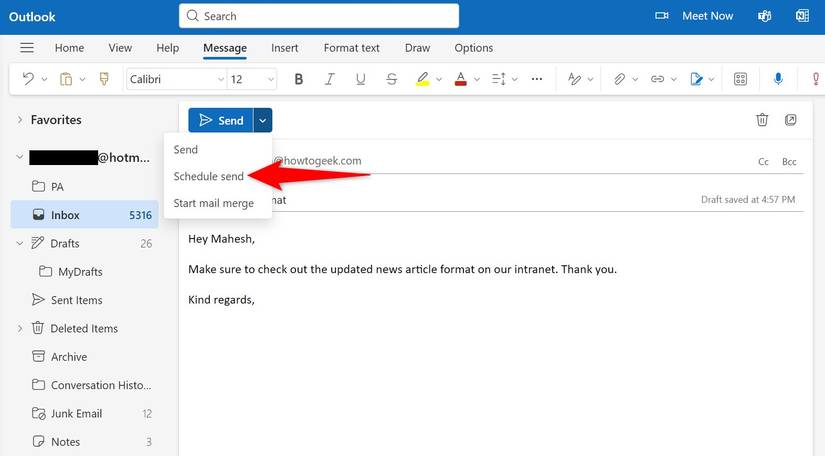
    "Schedule Send" highlighted in Outlook Web.

    You’ll see the Schedule Send window with a couple of pre-filled timings. You can choose one of these options or specify your own by clicking “Custom Time.”
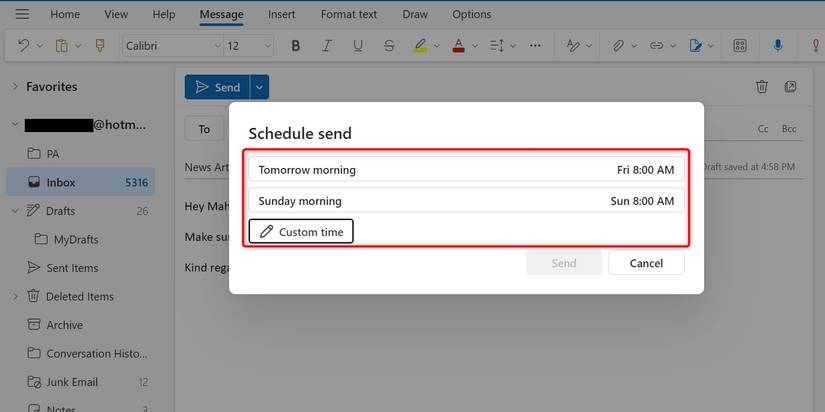
    Schedule Send options highlighted in Outlook Web.

    If you clicked Custom Time, you’ll see the Set Custom Date and Time window. Here, select the date and the time when you want Outlook to send your email. Then, click the “Send” button.
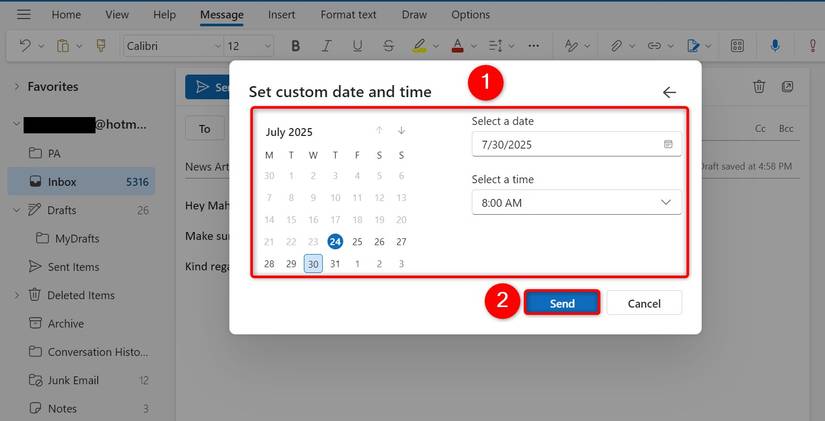
    Schedule Send date and time options highlighted in Outlook Web.

    Outlook will now send your pre-composed email on your chosen date and time. You don’t have to be logged in to your account or even Outlook Web opened on your computer; Outlook will just send your email anyway.

    How to Review and Modify Scheduled Emails in Outlook Web

    If you want to take a look at the emails you’ve scheduled or you want to modify the scheduled emails before Outlook sends them, follow these steps.

    Access Outlook Web and sign in to your account. In the folder list, beneath Inbox, click “Drafts.” You’ll now see all your scheduled as well as drafted emails.

    "Drafts" highlighted in Outlook Web.

    If you want to modify a scheduled email, click that email on the list. You’ll see the usual email compose window where you can modify the contents of the email. After you’ve made any changes, click the “Send” button at the top. (Don’t worry, clicking Send won’t send the email; it’ll just save the changes you’ve made to your email.)

    If you want to change a scheduled email’s date and time, next to Send, click the down-arrow icon and choose “Schedule Send.”

    "Send" highlighted for a scheduled email in Outlook Web.

    If you don’t wish to send a scheduled email anymore and you want to cancel the task, in the Drafts folder, hover over that email and click the trash can icon. Outlook will delete this email.

    The trash can icon highlighted for a scheduled email in Outlook Web.

    Use Cases Include Sending Reminders and Spacing Out Batch Emails

    If you happen to be slightly different from me, which is to say you aren’t late sending emails, there are other use cases of Outlook’s Schedule Send feature.

    Recommended for you:

    Recycling Aluminum Cans? Stop Crushing Them and Do It the Right Way
    How-To Guides·Aug 4, 2025

    Recycling Aluminum Cans? Stop Crushing Them and Do It the Right Way

    One use is to send reminders or follow-ups the next morning. You can remind people about their tasks or follow up on their queries by scheduling your emails in advance. If you happen to send batch emails, you can space out those emails using the scheduling feature. This way, your emails are sent at the specified interval.

    You can also use this feature to wish people on their birthdays. You can schedule all the birthday emails at once, and let Outlook Web take care of ensuring your messages are sent at the right time. This applies to celebrating people on their anniversaries as well as other similar events as well. Note that you can attach files as well to your emails if you’d like to send along an online card or something.


    And that’s how I ensured my emails arrived in the recipients’ inboxes at the exact time I wanted. This helped me keep things organized on my end. Enjoy!

    Share. Facebook Twitter Pinterest LinkedIn Tumblr Telegram Email Copy Link
    Previous ArticleNYT Connections hints and answers for Monday, August 4 (game #785)
    Next Article Nintendo raises the Switch 1 price from $299 to $339
    Michael Comaous

      Michael Comaous is a dedicated professional with a passion for technology, innovation, and creative problem-solving. Over the years, he has built experience across multiple industries, combining strategic thinking with hands-on expertise to deliver meaningful results. Michael is known for his curiosity, attention to detail, and ability to explain complex topics in a clear and approachable way. Whether he’s working on new projects, writing, or collaborating with others, he brings energy and a forward-thinking mindset to everything he does.

      Related Posts

      9 Mins Read

      Is ChatGPT Confidential? What OpenAI Keeps and Who Can Read It

      11 Mins Read

      Passkeys vs Passwords: What Actually Happens When You Lose the Phone

      10 Mins Read

      7 Ways to Get the Most Out of Your Galaxy Z Fold 7

      10 Mins Read

      Is Google Killing Off the Android TV Discover Tab? What Replaced It and What to Do

      8 Mins Read

      Own a Samsung Phone? 10 Settings I Always Change First for the Best User Experience

      16 Mins Read

      Mesh Wi-Fi Placement: How Far Apart to Put Nodes and Where

      Top Posts

      Best Free Online Music Apps in 2026

      July 7, 20263 Views

      Chromebook vs PC: Which One Should You Actually Buy?

      July 7, 20262 Views

      The Light Flip Wants to Sell You a Phone That Does Less

      July 28, 20261 Views
      Stay In Touch
      • Facebook

      Subscribe to Updates

      Get the latest tech news from FooBar about tech, design and biz.

      Most Popular

      How to Convert HEIC to JPG on iPhone, Mac, Android and Windows

      September 3, 20266 Views

      Gal Gadot’s Lawyers Spent Six Months on One AI Clause. Then SAG Called Them for Pointers.

      September 2, 20265 Views

      The Mesh Router Placement Strategy That Finally Gave Me Full Home Coverage

      September 9, 20263 Views
      Our Picks

      Trump Renamed AI “Super Intelligence.” The Word Already Meant Something Else.

      October 1, 2026

      Pixel Watch 2 Support Ends Today: What You Lose and What to Do Next

      October 1, 2026

      Singapore Built a Dating App That Pays for Your First Date. There Is a Catch About Who Can Use It.

      October 1, 2026

      Subscribe to Updates

      Get the latest creative news from FooBar about art, design and business.

      HEICJPG.online - Convert HEIC to JPG online
      Facebook
      • About Us
      • Contact us
      • Privacy Policy
      • Disclaimer
      • Terms and Conditions
      • Editorial Policy
      • Cookie Policy
      • Your Privacy Choices
      © 2026 GeekBlog

      Type above and press Enter to search. Press Esc to cancel.