

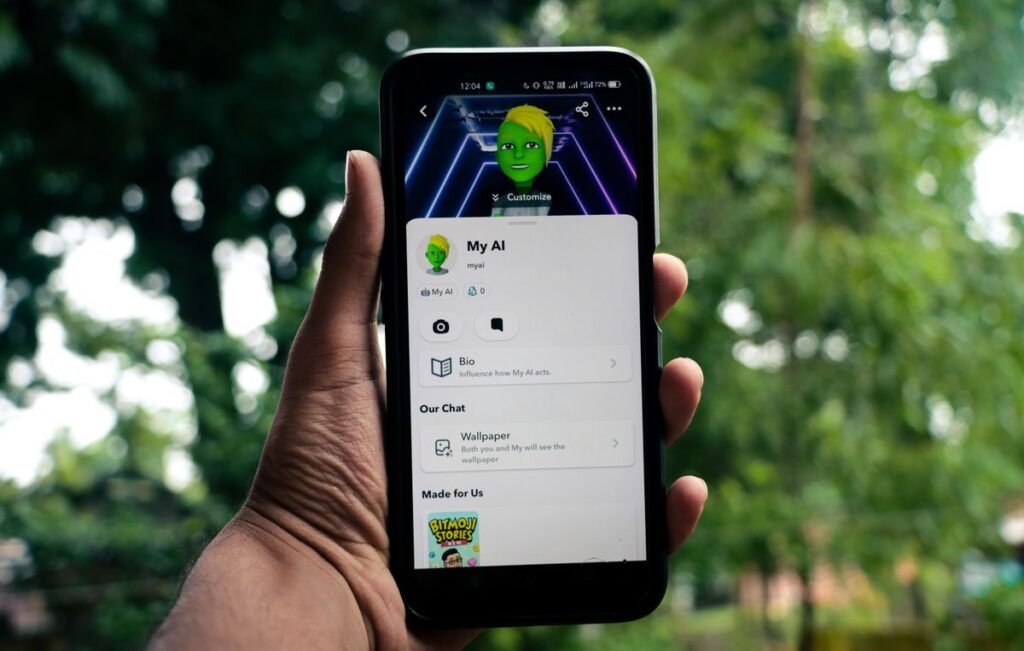
Learning how to use Snapchat can feel overwhelming at first, because the app opens straight to the camera instead of a familiar feed. Once you understand that camera-first design, though, everything clicks into place. Snapchat is built around fast, casual sharing: photos and short videos called Snaps that you send to friends or add to a Story, plus text and voice Chats that keep the conversation going.
This complete beginner’s guide walks you through the whole app, from creating an account to sending your first Snap, posting a Story, adding friends, and understanding the features that make Snapchat different from other social apps. Whether you are on an iPhone or an Android phone, the steps are the same, and by the end you will feel comfortable navigating every screen.
What Is Snapchat and How Does It Work?
Snapchat is a multimedia messaging app owned by Snap Inc. Its signature feature is that Snaps you send in a chat disappear after they are viewed, and Stories you post disappear after 24 hours. This “here and now” approach encourages spontaneous, low-pressure sharing rather than a permanent, curated profile.
The app is organized as five screens you move between by swiping. The Camera sits in the middle as the home base. Swipe right to reach Chat and your friends list, swipe left to reach the Stories and Discover page, and swipe further left to reach Spotlight, Snapchat’s short-form video feed. Tapping the Map (or swiping down from Camera) opens Snap Map.
Setting Up Your Snapchat Account
Getting started only takes a few minutes. You need a valid email address or phone number and a mobile device running a reasonably current version of iOS or Android.
- Download the app. Get Snapchat free from the Apple App Store or Google Play Store, then open it.
- Tap “Sign Up” and enter your name, birthday (you must be at least 13), and a unique username. Choose your username carefully, because it is difficult to change later.
- Create a strong password and verify your email or phone number with the code Snapchat sends you.
- Allow permissions. When prompted, grant access to your camera, microphone, and notifications so the core features work.
- Add a Bitmoji (optional). Tap the profile icon in the top-left corner, then create a cartoon avatar that represents you across the app.
- Find friends. Snapchat can scan your contacts or let you search by username to connect with people you know.
- Take your first Snap by tapping the large capture button to confirm everything is working.
Sending Your First Snap
A Snap is simply a photo or video you capture and send. From the Camera screen, tap the large circle once to take a photo or press and hold it to record a video of up to 60 seconds. Before you send, you can decorate the Snap using the tools along the right side: add text, draw with the pencil, drop in stickers or emoji, apply a color filter by swiping, or set a timer that controls how long the recipient can view it.
When your Snap is ready, tap the blue arrow in the bottom-right corner. Choose one or more friends, or select “My Story,” then tap Send. That is the entire loop, and it is the heart of the app.
Chatting With Friends
Snapchat is not only about images. Swipe right from the Camera to open the Chat screen, where you can send text messages, voice notes, photos from your camera roll, and Snaps. Tap a friend’s name to open the conversation, type your message, and press send. You can start an audio or video call using the phone and camera icons at the top of any chat.
By default, chat messages are deleted after both people have viewed them and left the conversation. If you want to keep a message, press and hold it and choose “Save.” Saved messages appear with a gray highlight so both people know they were kept.
Posting and Watching Stories
A Story is a collection of Snaps that any of your friends can watch as many times as they like for 24 hours before it disappears. To post to your Story, take a Snap and tap “My Story” on the send screen, or tap the “+ Story” button. To watch friends’ Stories, swipe left from the Camera to the Stories screen and tap any circle. Below your friends’ Stories you will find Discover, where publishers and creators post public content.
Snaps are photos or videos meant to be viewed once and then gone. Chats are text or media messages in a running conversation. Both disappear by default, but you can save Chats by tapping and holding them.
Stories are shared with your friends and last 24 hours. Spotlight is a public feed of short vertical videos, similar to a “For You” page, where anyone on Snapchat can discover your content.
Understanding Snap Map, Memories, and Spotlight
Beyond the basics, three features are worth knowing. Snap Map shows where your friends are on a map, but only if they choose to share their location. You can enable “Ghost Mode” to stay invisible. Memories is your private archive; any Snap you save is stored here so you can re-share it later. Spotlight is Snapchat’s entertainment feed of user-created short videos that you scroll through vertically.
| Feature | What it does | How to reach it |
|---|---|---|
| Camera | Capture Snaps | Home screen |
| Chat | Message friends | Swipe right |
| Stories | View 24-hour posts | Swipe left |
| Spotlight | Watch public videos | Swipe left twice |
| Snap Map | See friends’ locations | Swipe down / tap Map |
Staying Safe on Snapchat
Because Snapchat is designed around temporary content, it is easy to forget that anyone can screenshot or record what you send. Only share what you would be comfortable with someone keeping. Review your privacy settings under the profile gear icon: set who can contact you and who can see your Story to “Friends” or a custom list, and turn on Ghost Mode if you would rather not share your location. For more walkthroughs like this, browse our how-to guides.
Frequently Asked Questions
Is Snapchat free to use?
Yes. Snapchat is free to download and use. There is an optional paid subscription called Snapchat+ that unlocks extra cosmetic and convenience features, but every core function is available at no cost.
Do Snaps really disappear forever?
Snaps disappear from view after they are opened, and unopened Snaps are deleted from Snapchat’s servers after 30 days. However, recipients can take a screenshot or use another device to capture your Snap, so never treat anything as truly permanent-proof.
What does the fire emoji next to a friend mean?
The flame emoji indicates a “Snapstreak,” meaning you and that friend have exchanged Snaps at least once each day for several consecutive days. The number shows how many days the streak has lasted.
Can I use Snapchat on a computer?
Snapchat is primarily a mobile app, but Snapchat for Web lets Snapchat+ subscribers send Chats and make calls from a browser. Most people use it on a phone or tablet for the full camera experience.
How do I change my username?
Snapchat now allows you to change your display username once a year through Settings, though your original account ID stays the same. Your Bitmoji and display name can be changed at any time.
About this article: GeekBlog covers U.S. technology news, AI, phones, smartwatches and gaming. Every story is written and checked under our Editorial Policy. Spotted a mistake or have a story tip? Contact our editors.
