

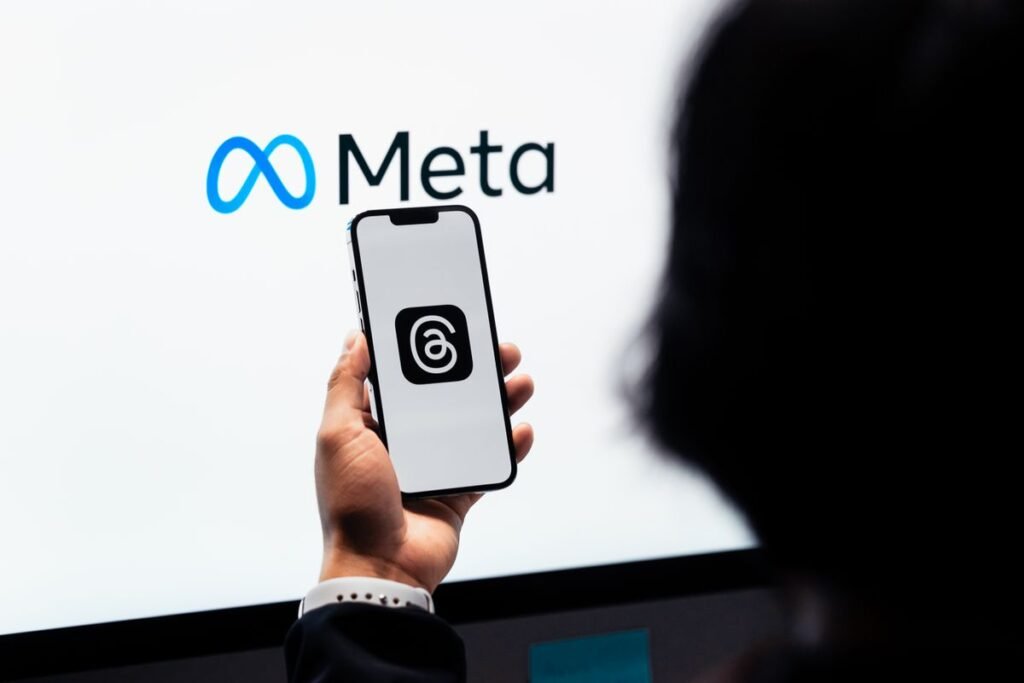
If you want to know how to use the Threads app to share short text updates and join conversations, this beginner’s guide explains everything from sign-up to your first post. Threads is Meta’s free text-based social app, closely tied to Instagram, where people post quick thoughts, links, and photos and reply to each other in public conversations. If you have used Instagram, X (formerly Twitter), or Bluesky, Threads will feel familiar.
Threads launched in 2023 and has grown quickly, adding features like a chronological Following feed, topic tags, and its own search. Because it is built on your Instagram login, getting started takes seconds. In this guide you will create your profile, publish a thread, learn how the feeds work, and set the privacy controls that keep your experience comfortable.
Getting Started With Threads
Threads is free on the App Store and Google Play, and you can also use it at threads.net in a browser. You sign in with an existing Instagram account rather than creating a separate login, which keeps your name and followers consistent across both apps.
Sign in and build your profile
Open the app and tap Log in with Instagram. You can import your Instagram bio and profile photo or customize them for Threads. Your Threads username is the same as your Instagram handle, and any Instagram verification badge carries over too.
Learn the layout
Five icons sit along the bottom: Home (your feed), Search, the compose button (a pencil or plus), Activity for notifications and replies, and your Profile. At the top of the Home screen you can swap between the For You and Following feeds.
- Install Threads. Download the app from your app store.
- Log in with Instagram. Tap the Instagram login option to bring your account across.
- Set up your profile. Import or edit your bio and photo, then choose public or private.
- Follow accounts. Threads suggests people you follow on Instagram to get you started.
- Write your first thread. Tap the compose button, type up to 500 characters, and post.
- Join a conversation. Reply to posts and use the like, repost, and quote buttons.
- Adjust your feed. Switch to the Following tab for a chronological view.
Posting and Joining Conversations
A single post on Threads is called a thread. Tap the compose button, type your message (up to 500 characters), and attach photos, videos, GIFs, or links. You can chain multiple posts together to tell a longer story, which is where the name Threads comes from.
Replies, reposts, and quotes
Under every post you will see four actions: like (heart), reply (speech bubble), repost (two arrows) to share it to your followers, and quote to add your own comment on top. Conversations are public by default, so anyone can jump in unless the author limits who can reply.
Using topic tags and search
Threads lets you add a single topic tag to a post to group it with related conversations, and the search tab helps you find people and posts by keyword. This makes it easier to follow live events, hobbies, or news without relying only on hashtags.
- Use the Following feed for a calmer, chronological view.
- Reply to build conversations, not just broadcast.
- Add a topic tag to reach interested readers.
- Share threads to your Instagram Story.
- Posts are public unless your account is private.
- Deleting Threads may affect your Instagram login.
- Not every Instagram feature exists on Threads.
- Avoid oversharing personal details in public posts.
Managing Your Feeds and Notifications
Threads shows two main feeds. The For You feed mixes posts from people you follow with recommendations the algorithm thinks you will like. The Following feed shows only accounts you follow, in reverse chronological order, which many people prefer for a predictable timeline. You can also create and pin custom feeds for specific topics or people.
The Activity tab
Tap the heart icon at the bottom to open Activity, where you can see who followed you, liked or replied to your posts, quoted you, or mentioned you. You can filter this list to focus on the interactions that matter to you.
| Action | What it does | Icon |
|---|---|---|
| Like | Shows appreciation for a post | Heart |
| Reply | Adds your comment to the conversation | Speech bubble |
| Repost | Shares a post to your followers | Two arrows |
| Quote | Shares a post with your own comment | Paper plane menu |
| Topic tag | Groups your post with a subject | # in composer |
Privacy and Safety on Threads
Your Threads privacy settings live in your Profile under the menu. You can make your profile private so only approved followers see your posts, control who can reply to and mention you, and hide offensive words with a filter. You can also mute, block, or restrict any account, and blocking someone on Threads blocks them on Instagram too.
Threads is also part of the fediverse, an open network of interconnected apps, so you can optionally let your posts be seen on other platforms like Mastodon. This is off until you turn it on. For more step-by-step help, browse our other how-to guides.
Frequently Asked Questions
Do I need Instagram to use Threads?
Yes. Threads uses your Instagram account to sign in, so you need an Instagram profile to create a Threads account. Your username, followers you choose to bring over, and any verification carry across automatically.
How long can a Threads post be?
Each thread can be up to 500 characters and can include photos, videos, GIFs, and links. If you have more to say, you can chain several posts together into one connected thread to tell a longer story.
What is the difference between the For You and Following feeds?
The For You feed mixes posts you follow with algorithmic recommendations, while the Following feed shows only accounts you follow in chronological order. You can switch between them at the top of the Home screen and set a default.
Can I delete Threads without deleting Instagram?
Yes. You can deactivate your Threads profile independently, which hides it while keeping your Instagram account active. Fully deleting your Threads account is now separate from Instagram, so you can remove one without losing the other.
Is Threads public by default?
For most adult accounts, posts are public so anyone can see and reply to them. You can switch to a private profile in settings so only approved followers see your posts, and you can limit who is allowed to reply.
About this article: GeekBlog covers U.S. technology news, AI, phones, smartwatches and gaming. Every story is written and checked under our Editorial Policy. Spotted a mistake or have a story tip? Contact our editors.
