Close Menu
GeekBlog

    Subscribe to Updates

    Get the latest creative news from FooBar about art, design and business.

    What's Hot

    OpenAI allegedly sent police to an AI regulation advocate’s door

    October 11, 2025

    Samsung Galaxy XR leak shows dual 4K micro‑OLED displays

    October 11, 2025

    The Vampire Lestat New Teaser

    October 11, 2025
    Facebook X (Twitter) Instagram Threads
    GeekBlog
    • Home
    • Mobile
    • Tech News
    • Blog
    • How-To Guides
    • AI & Software
    Facebook
    GeekBlog
    Home»Mobile»The One Setting That’s Holding Back Your Android Music-Listening Experience
    Mobile

    The One Setting That’s Holding Back Your Android Music-Listening Experience

    Michael ComaousBy Michael ComaousAugust 5, 20254 Mins Read
    Share Facebook Twitter Pinterest LinkedIn Tumblr Email Copy Link
    The One Setting That's Holding Back Your Android Music-Listening Experience
    Share
    Facebook Twitter LinkedIn Pinterest Email Copy Link


    Rawpixel/Getty Images

    Our smartphones have made listening to our favorite music easier than ever. We can turn on Spotify on our Android and play it on the desk next to us while we work. We can listen to our personal playlists through our headphones or while the phone is hooked up to our cars. Whatever we want to listen to at any moment is at our fingertips. If you really want to elevate your Android music-listening experience, though, you need to explore your phone’s equalizer settings.

    An equalizer allows you to adjust the volumes of different sound frequencies. Your Android currently defaults to what it considers normal equalizer settings, and that is perfectly fine. However, there are benefits if you want to adjust it. Perhaps you like a heavier bass. Or perhaps your ears are sensitive to certain sounds and you’d like to minimize them. Both of these and more can be adjusted to your preferences.

    The good news is that equalizer settings can be adjusted directly from your Android phone. Unfortunately, the location of these settings can vary from Android to Android. If you can’t find the equalizer under your phone’s Settings menu, you can also download an app to do the same thing.

    Where to adjust the equalizer settings

    an Android Samsung Galaxy phone showing apps
    Ka Iki/Shutterstock

    It would be easier if there were a single place on every Android to get to the equalizer, but unfortunately, there is not. Some phones may not even have the option. The best strategy is to look for places on your phone where you can adjust the sound. The Settings menu should be your first stop.

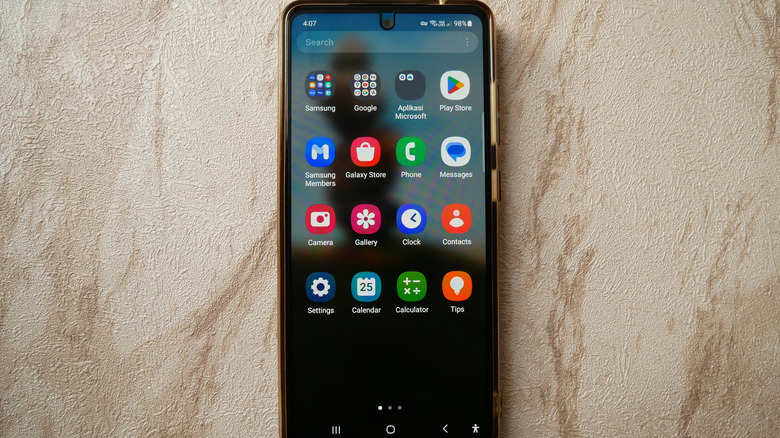
    The Samsung Galaxy likely has what you need under Settings. From Settings, go to Sounds and Vibrations. Then click on Sound Quality and Effects. There will be an option that says Equalizer, and it is set to Normal by default. Click on that to adjust it. Again, this can vary depending on what version of the Samsung Galaxy you have.

    If you are having trouble finding it, you can use an app from the Google Play Store like Equalizer FX. Equalizer FX is free to install and simple to use. You can adjust your equalizer settings directly through the app. It also has preset settings based on music genres like Folk and Dance to give you an easy shortcut.

    How to adjust your equalizer settings


    a man listens to music on through his headphones while dancing and using a broom as a mic
    PeopleImages.com – Yuri A/Shutterstock

    Unless your career field involves audio manipulation, the equalizer settings may look intimidating. You will see a series of vertical bars that can be slid up and down with frequencies on them. Don’t become overwhelmed! It’s a matter of having fun and experimenting to find out what you personally enjoy.

    Your Android may have preset options you can choose from that include Pop, Classic, Jazz, and Rock. Those are good starting points to see how the equalizer settings change and how they impact the music. There is also a custom option so you can experiment to find out what you like best. Your preferences may even change depending on the type of music you are listening to. If you don’t like any of the adjustments, you can just set it back to Normal without any problem at all.

    Having background music playing on your phone while you work, using it to fuel your workouts, or just listening for fun all enhance your daily life. With some tinkering on your Android, you can improve your music-listening experience and get a new sound for your favorite songs.


    Android experience holding MusicListening Setting
    Share. Facebook Twitter Pinterest LinkedIn Tumblr Telegram Email Copy Link
    Previous ArticleLG is giving away a free mini-fridge when you buy a full-size one – here’s what to know
    Next Article Here’s How to Watch the Original The Naked Gun Movies in Order
    Michael Comaous
    • Website

    Michael Comaous is a dedicated professional with a passion for technology, innovation, and creative problem-solving. Over the years, he has built experience across multiple industries, combining strategic thinking with hands-on expertise to deliver meaningful results. Michael is known for his curiosity, attention to detail, and ability to explain complex topics in a clear and approachable way. Whether he’s working on new projects, writing, or collaborating with others, he brings energy and a forward-thinking mindset to everything he does.

    Related Posts

    3 Mins Read

    Instagram explores creating a dedicated TV app to challenge YouTube

    6 Mins Read

    iPhone 17 benchmark test: how fast is Apple’s new chip?

    2 Mins Read

    Google confirms Android dev verification will have free and paid tiers, no public list of devs

    4 Mins Read

    Apple’s iPhone 17 will forever change how we take selfies – including on Android phones

    2 Mins Read

    YouTube Premium adds high-quality audio and 4x playback for iOS, Android and desktop

    2 Mins Read

    Meta wants to become the Android of robotics

    Top Posts

    The Mesh Router Placement Strategy That Finally Gave Me Full Home Coverage

    August 4, 2025161 Views

    Past Wordle answers – all solutions so far, alphabetical and by date

    August 1, 202577 Views

    How to Turn Off Voicemail on Android Quickly and Easily

    August 2, 202563 Views
    Stay In Touch
    • Facebook

    Subscribe to Updates

    Get the latest tech news from FooBar about tech, design and biz.

    Most Popular

    The Mesh Router Placement Strategy That Finally Gave Me Full Home Coverage

    August 4, 2025161 Views

    Past Wordle answers – all solutions so far, alphabetical and by date

    August 1, 202577 Views

    How to Turn Off Voicemail on Android Quickly and Easily

    August 2, 202563 Views
    Our Picks

    OpenAI allegedly sent police to an AI regulation advocate’s door

    October 11, 2025

    Samsung Galaxy XR leak shows dual 4K micro‑OLED displays

    October 11, 2025

    The Vampire Lestat New Teaser

    October 11, 2025

    Subscribe to Updates

    Get the latest creative news from FooBar about art, design and business.

    Facebook
    • About Us
    • Contact us
    • Privacy Policy
    • Disclaimer
    • Terms and Conditions
    © 2025 geekblog. Designed by Pro.

    Type above and press Enter to search. Press Esc to cancel.