

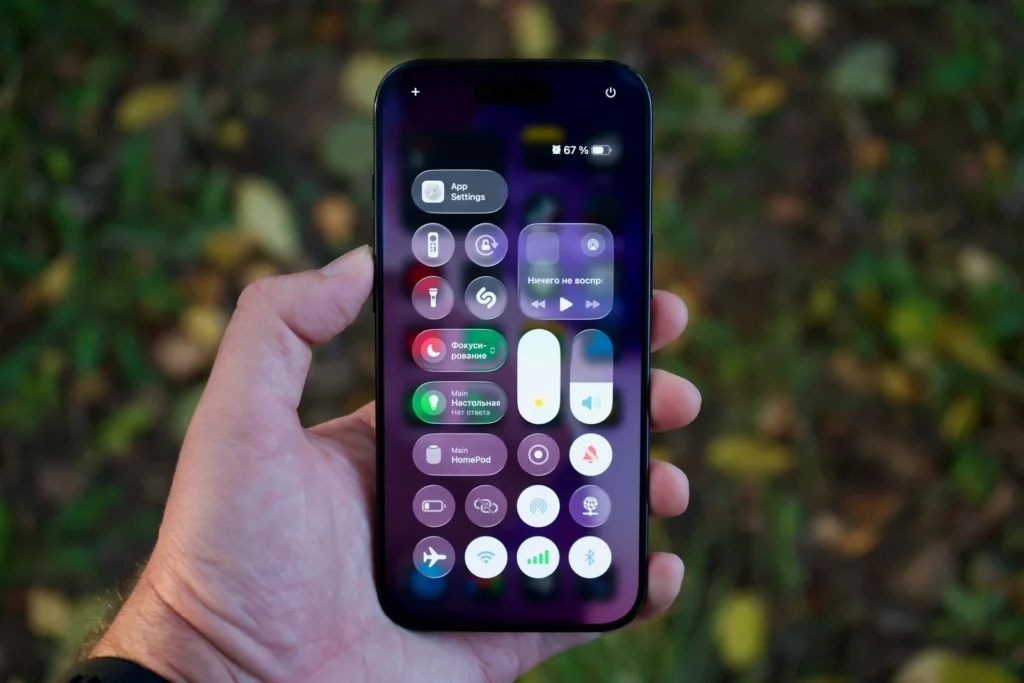
Every new iOS release adds useful options, and many of the best ones ship switched off or buried several menus deep. This list covers 25 iPhone settings worth changing in 2026, from call screening and battery protection to theft protection and camera tweaks. Paths follow iOS 27, which Apple released on September 14, 2026, and nearly all of them work the same on iOS 26. Where something differs, we say so.
Settings 1 to 5
Settings 6 to 11
Settings 12 to 17
Settings 18 to 25
Calls and messages
- Call Screening. Settings, Apps, Phone, then choose Ask Reason for Calling. Unknown numbers are answered in the background, and your iPhone only rings once the caller gives a name and reason.
- Filter unknown and spam calls. On the same screen, turn on Unknown Callers and Spam. Carrier flagged spam goes straight to voicemail and its own list.
- Hold Assist Detection. Settings, Apps, Phone, turn on Hold Assist Detection. Your iPhone spots hold music and offers to alert you when a live agent picks up, so you can put the phone down. It needs iPhone 12 or later.
- Screen Unknown Senders. In the Messages app, tap the filter button in the conversation list, tap Manage Filtering and turn on Screen Unknown Senders. Texts from strangers land in a separate folder without notifications, and you can still allow categories like verification codes.
- RCS Business Messages. Settings, Apps, Messages, RCS Messaging, then turn off RCS Business Messages if you are tired of brand texts. Availability depends on your carrier.
Battery and display
- Charge Limit. Settings, Battery, Charging. On iPhone 15 and later, pick a cap such as 80 percent to reduce battery wear. The phone still charges to 100 percent occasionally to keep its readings accurate.
- Adaptive Power. Settings, Battery, Power Mode. On iPhone 15 Pro and later it trims brightness and background activity on heavy days and can switch on Low Power Mode at 20 percent. Turn off its notifications on the same screen if they bug you.
- Battery Percentage. Settings, Battery, turn on Battery Percentage to see the exact number inside the status bar icon.
- Always On Display. Settings, Display & Brightness, Always On Display. On supported models, turn off Show Wallpaper for a darker, calmer screen or Show Notifications for privacy, or switch the feature off entirely.
- Auto Lock. Settings, Display & Brightness, Auto Lock. A shorter time saves battery and keeps snoopers out. A longer one helps when following recipes or maps.
- Liquid Glass look. In iOS 27, go to Settings, Appearance, Liquid Glass and drag the slider toward clear or tinted. On iOS 26 the option sits in Display & Brightness with Clear and Tinted choices. If you use Reduce Transparency or Increase Contrast, turn those off first or the option will not apply.
Sound and buttons
- Lock Screen volume slider. Settings, Accessibility, Audio & Visual, turn on Always Show Volume Control. A slider returns to the Lock Screen player whenever audio is playing.
- Change with Buttons. Settings, Sounds & Haptics. Turn it off so the side buttons stop changing your ringer when no audio is playing, a classic cause of missed calls.
- Separate alarm volume. New in iOS 27: Settings, Sounds & Haptics, turn off Match Ringtone Volume under Alarms and Timers, then set a louder wake up volume.
- Keyboard haptics. Settings, Sounds & Haptics, Keyboard Feedback, turn on Haptic. A subtle tap for every key makes typing feel far more precise.
- Action Button. Settings, Action Button. Swap the default Silent Mode for something you use daily, such as the flashlight, a Focus, Visual Intelligence or any shortcut.
- Back Tap. Settings, Accessibility, Touch, Back Tap. Assign a double or triple tap on the back of the phone to a screenshot, an accessibility feature or a shortcut.
Privacy and security
- Stolen Device Protection. Settings, Face ID & Passcode, Stolen Device Protection. Choose Always so a thief who learns your passcode still cannot change your Apple Account password without your face or fingerprint and a one hour security delay.
- App tracking requests. Settings, Privacy & Security, Tracking, then turn off Allow Apps to Request to Track. Apps can no longer pop up requests to track you across other companies’ apps and websites.
- Background Security Improvements. Settings, Privacy & Security, Background Security Improvements, turn on Automatically Install to get security fixes between full iOS updates.
- Automatic updates. Settings, General, Software Update, Automatic Updates. Turn on Automatically Install so updates go in overnight while the phone charges on WiFi.
- Mail Privacy Protection. Settings, Apps, Mail, Privacy Protection, turn on Protect Mail Activity. Senders cannot see when you opened their email or learn your IP address.
- Lock or hide apps. Touch and hold an app icon and choose Require Face ID. Locked apps need authentication to open, and hidden apps move to a protected folder in App Library.
Camera and Safari
- Preserve camera settings. Settings, Camera, Preserve Settings. Keep your last camera mode, Photographic Style, Night mode or exposure choice instead of resetting each time.
- Safari tab bar position. Settings, Apps, Safari, then pick Compact, Bottom or Top under Tabs. Bottom is easiest to reach one handed.
FAQ
Do these settings work on older iPhones?
iOS 27 supports the same models as iOS 26, from iPhone 11 and iPhone SE (2nd generation) onward. A few items need newer hardware, such as Charge Limit on iPhone 15 and Adaptive Power on iPhone 15 Pro and later.
Will Call Screening block calls I actually want?
No. Contacts ring as usual, and unknown callers can still reach you after stating why they are calling.
Does changing these settings reset after an iOS update?
No. Updates keep your data and settings, although new features sometimes appear with their own defaults, so revisit this list after each major release.
The verdict
Ten minutes in Settings pays off for months. Start with the security and call settings, cap your battery charge if your model supports it, then tune sound, buttons and the camera to match how you use your phone. Your iPhone will be quieter, safer and longer lasting for it.
Updated October 2026: refreshed for iOS 27 and iOS 26 with 25 verified settings paths, including Call Screening, Charge Limit, Adaptive Power and the new alarm volume option.
Featured photo: Georgiy Lyamin on Unsplash.
About this article: GeekBlog covers U.S. technology news, AI, phones, smartwatches and gaming. Every story is written and checked under our Editorial Policy. Spotted a mistake or have a story tip? Contact our editors.
