Close Menu
GeekBlog

    Subscribe to Updates

    Get the latest creative news from FooBar about art, design and business.

    What's Hot

    Stop falling for scams when Norton’s antivirus software is 70% off right now

    March 28, 2026

    Acer Promo Codes and Deals: Save 40% on Bundles

    March 28, 2026

    Playing Wolfenstein 3D with one hand in 2026

    March 28, 2026
    Facebook X (Twitter) Instagram Threads
    GeekBlog
    • Home
    • Mobile
    • Tech News
    • Blog
    • How-To Guides
    • AI & Software
    Facebook
    GeekBlog
    Home»Uncategorized»Android app pinning is the most useful semi-secret feature out there
    Uncategorized

    Android app pinning is the most useful semi-secret feature out there

    Michael ComaousBy Michael ComaousAugust 1, 20254 Mins Read
    Share Facebook Twitter Pinterest LinkedIn Tumblr Email Copy Link
    Android app pinning is the most useful semi-secret feature out there
    Share
    Facebook Twitter LinkedIn Pinterest Email Copy Link

    Summary

    • Google introduced the app pinning feature to Android back in 2014’s Lollipop release.
    • For years, I’ve kept the feature enabled as an added security measure.
    • App pinning is disabled by default — here’s how to toggle the setting on.

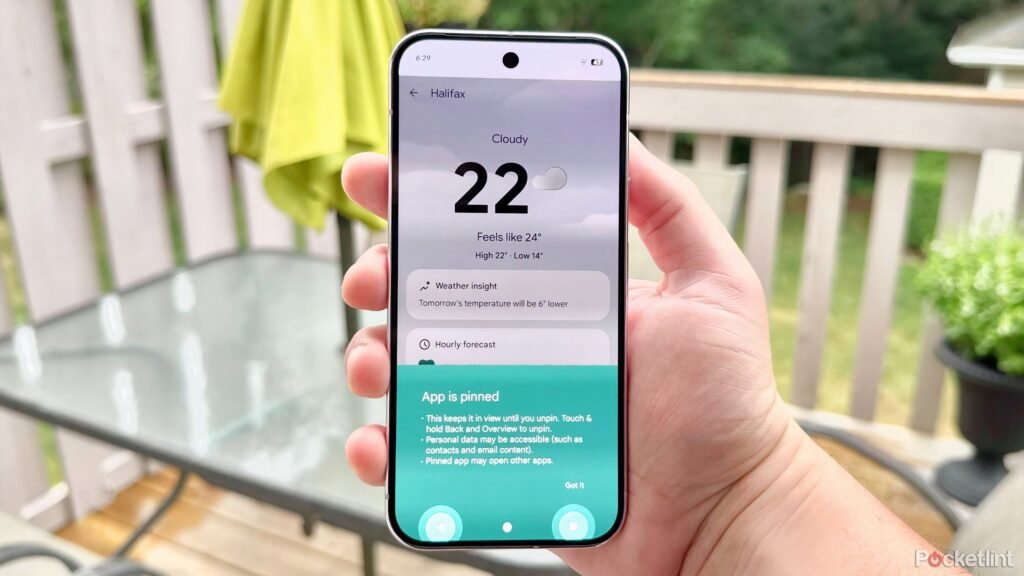
    One of the most underappreciated tools within Google’s Android operating system is undoubtedly its little-known app pinning function. First introduced in Android 5.0 Lollipop all the way back in 2014, app pinning allows you to isolate a single app on screen, removing the ability to swipe it away.

    Effectively, this serves as an added layer of security and control over your Android device. Disabling the ability to return to the home screen, to enter the multitasking screen, or to open another app can be useful in specific contexts. For example, if a stranger asks to borrow your phone to make a call, or if you need to give your phone to a cranky toddler, app pinning provides some much-needed peace of mind.

    In newer versions of Android, it’s also possible to enable the option to require a PIN or password upon exiting a pinned app. For the most part, I’d recommend toggling this on, as it’s far more secure on the whole. Interestingly, Google (and many third-party Android OEMs) ship devices with app pinning turned off by default. I think this is a mistake, as it leads to the feature’s continued underutilization.

    Here’s how to enable app pinning on your own Android phone or tablet, as well as instructions on how to enter and exit app pinning mode once enabled.

    Lesser-known Android settings header image

    Related

    These 5 lesser-known settings keep me firmly on team Android

    The Android OS is brimming with under-the-radar toggles and settings — here are the ones I always make use of on every phone.

    How do I set up app pinning on Android?

    The option is buried within the Settings app

    Enable app pinning Android screenshots

    While the precise interface and verbiage might defer slightly from one Android device to another, the general process remains the same. To get app pinning up and running on your handset or slate, follow these steps:

    1. Launch the Settings app.
    2. Navigate to Security & privacy.
    3. Tap on More security & privacy > App pinning.
    4. Within the main App pinning page, toggle on Use app pinning.
    5. For an added layer of security, you can optionally toggle on Ask for PIN before unpinning.
    Samsung Galaxy S25 Settings

    Related

    5 settings I change on a new Android phone right away

    Your priorities will probably vary, but these are a good start.

    How do I pin and unpin an app to my screen?

    Pinning is invoked via recent apps / overview screen

    Invoke app pinning Android screenshots

    Once you’ve gone ahead and enabled app pinning from within Settings, it’s time to get cracking. To pin a specific app to your screen, follow these steps:

    1. Navigate to your Android device’s recent apps / overview screen.
    2. Tap on the app icon of the app you’re looking to pin.
    3. Tap on the Pin button within the menu that appears on the screen.
    4. From here, your app will remain pinned until you manually decide to unpin it.

    The steps required to unpin an app depend on whether your Android device is configured with gesture navigation or 3-button navigation. With the former, unpinning is accomplished by swiping up and holding onto the home bar for several seconds. With the latter, the process requires you to press and hold both the back (triangle) and the recents (square) key at the same time for several seconds. If you’ve toggled on PIN protection, you’ll be automatically sent to the lock screen as part of the unpinning process.

    The Pixel 9a being held.

    Related

    Android’s new auto-reboot feature could add fuel to the privacy battle fire

    The tech may put more and more phones beyond the reach of investigators.

    Android app feature pinning semisecret
    Share. Facebook Twitter Pinterest LinkedIn Tumblr Telegram Email Copy Link
    Previous ArticleCanon Promo Codes: 10% Off | August 2025
    Next Article Get the Apple MacBook Air M4 at a record-low price
    Michael Comaous
    • Website

    Michael Comaous is a dedicated professional with a passion for technology, innovation, and creative problem-solving. Over the years, he has built experience across multiple industries, combining strategic thinking with hands-on expertise to deliver meaningful results. Michael is known for his curiosity, attention to detail, and ability to explain complex topics in a clear and approachable way. Whether he’s working on new projects, writing, or collaborating with others, he brings energy and a forward-thinking mindset to everything he does.

    Related Posts

    3 Mins Read

    Even Realities G2’s biggest software update yet brings an app store and a meeting prep tool that changes how you work

    2 Mins Read

    Having Android Auto issues? How users are handling persistent connection drops lately

    2 Mins Read

    Android 17’s new Contact Picker stops apps from accessing your entire contact list

    11 Mins Read

    I built an app for work in 5 minutes with Tasklet – and watched my no-code dreams come true

    3 Mins Read

    How to AirDrop on an Android phone (and the few models that can actually do it)

    7 Mins Read

    I’m worried for Samsung and Google when cheap Android phones like this exist

    Top Posts

    The Mesh Router Placement Strategy That Finally Gave Me Full Home Coverage

    August 4, 20251,033 Views

    Discord will require a face scan or ID for full access next month

    February 9, 2026767 Views

    Best Stores for Buying MP3 and Digital Music You Can Keep Forever

    August 2, 2025442 Views
    Stay In Touch
    • Facebook

    Subscribe to Updates

    Get the latest tech news from FooBar about tech, design and biz.

    Most Popular

    The Mesh Router Placement Strategy That Finally Gave Me Full Home Coverage

    August 4, 20251,033 Views

    Discord will require a face scan or ID for full access next month

    February 9, 2026767 Views

    Best Stores for Buying MP3 and Digital Music You Can Keep Forever

    August 2, 2025442 Views
    Our Picks

    Stop falling for scams when Norton’s antivirus software is 70% off right now

    March 28, 2026

    Acer Promo Codes and Deals: Save 40% on Bundles

    March 28, 2026

    Playing Wolfenstein 3D with one hand in 2026

    March 28, 2026

    Subscribe to Updates

    Get the latest creative news from FooBar about art, design and business.

    Facebook
    • About Us
    • Contact us
    • Privacy Policy
    • Disclaimer
    • Terms and Conditions
    © 2026 GeekBlog

    Type above and press Enter to search. Press Esc to cancel.

    Ad Blocker Enabled!
    Ad Blocker Enabled!
    Our website is made possible by displaying online advertisements to our visitors. Please support us by disabling your Ad Blocker.