

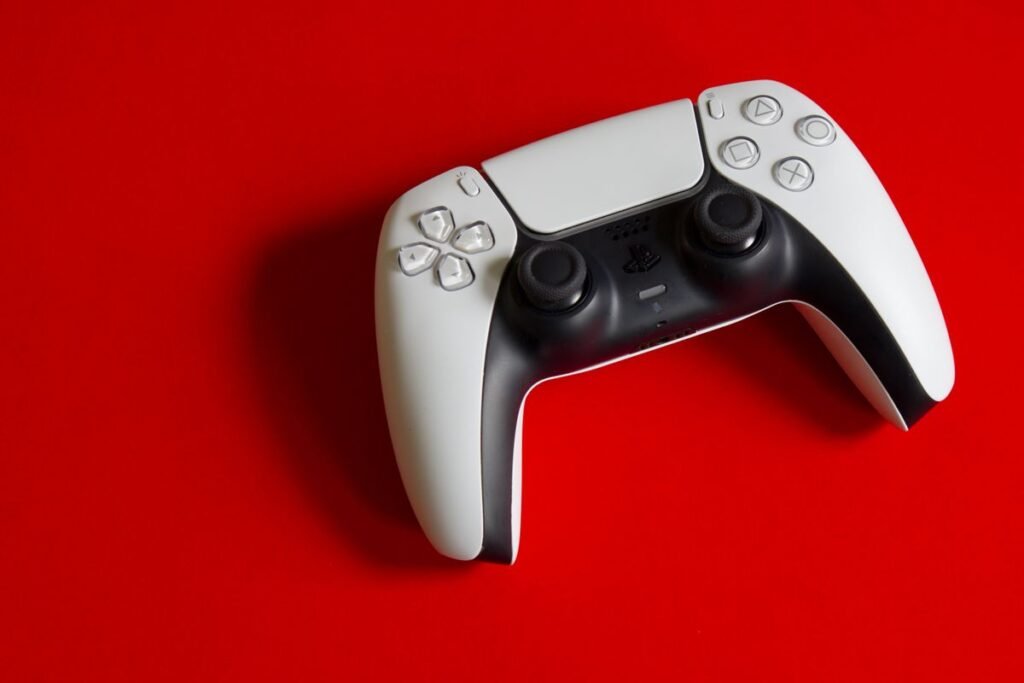
Your character walks off on its own, the camera slowly pans when your thumb is nowhere near the stick, aiming feels twitchy — that’s stick drift, and it’s the most common way a PS5 DualSense controller fails. Before you buy a replacement, work through the fixes below. Many cases are solved in minutes with a reset or a cleaning, and if it’s a genuine hardware fault, Sony may repair it for free. Here’s how to fix PS5 controller stick drift in 2026, from fastest to most permanent.
Quick answer: Reset the controller by pressing the tiny reset button in the pinhole on the back for 5 seconds, then re-pair it. Update the controller firmware, and clean around the base of the stick with 90% isopropyl alcohol on a cotton swab. Raise the in-game deadzone to 0.15–0.20 to mask mild drift. If drift persists, request a free Sony warranty repair or install Hall effect stick modules.
What Causes Stick Drift
Standard DualSense sticks use potentiometers — small components that physically wear down over time. As they wear, or as dust and skin oil build up under the stick, the controller starts reading movement that isn’t there. That’s why drift usually appears after months of use and why cleaning and resets often help. Genuine hardware wear, though, eventually needs a repair or a drift-proof replacement.
Method 1: Confirm the Drift (Test Input Devices)
First, make sure it’s really drift and see how bad it is:
- On your PS5, go to Settings > Accessories > Controllers > Test Input Devices.
- Select the stick test and don’t touch the sticks.
- If the on-screen dot moves on its own, you’ve confirmed drift and can see its direction and severity.
Method 2: Reset the DualSense Controller
A reset fixes a surprising amount of drift caused by software or pairing glitches:
- Turn the controller off and find the small pinhole on the back, near the top screw.
- Use a paperclip or SIM-eject tool to press and hold the button inside for at least 5 seconds.
- Reconnect the controller to the PS5 with a USB cable and press the PS button to re-pair.
Method 3: Update the Controller Firmware
Sony pushes firmware that can improve stick handling. Connect the controller by USB and go to Settings > Accessories > Controllers > DualSense Wireless Controller Device Software and install any update.
Method 4: Clean Around the Stick
Debris under the stick base is a top cause of drift, and cleaning is often the single best fix:
- Dip a cotton swab in 90% (or higher) isopropyl alcohol — not water.
- Pull the stick to one side and gently clean around the base/dome where it meets the housing.
- Rotate the stick in full circles to work the alcohol in, then let it dry for a few minutes.
- Test again in Test Input Devices.
Tip: A can of compressed air first, then the isopropyl swab, clears both loose dust and sticky residue. Never use water or household cleaners.
Method 5: Raise the In-Game Deadzone
The “deadzone” is how far the stick must move before the game reacts. Raising it hides mild drift. Many games let you set this in their control settings — bump the deadzone to around 0.15–0.20 (or ~15–20%). It’s a workaround, not a cure, but it can keep a drifting controller usable.
Method 6: Free Sony Warranty Repair
DualSense controllers carry a 1-year warranty, and Sony repairs stick drift at no cost within that window:
- Go to the PlayStation “Fix & Replace” support portal and sign in.
- Have your proof of purchase ready and start a repair request.
- Sony provides a prepaid shipping label and returns a repaired or replaced controller, typically in 7–21 days.
Even out of warranty, paid Sony repair can be cheaper than a new controller — worth checking before you buy.
Method 7: Long-Term, Drift-Proof Fixes
| Solution | How it works | Best for |
|---|---|---|
| DualSense Edge modules | Replaceable stick modules snap in without soldering in ~30 seconds | Edge owners wanting an instant swap |
| Hall effect stick mod | Magnet-based sensors with no physical contact — immune to drift | DIYers comfortable opening the controller |
| Sony repair/replace | Factory repair or new unit | In-warranty controllers |
Troubleshooting Table
| Situation | Try this first |
|---|---|
| Drift just started | Reset controller (pinhole, 5 sec) |
| Drift after months of use | Clean around the stick with 90% isopropyl |
| Mild drift, need to keep playing | Raise the in-game deadzone to 0.15–0.20 |
| Drift after an update | Reinstall controller firmware |
| Nothing works, under warranty | Free Sony Fix & Replace repair |
| Want it to never come back | Hall effect sticks or DualSense Edge modules |
Once your controller is behaving, get back to gaming with our picks for the best phone to play Genshin Impact and the current Mobile Legends tier list.
Frequently Asked Questions
How do I fix stick drift on my PS5 controller?
Reset the controller using the pinhole button on the back for 5 seconds, update its firmware, and clean around the stick base with 90% isopropyl alcohol. Raise the in-game deadzone to mask mild drift, and if it persists, use Sony’s free warranty repair or install Hall effect sticks.
Does resetting the DualSense fix stick drift?
It can, when the drift is caused by a software or pairing glitch. Press the reset button in the pinhole on the back for at least 5 seconds, then re-pair the controller and re-test.
Will Sony fix my controller drift for free?
Yes, if the controller is within its 1-year warranty. Start a request through the PlayStation Fix & Replace portal with proof of purchase; Sony sends a prepaid label and returns a repaired or replaced controller in about 7–21 days.
What is the permanent fix for stick drift?
Replacing the standard potentiometer sticks with Hall effect modules, which use magnets and have no wearing contacts, makes a controller effectively immune to drift. DualSense Edge modules can also be swapped without tools.
Can cleaning really stop stick drift?
Often, yes. Much drift is caused by dust and skin oil under the stick. Cleaning around the base with 90% isopropyl alcohol on a cotton swab frequently restores normal behavior.
What deadzone should I use for a drifting stick?
Setting the in-game deadzone to around 0.15–0.20 (about 15–20%) hides mild drift. It’s a temporary workaround rather than a real fix, but it keeps the controller playable.
