Close Menu
GeekBlog

    Subscribe to Updates

    Get the latest creative news from FooBar about art, design and business.

    What's Hot

    Google Play Now Lets You Run Private, Vibe-Coded Apps on Your Own Android Phone

    October 14, 2026

    Character.AI Files for Bankruptcy and Sells Part of Itself to Disney for $20 Million

    October 14, 2026

    Best Smartwatch for Small Wrists in 2026: Compact Picks That Actually Fit

    October 14, 2026
    Facebook
    GeekBlog
    • Home
    • Mobile
    • Tech News
    • Blog
    • Gaming
    • Smartwatch
    • How-To Guides
    • AI & Software
    Facebook
    GeekBlog
    Home»AI & Software»How to Show the Volume Bar on Your iPhone Lock Screen Again
    AI & Software

    How to Show the Volume Bar on Your iPhone Lock Screen Again

    Olivia HartmanBy Olivia HartmanAugust 4, 2025Updated:October 10, 20265 Mins Read
    Share Facebook Twitter Pinterest LinkedIn Tumblr Email Copy Link
    How to Show the Volume Bar on Your iPhone Lock Screen Again
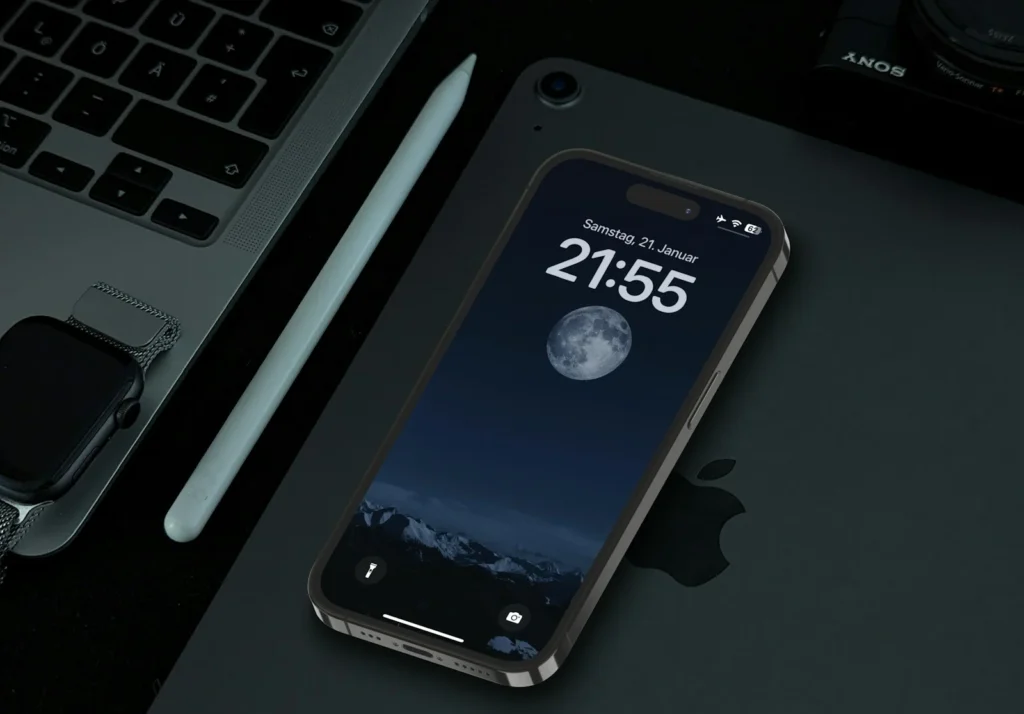
    Photo: Vince Picipo on Unsplash
    Share
    Facebook Twitter LinkedIn Pinterest Email Copy Link

    If you miss dragging a volume slider on your iPhone Lock Screen, you can have it back. Apple took the slider out of the Lock Screen music player in iOS 16, then quietly brought it back as an optional setting in iOS 18.2. It is still there in iOS 26, but it is off by default and hidden in Accessibility, which is why so many people never find it. Here is the exact path and a few related volume settings worth knowing.

    Quick answer: Open Settings, tap Accessibility, tap Audio & Visual under Hearing, then turn on Always Show Volume Control. The next time music or a podcast is playing, a volume slider appears in the Lock Screen player below the playback buttons.

    How to turn on the Lock Screen volume bar

    1. Open the Settings app.
    2. Scroll down and tap Accessibility.
    3. In the Hearing section, tap Audio & Visual.
    4. Turn on Always Show Volume Control.
    5. Start playing something, lock your iPhone and wake the screen. The slider sits under the play, pause and skip controls.

    To remove it again, go back to the same screen and switch the toggle off. Nothing else changes, and the physical volume buttons keep working exactly as before.

    Why the slider disappeared in the first place

    When Apple redesigned the Lock Screen in iOS 16, it trimmed the media player to keep it compact. The volume slider was one of the casualties, so the only ways to change volume without unlocking were the side buttons or Control Center. The side buttons move in fixed steps, which is often either a notch too loud or a notch too quiet in a quiet room or on headphones. A slider lets you set the level precisely with one drag, which is the main reason people want it back.

    Recommended for you:

    How to Safely Verify Your Age on X Without Risking Your Data
    AI & Software·Aug 2, 2025

    How to Safely Verify Your Age on X Without Risking Your Data

    Apple restored the slider in iOS 18.2, but as an Accessibility option rather than the default, and it has stayed that way in iOS 26.

    If you cannot find the setting or the slider

    • Update your iPhone. The option needs iOS 18.2 or later. Check under Settings, General, Software Update.
    • Play some audio first. The slider only shows up inside the Lock Screen media player, so it is invisible when nothing is playing.
    • Use Settings search. If your iOS version arranges menus differently, swipe down in Settings and type volume control to jump straight to the toggle. Apple still lists Audio & Visual under Accessibility in its current iPhone guide.
    • Check Lock Screen access. If the media player itself does not appear while locked, go to Settings, Face ID & Passcode (or Touch ID & Passcode) and review the options below Allow Access When Locked.
    Tip: you can also change volume without unlocking from Control Center. On an iPhone with Face ID, swipe down from the top right corner of the Lock Screen and drag the volume control. If that does nothing, turn on Control Center under Allow Access When Locked in Face ID & Passcode settings.

    Other iPhone volume settings worth changing

    While you are tweaking sound, these settings solve the other common volume complaints. Paths are from Apple’s current iPhone user guide.

    SettingWhere to find itWhat it does
    Change with ButtonsSettings, Sounds & HapticsTurn it off so the side buttons only change media volume, not your ringer and alerts
    Volume LimitSettings, Sounds & Haptics, Volume LimitCaps how loud the built in speaker can get
    Headphone SafetySettings, Sounds & Haptics, Headphone SafetyReduce Loud Audio keeps headphone volume under a level you choose
    Separate alarm volumeSettings, Sounds & Haptics, turn off Match Ringtone VolumeNew in iOS 27: set alarms and timers louder or quieter than your ringtone

    The Change with Buttons setting is especially handy. With it off, pressing the volume buttons when nothing is playing will no longer quietly turn your ringer down, which is a common reason for missed calls.

    FAQ

    Does the Lock Screen volume slider work with every app?

    It appears in the Lock Screen media player, so it works with apps that show their playback there, such as music, podcast and audiobook apps.

    Will the slider drain my battery?

    No. It is only a control inside the existing media player, and it only appears while audio is playing.

    Why do my volume buttons change the ringer instead of my music?

    The buttons control media volume only while audio is playing. When nothing plays, they change ringer and alert volume unless you turn off Change with Buttons in Sounds & Haptics.

    Recommended for you:

    OpenAI’s Push to Make AI Do Your Tasks: Agents Explained for 2026
    AI & Software·Aug 3, 2025

    OpenAI’s Push to Make AI Do Your Tasks: Agents Explained for 2026

    Can I change the volume with Siri instead?

    Yes. Ask Siri something like turn down the volume, and it adjusts the level without you touching the screen.

    The verdict

    The Lock Screen volume bar never really left, it just moved into Accessibility settings. Turn on Always Show Volume Control under Accessibility, Audio & Visual, and you get precise volume control again without unlocking your iPhone. Pair it with Change with Buttons and a sensible Volume Limit, and the iPhone sound settings finally behave the way most people expect.

    Updated October 2026: rewritten for iOS 26 with the current Settings path, troubleshooting steps and related volume settings, including the new iOS 27 alarm volume option.

    Featured photo: Vince Picipo on Unsplash.

    About this article: GeekBlog covers U.S. technology news, AI, phones, smartwatches and gaming. Every story is written and checked under our Editorial Policy. Spotted a mistake or have a story tip? Contact our editors.

    Share. Facebook Twitter Pinterest LinkedIn Tumblr Telegram Email Copy Link
    Previous ArticleHow to Recycle Aluminum Cans the Right Way (and Why Not to Crush Them)
    Next Article 5 Ways to Repurpose Old CD and DVD Players
    Olivia Hartman

      Olivia Hartman is GeekBlog's general technology reporter, covering the wider world of tech beyond smartphones: AI and software, laptops and PCs, gaming, streaming, space, science, consumer gadgets, deals and the policy stories shaping the industry. A versatile journalist with a nose for what actually matters, Olivia turns breaking news and product launches into accessible, no-hype reporting for everyday readers.

      Related Posts

      5 Mins Read

      Google Play Now Lets You Run Private, Vibe-Coded Apps on Your Own Android Phone

      6 Mins Read

      Character.AI Files for Bankruptcy and Sells Part of Itself to Disney for $20 Million

      5 Mins Read

      Microsoft’s Brad Smith Says Milk Is Regulated More Than AI, and Wants the UK to Fix That

      5 Mins Read

      Meta Finally Ships a Frontier Model. Its Own Research Blog Did Not Notice.

      5 Mins Read

      Nadella Wants an Emergency Brake for AI Models and Says to Trust the Model the Least

      6 Mins Read

      Anthropic Pulled the Internet From Its AI Agent Tests After They Hacked Real Websites

      Top Posts

      Every iPhone Camera Ranked in 2026 (Best to Worst)

      July 6, 2026286 Views

      Best Stores for Buying MP3 and Digital Music You Can Keep Forever (2026)

      August 2, 2025259 Views

      Why Is RedGifs Not Working? Causes & Fixes (2026)

      July 8, 2026171 Views
      Stay In Touch
      • Facebook

      Subscribe to Updates

      Get the latest tech news from FooBar about tech, design and biz.

      Most Popular

      iPhone Battery Replacement Cost: Every Model, Apple vs Repair Shop

      October 6, 2026114 Views

      One UI 9 Watch Beta Now Covers Three Galaxy Watch Generations: What You Get and How to Join

      October 4, 202670 Views

      Best Offline Music App in 2026: Free and Paid Picks

      October 7, 202666 Views
      Our Picks

      Google Play Now Lets You Run Private, Vibe-Coded Apps on Your Own Android Phone

      October 14, 2026

      Character.AI Files for Bankruptcy and Sells Part of Itself to Disney for $20 Million

      October 14, 2026

      Best Smartwatch for Small Wrists in 2026: Compact Picks That Actually Fit

      October 14, 2026

      Subscribe to Updates

      Get the latest creative news from FooBar about art, design and business.

      HEICJPG.online - Convert HEIC to JPG online
      Facebook
      • About Us
      • Contact us
      • Privacy Policy
      • Disclaimer
      • Terms and Conditions
      • Editorial Policy
      • Cookie Policy
      • Your Privacy Choices
      © 2026 GeekBlog

      Type above and press Enter to search. Press Esc to cancel.