

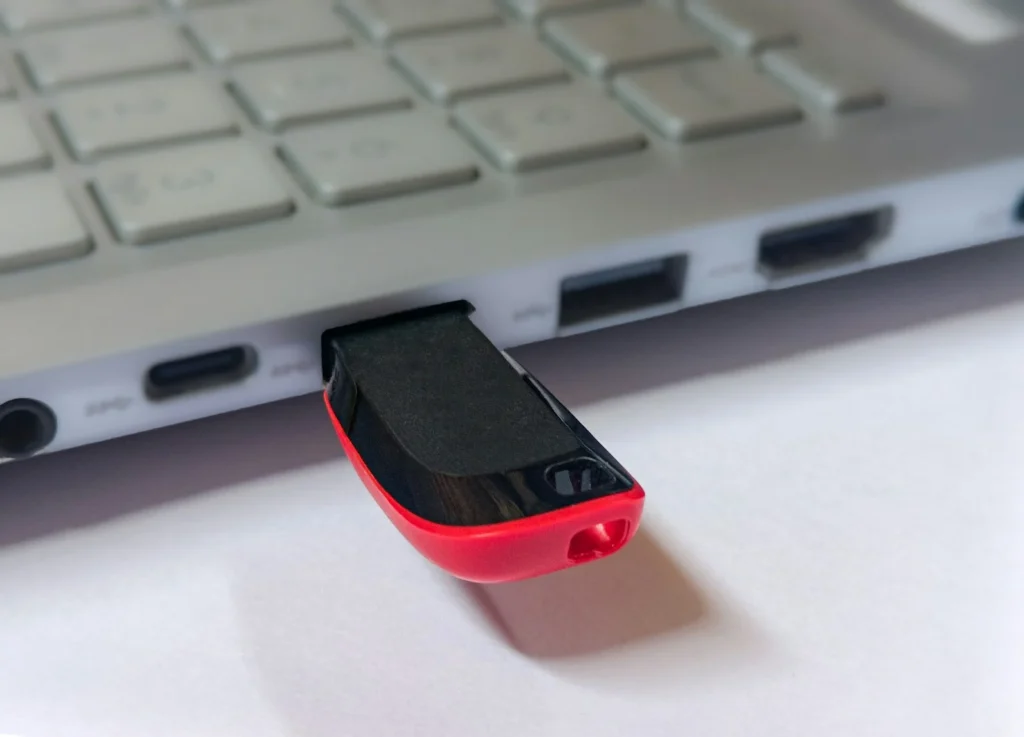
Some malware is stubborn enough to block your antivirus, hide from scans or come back after every cleanup. The fix is to scan the PC while Windows is not running, so the infection cannot defend itself. A bootable rescue USB does exactly that, and Windows 11 already has a similar tool built in. Here is how to use both, step by step.
Why scanning from outside Windows works
When Windows boots normally, malware loads with it. Rootkits and other advanced threats can hide files, kill security software or reinfect the system as fast as you clean it. A rescue drive starts its own small operating system, usually based on Linux, and reads your Windows drive as plain data. Nothing on the infected disk runs, so the scanner sees everything as it really is.
You should reach for this method when your antivirus is disabled and will not turn back on, when scans keep finding the same threat, when Windows crashes or freezes before you can do anything, or when your browser keeps redirecting to strange sites after every cleanup.
Step 1: Try the built in offline scan first
Windows 11 and Windows 10 include an offline scanner that runs before Windows loads, inside the Windows Recovery Environment. It costs nothing and needs no USB drive.
- Save your work, because the PC will restart.
- Open Windows Security and select Virus and threat protection.
- Under Current threats, choose Scan options.
- Select Microsoft Defender Antivirus (offline scan) and click Scan now.
- When the PC restarts on its own, open Windows Security again and check Protection history for results.
For a second opinion inside Windows, Microsoft also offers the free Microsoft Safety Scanner. It is a single file you can carry on a USB stick and run on demand. Microsoft says each download expires 10 days later, so always grab a fresh copy before you scan.
Step 2: Pick a rescue USB tool
If the offline scan cannot finish or Windows will not boot at all, you need a true bootable rescue drive. Here is how the main options compare in October 2026.
| Tool | How it runs | Best for |
|---|---|---|
| Microsoft Defender offline scan | Built into Windows Security, runs in the recovery environment | PCs that still start Windows |
| Microsoft Safety Scanner | Portable program, expires 10 days after download | A quick second opinion inside Windows |
| ESET SysRescue Live | Free bootable USB or CD, works without Windows | PCs that will not boot or keep getting reinfected |
| Kaspersky Rescue Disk | Bootable image | Not a good pick in the US, see below |
Older guides often recommend Kaspersky’s rescue disk. The US government banned sales of Kaspersky security software in July 2024 and blocked its updates to US customers after September 29, 2024. A rescue tool is only as good as its latest definitions, so US readers should choose another option.
Step 3: Build and boot the rescue drive
- On a computer you trust, download ESET SysRescue Live from ESET’s official support site. Never download rescue tools on the infected machine.
- Plug in a USB flash drive you do not mind erasing. Everything on it will be deleted.
- Run the ESET Live USB creator, choose the option to create a USB drive and select your stick.
- Shut down the infected PC fully, insert the drive and power it on while tapping the boot menu key. It is often F12, F11, F9, F8 or Esc depending on the brand, and the startup screen or the maker’s support site will tell you which.
- Choose the USB drive from the list. If it does not appear, open the firmware setup and make sure USB boot is allowed.
- Once the rescue system loads, connect to the internet, update the virus definitions and start a full scan of every drive.
- Let the tool remove or quarantine what it finds, then remove the USB drive and restart into Windows.
Step 4: Clean up after the infection
Removing the malware is only half the job. Many threats steal passwords and browser cookies before you ever notice them.
- Change your important passwords from a different, clean device, starting with email, banking and your Microsoft account.
- Turn on two step verification wherever it is offered.
- Install all pending Windows updates and update your browser.
- Remove browser extensions and programs you do not recognize.
- Run the Defender offline scan once more to confirm the PC is clean.
When it is time to reinstall Windows
If the malware survives a rescue scan, or if you found ransomware or a rootkit, a clean reinstall is the safest answer. Copy your documents and photos to an external drive first, but scan that drive before you restore anything. Then use Microsoft’s Media Creation Tool on a clean PC to make Windows 11 installation media. Microsoft asks for a blank USB flash drive with at least 8GB of space. Boot from it, delete the old partitions and install fresh.
FAQ
Can malware infect the rescue USB?
It can if you plug the drive into the infected PC while Windows is running. When you boot from the stick, the infected Windows installation is not active, so the risk is much lower.
Is the Microsoft Defender offline scan enough?
For most infections, yes. It runs before Windows loads and uses the same definitions as Defender. Use a bootable third party tool when the offline scan cannot start or the threat keeps coming back.
Will a rescue scan delete my files?
It only removes or quarantines files it flags as malicious. Still, back up anything important before you start, in case a damaged system file needs to be removed.
Does this work on a Mac?
No. These tools are made for Windows PCs. Macs use different startup tools and protections.
The verdict
Start with the free offline scan built into Windows Security, because it handles most stubborn threats with zero setup. When Windows will not cooperate, a free ESET SysRescue Live USB made on a clean computer is the next step, and a fresh Windows install from Microsoft’s own media is the reliable last resort. Skip Kaspersky’s tools if you live in the US.
Updated October 2026: rewritten with current Windows Security steps, free rescue USB options and the US status of Kaspersky tools.
Featured photo: Mrs Chimpanzeee on Unsplash.
About this article: GeekBlog covers U.S. technology news, AI, phones, smartwatches and gaming. Every story is written and checked under our Editorial Policy. Spotted a mistake or have a story tip? Contact our editors.
