

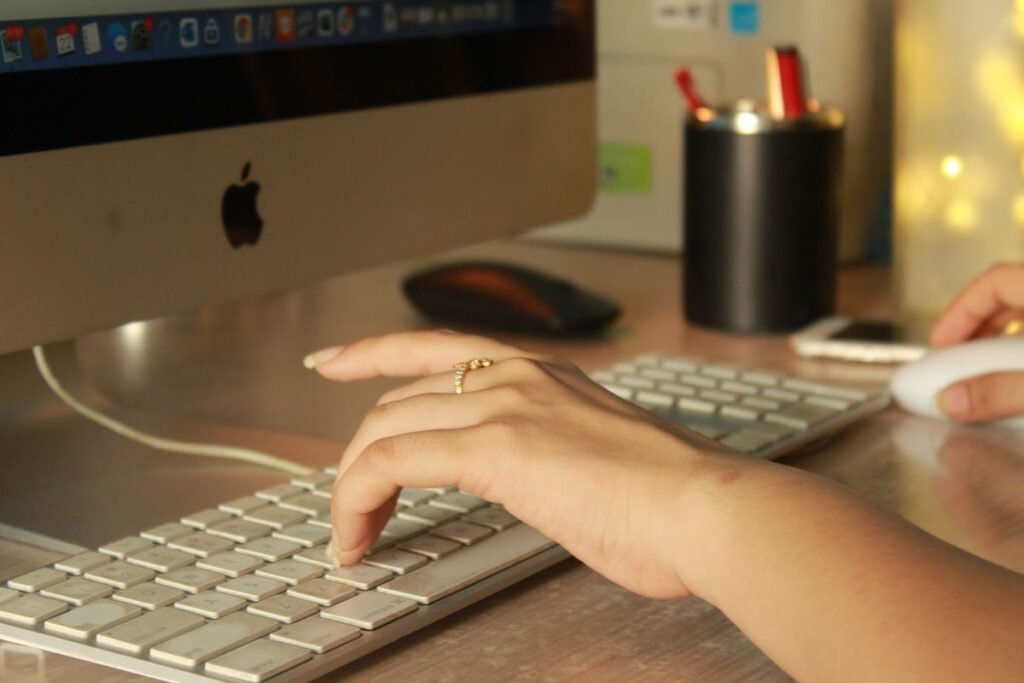
Typing practice for beginners does not have to be boring, expensive, or complicated. With a free tool, a few minutes a day, and the right technique, almost anyone can go from slow hunt-and-peck typing to smooth, confident touch typing in a matter of weeks. The secret is not natural talent; it is learning proper finger placement early and practicing consistently so the movements become automatic.
This guide is written for complete beginners. You will learn where to rest your fingers, how touch typing works, a realistic daily routine, and which free resources make practice easy. Follow along and you will build a foundation that serves you for the rest of your life, whether you are writing emails, doing schoolwork, or starting a new job.
Start With the Home Row
Every good typist starts from the home row, the middle row of letter keys. Your left hand fingers rest on A, S, D, and F, while your right hand fingers rest on J, K, L, and the semicolon. Both thumbs hover over the space bar. Feel for the tiny raised bumps on the F and J keys; they let you find the correct position without looking down, which is the whole point of touch typing.
From this base, each finger is responsible for specific keys. For example, the left index finger handles F, G, R, T, V, and B, while the right index finger covers J, H, U, Y, M, and N. Learning these zones is what lets your hands move efficiently instead of wandering across the keyboard.
A Simple Daily Routine for Beginners
Consistency beats intensity. This short routine takes about 15 minutes and builds skill fast.
- Warm up on the home row. Spend two minutes typing asdf jkl; repeatedly to reconnect your fingers with their starting positions.
- Drill one new key group. Pick a small set of keys, such as the top row (QWERTY), and practice reaching to them and returning to home row.
- Type common words. Practice high-frequency words like the, and, you, that, have so your fingers memorize familiar patterns.
- Write full sentences. Type a short paragraph or a pangram like “The quick brown fox jumps over the lazy dog,” which uses every letter.
- Slow down for accuracy. If you make more than a couple of mistakes per line, reduce your speed until you can type cleanly.
- Time one test. Once a session, type for one minute and note your words per minute so you can watch progress.
- Rest and repeat. Stop before your hands feel tired, and come back the next day. Short, frequent practice locks in muscle memory.
Free Tools to Practice Typing
You do not need to spend a cent. There are excellent free options for every learning style, from bare-bones text editors to interactive lessons and games.
Use a plain text editor like Notepad on Windows or TextEdit on Mac. There is no autocorrect to hide your mistakes, so you learn to fix errors yourself and build real accuracy.
Free websites such as TypingClub, Typing.com, and Keybr offer structured lessons, instant feedback, and typing games that make daily practice feel less like a chore.
How to Measure and Track Progress
Typing speed is measured in words per minute (WPM), where a “word” equals five characters including spaces. Accuracy, the percentage of characters typed correctly, matters just as much. Aim to keep accuracy above 95 percent; if it drops, slow down. Most free typing websites show WPM and accuracy automatically, but you can also test yourself with a stopwatch in any text editor.
| Week | Focus | Realistic goal |
|---|---|---|
| Week 1 | Home row and finger zones | Type without looking down |
| Week 2 | Top and bottom rows | 15 to 20 WPM |
| Week 3 | Common words and sentences | 25 to 30 WPM |
| Week 4 | Speed with accuracy | 30 to 40 WPM |
Ready to keep learning? Browse more beginner-friendly tutorials in our how-to guides collection.
Frequently Asked Questions
How long does it take a beginner to learn touch typing?
With 10 to 15 minutes of daily practice, most beginners type without looking down within two to three weeks and reach a comfortable 40 WPM in about a month or two. Consistency is the biggest factor.
What is a good typing speed for a beginner?
Anything above 20 WPM is a solid start. The average adult types around 40 WPM, so hitting 30 to 40 WPM with good accuracy means you have moved past the beginner stage.
Should I learn accuracy or speed first?
Accuracy first, always. Speed built on sloppy habits is fragile. Once you can type cleanly, speed increases naturally because your fingers already know where the keys are.
Are free typing websites as good as paid ones?
For beginners, yes. Free tools like TypingClub, Typing.com, and Keybr cover everything you need, including lessons, tests, and progress tracking. Paid courses mostly add extra content and certificates.
Do I need a special keyboard to practice?
No. Any standard keyboard works. What matters is proper finger placement and consistent practice, not the hardware. The bumps on the F and J keys are the only feature you truly need.
About this article: GeekBlog covers U.S. technology news, AI, phones, smartwatches and gaming. Every story is written and checked under our Editorial Policy. Spotted a mistake or have a story tip? Contact our editors.
