

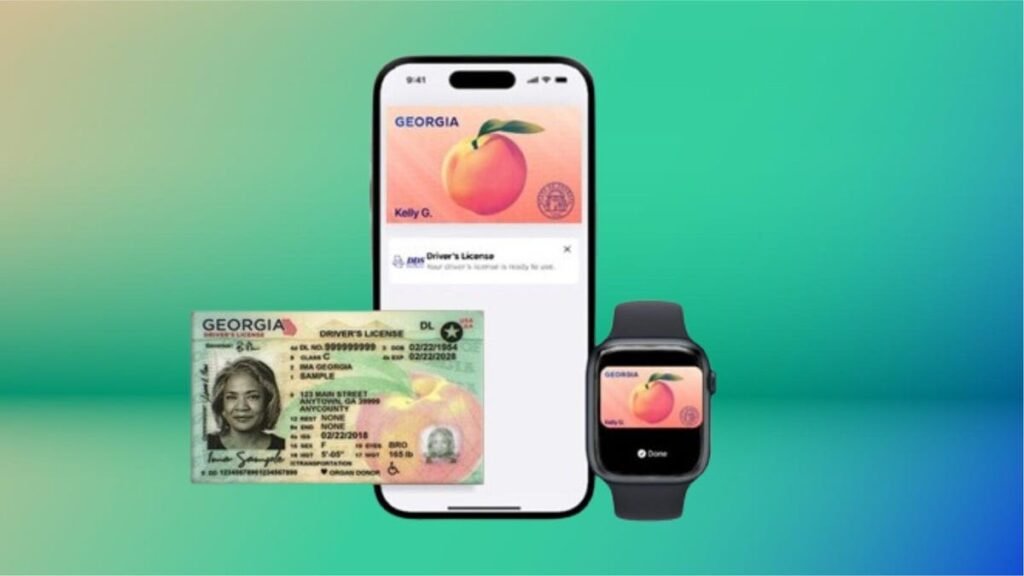
Getting through airport security can be one of the most stressful parts of travel, but Apple is trying to streamline the process with a new digital ID feature. In select states, you can now add your driver’s license or state ID to Apple Wallet on your iPhone or Apple Watch. That means no more fumbling for your wallet at Transportation Security Administration checkpoints — just tap your device, and you’re good to go.
We’re not too far away from a future where you can easily swipe from your flight’s boarding pass to a digital ID, right from your iPhone. If you live in certain states, that future is already here, and you can add your ID to your iPhone for a faster way through the airport security line. While this feels more like a proof of concept, it paves the way for a broader tapestry of use cases in the future.
It’s a convenient upgrade if you live in one of the supported states and have a compatible iPhone. I tested the feature in California, and the setup process was surprisingly simple. Just keep in mind that you’ll need an iPhone 8 or newer running the right version of iOS, and depending on your state’s rollout, some users may hit snags. Still, it’s a small tech shift that can make your travel day a whole lot smoother.
Right now, digital IDs are primarily used to go through TSA checkpoints in certain airports when flying domestically, but that’ll likely change in the future. Want to use your digital ID at your favorite bar or nightclub? We’re not there yet.
Below, I describe my experience, the hiccups I encountered on the way and things that you should know if you plan on adding your driver’s license to Apple Wallet. I’ll also break down how you can add your ID to your iPhone, step by step.
For more, don’t miss these low-key iOS 26 features we’re excited for.
These states support digital IDs on iPhones right now
Only a handful of states support digital IDs in Apple Wallet. One key factor is how each state implements its Mobile Driver’s License system. For instance, Louisiana, New York, Utah and Virginia all support mobile driver’s licenses but require separate apps for digital IDs.
States and regions that support digital IDs in Apple Wallet:
- Arizona
- California
- Colorado
- Georgia
- Hawaii
- Iowa
- Maryland
- New Mexico
- Ohio
- Puerto Rico
Some states originally announced to support Apple’s digital ID haven’t quite gotten there yet.
The number of states supported in Apple Wallet is about half of what the TSA currently allows. Collectively, it accepts digital IDs across Apple Wallet, Google Wallet, Samsung Wallet and state-based mobile apps in 15 states.
What are the iPhone requirements to add your driver’s license to Apple Wallet?
Where you live is just the start. You also have to have the right iPhone model and the right software setup.
Here are the minimum requirements that Apple lists:
- An iPhone 8 or later with the latest version of iOS
- Have Face or Touch ID enabled on your device
- Have two-factor authentication enabled on your Apple account
- A license or ID from a participating state or territory
- Your device’s region set to the United States
I’ll have more to say in a bit about that iPhone 8 and iOS requirement and a catch I ran into.
My experience adding my ID to my iPhone was easy
For testing purposes, I used the iPhone 16E.
The process of adding the ID was simple. I scanned the front and the back of my ID and the next step was to verify my identity. This wasn’t nearly as nerve-wracking as I thought it would be. Instead, it took a live photo of my face for 2.5 seconds.
After that, more verification was required. This came in a series of different photos, with prompts directing me to close my eyes, open my mouth, smile and tip my head down. This verification process took about three minutes. (Or longer in my case, as I got distracted writing notes about the process and then found I had to restart the whole process.)
Then, after I submitted those photos, there was another verification step, presumably with the photos relayed to the California DMV. A screen message told me that I would receive a notification when there was an update. I expected this to take a long time, but not even 10 minutes later, a notification telling me that my ID was ready to use popped up. That was easy.
What about older iPhones?
So, not every phone you think might work will actually do so. The first time I tested adding my ID, I was using an iPhone 8 Plus. But when I arrived at the setup page within Apple Wallet, I was given eight states to choose from, and California wasn’t one of them.
That surprised me. I’d found a helpful Apple support article that explained the requirements for adding a driver’s license or state-issued ID to Apple Wallet and it seemed like I shouldn’t have any trouble.
At first, I thought the roadblock was that I hadn’t set up Touch ID yet. But no, California was still not on my list of eight states. (Equally confusing, a colleague of mine also tried this with an iPhone 8 and Apple Wallet only listed four states.)
I went back to the Apple support article and looked for fine print, and sure enough, there it was. I’d ignored the asterisk in the requirements, because California has had its Mobile Driver’s License program set up for some time now.
The fine print at the very bottom of the page states, “For California, ID in Apple Wallet requires iPhone XS or later with iOS 17.5 or later.” (For Puerto Rico, if you want to add your driver’s license or ID to Apple Wallet, you’ll need to have an iPhone XS or later with iOS 18.1.)
So if you’re holding onto an iPhone 8 or iPhone X and live in California, you won’t be able to add your driver’s license to your iPhone because of the lack of software support. iOS 16 is the last supported version of the operating system for iPhone 8 and X models.
How to add your ID or driver’s license to Apple Wallet
If you live in a state that supports digital IDs for Apple Wallet, it’s easy to add one. After it’s added, you’ll need to verify your identity, which can take a little longer but it’s still a straightforward process.
- Open Apple Wallet.
- Tap the Add button.
- Tap Driver’s License or ID and select your location.
- If applicable, choose whether you want to add your ID to your iPhone only or your iPhone and your Apple Watch.
- Follow the steps to scan your license or ID.
(Make sure you scan your ID in a well-lit environment and that the image is in focus.)
Once it’s scanned, you’ll be prompted to confirm your identity with a selfie photo. According to Apple, you may be asked to complete a number of facial or head movements for identification purposes.
To ensure an easier verification process, Apple suggests that you:
- Stand in front of a plain background with neutral, light paint.
- Be in a well-lit area, ideally indoors.
- Take off sunglasses, masks, hats or other accessories that could block your face.
- Hold your iPhone steady.
When you’re finished, submit your information by confirming with Touch or Face ID. Your biometrics will be bound to the ID, so only you can use it.
How to transfer your digital ID to another iPhone
If you upgrade your iPhone, you’ll need to transfer your ID or driver’s license to it.
- During initial setup, tap Wallet.
- Select your ID.
- Follow the steps.
- Tap to confirm you want to move your driver’s license or ID to the new device.
So, now what?
Your digital ID isn’t just a photo of your ID that you can pull up within Apple Wallet. In fact, you don’t even see a full image of your physical ID. In order to actually view your information from your digital ID, you’ll need to tap on your ID “card” in Apple Wallet, tap the “i” at the top-right of the screen, and then tap State ID info or Card Information (the wording may be different depending on what version of iOS your iPhone is running). From there, it will show your ID photo as well as essential pieces of information from your physical ID.
TSA checkpoints that support digital IDs require a dedicated scanner, so the process may not necessarily feel like it’s faster than showing your physical ID to the agent.
Here’s a video of the process via the Maryland Department of Transportation:
The idea of a digital ID is pretty convenient but overall, it probably won’t save you a meaningful amount of time. Couple that fact with its incredibly limited use cases right now and the fact that merchant or event adoption will require investment in proper hardware and it’s pretty easy to see just how far off we are from ditching physical IDs.
Selling or trading in your iPhone? Do this first.
When you move on from a phone that has your ID on it, you’ll want to do the same thing you do with other sensitive info like credit or debit cards and passwords: Remove it.
So before you wipe your iPhone to sell or trade it in, you should manually remove your ID first. Here’s how to do it.
- Go to Apple Wallet and tap your ID in the list
- Tap the “i” button at the top right of the screen
- Tap Remove State ID (or Driver’s License)
- Read the warning that pops up and tap Remove
Digital passports are coming to Apple Wallet with iOS 26
Creating a digital ID from your physical passport is coming to your iPhone this year.
While states are taking time to implement digital ID systems, Apple announced a feature coming in iOS 26 this year: You can add a digital passport to Apple Wallet.
When that feature is available, iPhone users will be able to scan their passports to create a digital version for identity verification during domestic travel. You won’t be able to use it for international travel and it’s not a full replacement for a physical passport (so keep your physical one on you) but it should work at the 250-plus supported TSA checkpoints.
During its WWDC keynote in June, Apple said that the digital ID made from your passport can also be used “in apps and in person” but it didn’t give any specifics.
This is essentially what can be done on Android through Google Wallet.
Verify with Wallet ID verification could make ordering alcohol easier
Also headed to iPhones this fall is an easier way for you to prove your age using your digital ID. Say you want to have a bottle of wine sent to your place via Uber Eats. Typically, when the driver arrives, you’ll need to present your ID and have it scanned to complete the transaction but with the new Verify with Wallet, your stored digital ID will be used to verify your age. (I do wonder if things might get more complicated when the delivery arrives if you’re not the one receiving it.)
Verify with Wallet will be supported by Chime, Turo, Uber Eats and U.S. Bank.
For more, don’t miss what you should know about flying domestically without a Real ID in 2025.
