

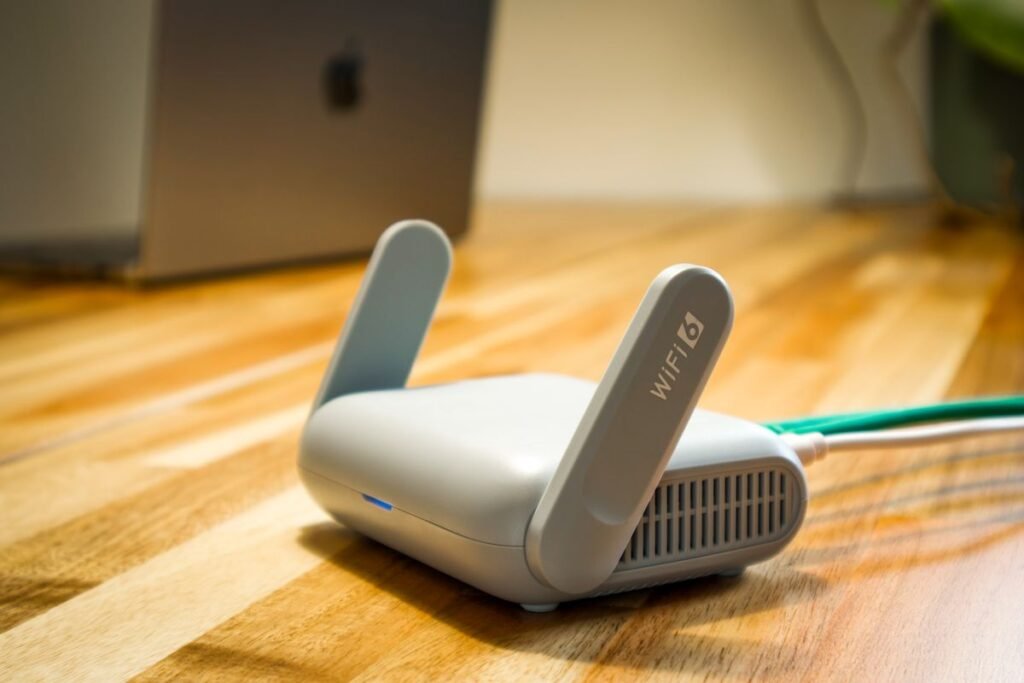
Knowing how to connect to Wi-Fi is one of the most freeing skills you can learn, because it lets your phone, tablet, or computer reach the internet without using your phone company’s data. Once you are connected, you can browse websites, send email, make video calls, stream music, and download apps, all over your home’s wireless signal. The process is quick and nearly identical across devices, so learning it once means you can do it anywhere.
This step-by-step guide walks you through connecting on an iPhone, an Android phone, a Windows computer, and a Mac, using plain language and clear steps. We will also cover what you need before you start, how to fix the most common hiccups, and how to stay safe on public networks. Keep your device nearby and follow along, and you will be online in just a couple of minutes.
What You Need Before You Start
Connecting requires just two things: the name of your Wi-Fi network and its password. The network name is often printed on a sticker on the back or bottom of your internet router, the small box from your internet provider. The password may be on the same sticker, labeled “Wi-Fi Password,” “Key,” or “Passphrase.” If a family member set up your internet, they will know these details. Keep them written down somewhere safe.
How to Connect on an iPhone or iPad
Apple devices make connecting simple, and once you join a network your device remembers it for next time. Follow these steps.
- Open Settings. Tap the gray gear icon on your Home screen.
- Tap Wi-Fi. It is near the top of the Settings list.
- Turn Wi-Fi on. Make sure the switch is green; the device will then list nearby networks.
- Choose your network. Tap your network’s name from the list.
- Enter the password. Type it carefully, watching capital letters, then tap Join.
- Confirm the connection. A blue checkmark appears beside the name and the Wi-Fi symbol shows at the top.
How to Connect on an Android Phone
Android phones vary slightly by brand, but the path is very similar on all of them. Open Settings, tap “Network & internet” or “Connections,” then tap Wi-Fi and switch it on. Your phone lists the networks it can see. Tap your network name, type the password carefully, and tap Connect. A “Connected” label appears under the network name, and the Wi-Fi symbol shows at the top of your screen.
- Find your network name and password.
- Sit near the router for a strong signal.
- Make sure Wi-Fi is switched on.
- Turn off Airplane Mode if it is on.
- Avoid banking on public Wi-Fi.
- Look for the padlock in your browser.
- Do not join networks with odd names.
- Keep your home password private.
How to Connect on a Windows Computer
On a Windows 11 or Windows 10 computer, look at the bottom-right corner of the screen near the clock and click the Wi-Fi, sound, or battery icon to open Quick Settings. Click the arrow beside the Wi-Fi symbol to see available networks, choose yours, tick “Connect automatically” if you like, and click Connect. Type the password and click Next. Windows will confirm when you are online, and it remembers the network for future visits.
How to Connect on a Mac
On an Apple Mac, click the Wi-Fi symbol in the menu bar at the top-right of the screen. If Wi-Fi is off, switch it on, then wait a moment for the list of networks to appear. Click your network’s name, type the password in the box that appears, and click Join. The Wi-Fi symbol fills with dark bars once you are connected, and your Mac will reconnect automatically whenever you are home.
Fixing Common Wi-Fi Problems
If the connection does not work the first time, do not worry. Most issues are simple to solve, and this table covers the ones people run into most often. For more gentle walkthroughs on getting online, browse our how-to guides.
| Problem | Likely cause | What to try |
|---|---|---|
| “Incorrect password” | A typo or wrong capital letter | Retype it slowly and reveal the characters |
| Network not listed | Too far from the router | Move closer and refresh the list |
| Connected but no internet | Router needs a restart | Unplug the router for 30 seconds, then replug |
| Keeps disconnecting | Weak signal in that room | Sit nearer the router or remove obstacles |
| Wi-Fi switch is grayed out | Airplane Mode is on | Turn off Airplane Mode, then enable Wi-Fi |
Staying Safe on Public Wi-Fi
Free Wi-Fi in cafés, libraries, and airports is convenient, but treat it with a little caution. It is fine for reading news or checking the weather, but avoid signing into your bank or entering credit card details on a public network. Make sure any website you use shows a padlock symbol beside its address, and never join a network with a suspicious or oddly worded name.
Frequently Asked Questions
Where do I find my Wi-Fi password?
It is usually printed on a sticker on the back or underside of your internet router, often labeled “Wi-Fi Password,” “Key,” or “Passphrase.” If someone else set up your internet, ask them. You can also log into the router’s settings to view or change it, though the sticker is the easiest place to start.
Does connecting to Wi-Fi cost money?
Using your home Wi-Fi does not cost extra beyond your monthly internet bill, and it saves your phone’s mobile data. Public Wi-Fi in places like libraries and coffee shops is usually free as well. Only your mobile data plan, used when away from Wi-Fi, is measured and can add up.
Why does it say “Connected, no internet”?
This means your device reached the Wi-Fi but the router is not passing data through. The usual fix is to restart the router by unplugging it for about thirty seconds and plugging it back in. If it continues, your internet provider may be having an outage worth checking on.
Will my device remember the Wi-Fi next time?
Yes. Once you connect successfully, your phone or computer saves the network and rejoins it automatically whenever you are in range. You only need to enter the password the first time. This is why your device connects on its own the moment you walk back into your home.
Is it safe to let guests use my Wi-Fi?
Sharing with trusted guests is generally fine. For extra peace of mind, many routers offer a separate “Guest network” you can switch on, which lets visitors get online without giving them access to your main password or the other devices in your home. Check your router’s app or settings for this option.
About this article: GeekBlog covers U.S. technology news, AI, phones, smartwatches and gaming. Every story is written and checked under our Editorial Policy. Spotted a mistake or have a story tip? Contact our editors.
