

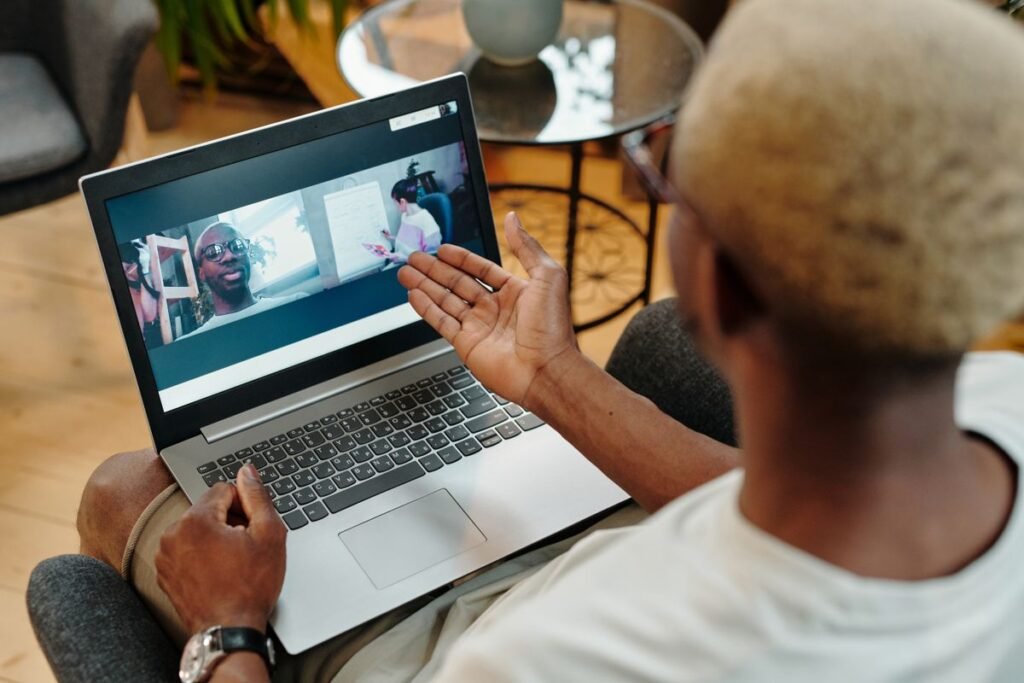
Knowing how to spotlight in Zoom lets you lock everyone’s video onto one person, so every participant sees the same speaker no matter who is talking. Spotlighting is different from pinning: when you spotlight someone, that choice applies to the whole meeting, while pinning only changes what you personally see on your own screen. It is the go-to tool for keynote speakers, sign-language interpreters, award presentations, panel moderators, and any moment when you want the room’s attention on a single face.
This guide walks you through spotlighting a participant on the Zoom desktop app and the mobile app, how to spotlight up to nine people at once, and what to do when the option is missing. Because spotlight is a host-level control, you must be the meeting host or co-host to use it, so we will also cover the permissions you need before you start.
What Spotlighting Does (and How It Differs From Pinning)
Spotlight forces a chosen participant’s video to become the primary, large view for everyone in the meeting. It overrides Zoom’s automatic active-speaker switching, so the spotlighted person stays center stage even while silent. Attendees cannot undo a spotlight you set, which makes it ideal for presentations where you do not want the layout to jump around.
Pinning, by contrast, is a personal, local setting. If you pin someone, only your screen changes and other people see their own layouts. Understanding this distinction saves confusion: use spotlight to control what the whole room sees, and pin when you just want to keep one video large on your own display.
Requirements Before You Spotlight
Spotlight has a few conditions. You need to be the host or a co-host, there must be at least three participants with their video on (including you), and everyone should ideally be on Zoom 5.2.2 or later for multi-spotlight support. On the 2026 desktop client, spotlight is available in almost every meeting type, including webinars.
How to Spotlight a Participant on Desktop
The desktop app (Windows and macOS) gives you the fastest access to spotlight controls. Follow these steps.
- Start or join the meeting as the host or co-host, and make sure at least three people have video enabled.
- Switch to Gallery View or Speaker View so you can see participant tiles.
- Hover your mouse over the video tile of the person you want to feature.
- Click the blue three-dot (…) menu in the top-right corner of their tile.
- Select Spotlight for Everyone from the drop-down list.
- To feature more people, hover over another tile and choose Add Spotlight (up to nine total).
- When finished, open the same menu and click Remove Spotlight to return to the normal view.
How to Spotlight on the Mobile App
You can spotlight from an iPhone, iPad, or Android device too, though the menu lives in a slightly different place.
- Join the meeting as host or co-host from the Zoom mobile app.
- Tap the participant’s video tile to focus on it.
- Tap and hold, or tap the participant’s name, to open the quick menu.
- Choose Spotlight (or “Spotlight for Everyone”).
- Tap Remove Spotlight from the same menu when you are done.
For deeper control, most hosts still prefer the desktop client during live events, but the mobile option is reliable for quick, on-the-go moderation.
Spotlight vs. Pin at a Glance
- You want everyone to see the same speaker.
- You are running a presentation, panel, or interpreter feed.
- You are the host or co-host and want meeting-wide control.
- You only want to change your own view.
- You are a regular attendee without host rights.
- You want to keep one person large without affecting others.
| Feature | Spotlight | Pin |
|---|---|---|
| Who it affects | Everyone in the meeting | Only your own screen |
| Who can use it | Host or co-host | Any participant |
| Max people | Up to 9 | Up to 9 (local) |
| Minimum participants | 3 with video | None |
| Affects recording | Yes, in some layouts | No |
Troubleshooting: Spotlight Option Is Missing
If you cannot find the spotlight command, run through these checks. First, confirm you are the host or co-host, since attendees never see the option. Second, make sure at least three participants have their cameras on; spotlight is greyed out below that threshold. Third, update your Zoom client, because older versions hide multi-spotlight. If you are in a breakout room, note that spotlight applies within that room only. For more walkthroughs like this, browse our how-to guides.
Frequently Asked Questions
Can attendees remove a spotlight I set?
No. Only the host or co-host who has spotlight rights can add or remove a spotlight. Regular attendees can still pin a different person for their own view, but they cannot change the spotlight for everyone.
How many people can I spotlight at once?
You can spotlight up to nine participants simultaneously as long as each has their video on and everyone is running a recent version of the Zoom app.
Does the person know they are spotlighted?
Yes. Zoom shows a small notification on the spotlighted participant’s screen so they know their video is featured for the whole meeting.
Why is spotlight greyed out?
The most common reasons are that you are not the host or co-host, or fewer than three participants have their cameras enabled. Enable more video feeds or confirm your host role to fix it.
Can I spotlight myself?
Yes, as the host you can spotlight your own video the same way you spotlight anyone else, which is handy for solo presentations.
