

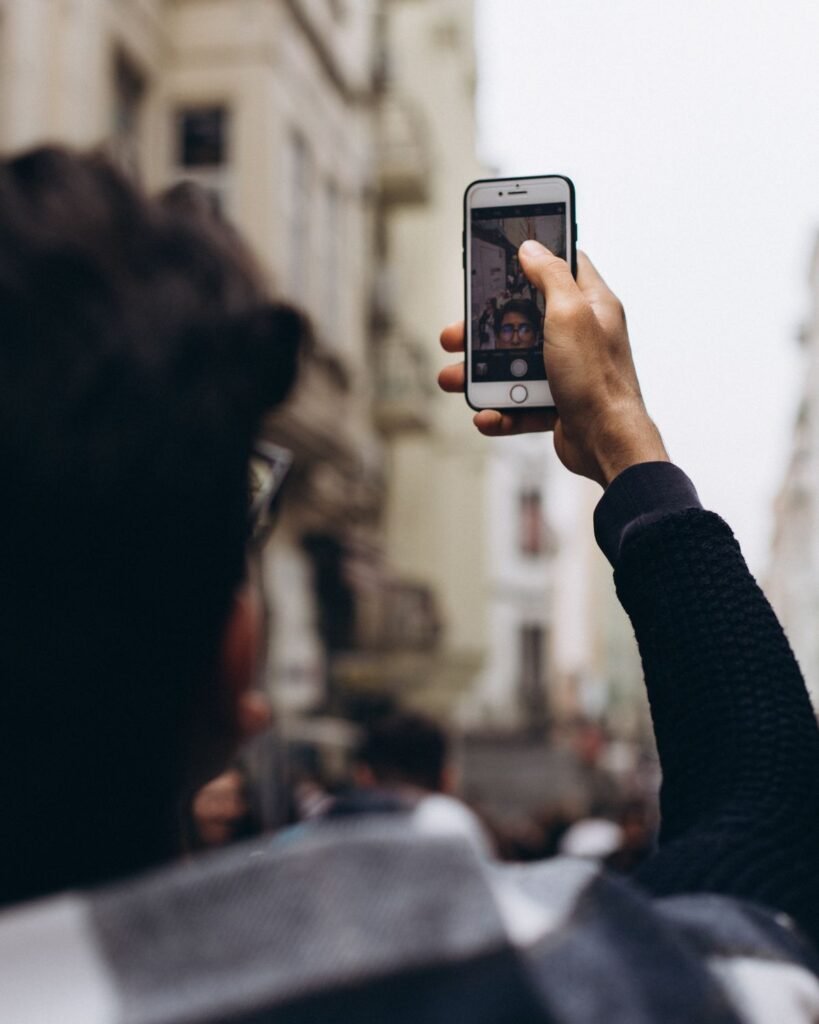
If you just installed the app and feel lost, this guide on how to use Snapchat for beginners gets you sending your first Snap in about five minutes. We are skipping the deep features and focusing only on the essential first steps: creating an account, adding one friend, and sending a photo. That is all you need to start.
Snapchat opens directly to the camera, which surprises most new users. There is no scrolling feed to greet you. Once you know that the camera is your home base and that everything else is one swipe away, the app stops feeling confusing. Let’s get you set up.
The Only 5 Steps You Need First
Forget about Stories, Lenses, and Snap Map for now. Focus on these five actions and you will understand the core loop of the app. Everything else builds on this foundation.
- Install and open Snapchat. Download it free from the App Store or Google Play and tap the app icon.
- Sign up. Tap “Sign Up,” then enter your name, birthday, a username, and a password. Verify your phone number with the text code.
- Allow camera and notifications. Tap “Allow” when the app asks for camera, microphone, and notification access, because nothing works without the camera.
- Add one friend. Swipe right to Chat, tap “Add Friends,” and search their username, or scan their Snapcode with your camera.
- Send your first Snap. Return to the camera, tap the big circle to take a photo, tap the blue arrow, select your friend, and press Send.
That is genuinely all it takes. Once you have done this once, the same pattern repeats every time you use the app.
Getting Around: The Swipe Map
Snapchat has five main screens, and you move between them by swiping. Memorize this simple layout and you will never feel lost. The camera is always in the center.
Opens your Chat list and friends. This is where you read messages, add friends, and start conversations. Think of it as your inbox.
Opens Stories and Discover, where you watch friends’ 24-hour posts and public content. Swipe left again for the Spotlight video feed.
Taking and Sending a Snap in Detail
The capture button at the bottom of the camera does two things. Tap it once for a photo. Press and hold it to record a video. After you capture, a few icons appear on the right so you can add text, a sticker, or a filter, but you can ignore those at first. When you are ready, the blue arrow in the bottom-right corner takes you to the send screen where you pick who receives it.
| Button | Action |
|---|---|
| Big circle (tap) | Take a photo |
| Big circle (hold) | Record a video |
| Blue arrow | Go to send screen |
| T icon | Add a text caption |
| Smiley icon | Open Lenses |
What to Explore Once You Are Comfortable
After you have sent a few Snaps, you can start experimenting. Try tapping the smiley face to add a Lens that changes your face, post a Snap to “My Story” so all your friends can see it, or save a favorite photo to Memories. There is no rush, and none of it can break anything. When you want a deeper walkthrough of every feature, our full library of how-to guides covers each one in detail.
Frequently Asked Questions
How old do you have to be to use Snapchat?
You must be at least 13 years old to create a Snapchat account. The app asks for your birthday during sign-up to confirm eligibility.
Why does Snapchat open to the camera?
Snapchat is designed to be camera-first so you can capture and share a moment instantly. Your messages, Stories, and other features are always just one swipe away from that camera.
How do I know if someone added me back?
Swipe right to your Chat and tap “Add Friends.” Under “Added Me,” you will see requests. Once someone accepts you or you accept them, you can send each other Snaps directly.
Can I send a Snap to more than one person?
Yes. On the send screen after capturing a Snap, tap every friend you want to send it to before pressing Send. You can also select “My Story” to share it with all your friends at once.
What happens if I do not add any friends?
Without friends you can still explore Spotlight and Discover, but you cannot send Snaps or Chats to anyone. Adding at least one friend is the key step that unlocks the social side of the app.
