

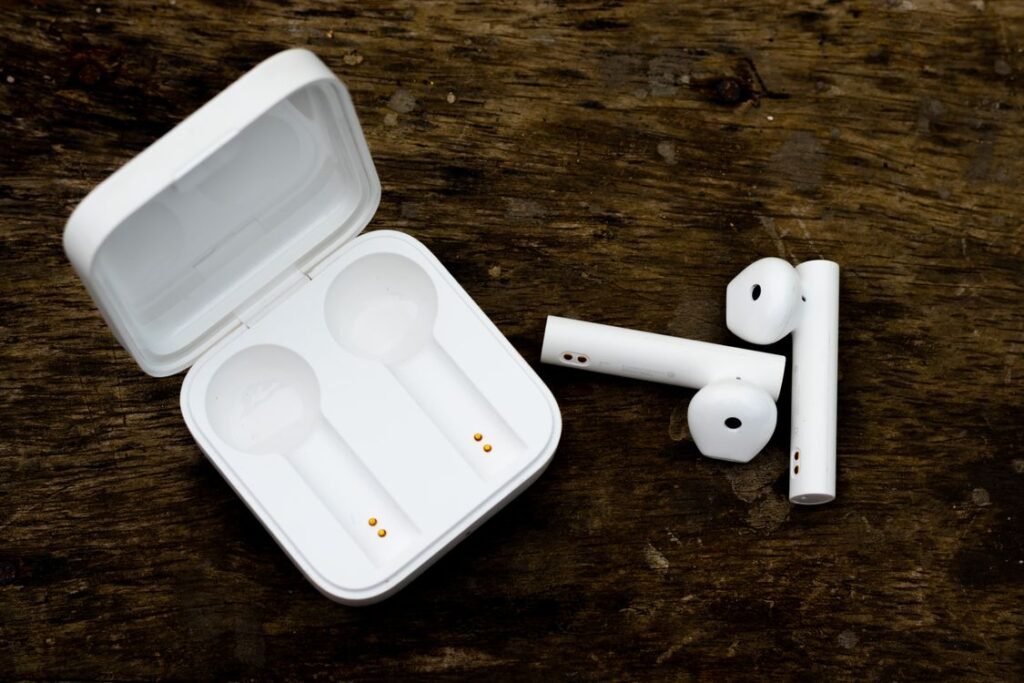
Quick answer: To reset AirPods, put them in the case, close the lid for 30 seconds, then open it and either hold the setup button (models with a button) for about 15 seconds or double-tap the front of the case three times (button-free AirPods 4). Watch for the status light to flash amber, then white, which confirms the reset is done.
A good pair of AirPods should feel invisible. When they stop connecting, drop out mid-call, or refuse to switch between your devices, that invisibility turns into a daily annoyance. In most cases you do not need a repair or a replacement. You need a reset. Learning how to reset AirPods takes about a minute and clears up the majority of pairing and audio glitches I see from readers.
The tricky part is that Apple changed the process. Older cases have a physical setup button on the back. The AirPods 4 case ditched that button entirely and replaced it with a tap gesture. AirPods Max, being over-ear headphones, use their own button combination. Below I walk through every current model, then cover the troubleshooting steps that catch the problems a reset alone won’t fix.
When you should reset AirPods
A reset wipes the pairing and settings stored on the AirPods themselves and returns them to a factory-fresh state, ready to be set up again. It is worth doing when you run into any of the following:
- Connection drops or constant Bluetooth stuttering with a device that used to work fine.
- One earbud is silent or noticeably quieter than the other after cleaning and charging.
- Your AirPods won’t switch automatically between your iPhone, iPad, and Mac.
- You’re selling or giving them away and want them unpaired from your Apple Account.
- The setup animation never appears when you open the case near your iPhone.
Before you reset, do the two-minute basics first: make sure both buds and the case have charge, restart the phone or tablet you’re pairing with, and toggle Bluetooth off and on. If the problem survives that, resetting is the right next move.
How to reset AirPods with a button case (AirPods 1, 2, 3 and AirPods Pro)
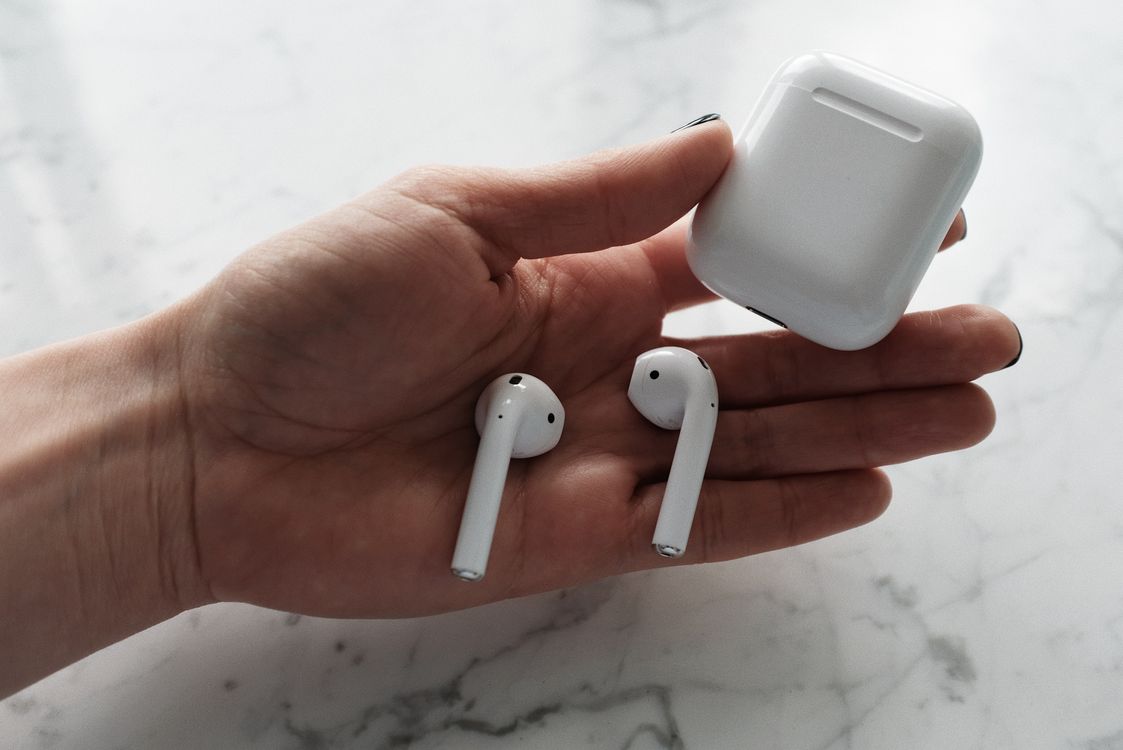
This is the classic method and it covers most AirPods still in use, including both generations of AirPods Pro. The setup button is the small circular button on the back of the charging case.
- Place both AirPods in the case and close the lid.
- Wait 30 seconds, then open the lid. Leave the AirPods inside.
- On your iPhone or iPad, open Settings > Bluetooth, tap the info (i) button next to your AirPods, and choose Forget This Device to remove them cleanly. This step is optional but recommended.
- With the lid open, press and hold the setup button on the back of the case for about 15 seconds.
- Watch the status light: it flashes amber, then white. Release the button once you see white.
- Hold the open case next to your unlocked iPhone and follow the on-screen setup prompt to re-pair.
How to reset AirPods 4 (no button on the case)
The AirPods 4 case has no physical button, so Apple uses a tap gesture instead. The status light is on the front of the case.
- Put both AirPods in the case and close the lid.
- Wait 30 seconds, then open the lid.
- Double-tap the front of the case (near the status light) three times in a row.
- The status light flashes amber, then white to confirm the reset.
- Bring the open case close to your iPhone and follow the setup prompt.
How to reset AirPods Max
AirPods Max don’t live in a case, so the reset uses the on-headphone controls. On the current USB-C model, use the Digital Crown together with the noise-control (listening mode) button.
- Make sure the headphones have some charge.
- Press and hold the Digital Crown and the noise-control button at the same time.
- Hold for about 15 seconds, until the status light near the charging port changes from flashing amber to flashing white.
- Release both buttons, then re-pair by holding the headphones near your iPhone.
Reset methods by model at a glance
| Model | Reset method | Light pattern to confirm |
|---|---|---|
| AirPods (with button case) & AirPods Pro | Close lid 30 sec, open, hold the setup button on the back ~15 sec | Flashes amber, then white |
| AirPods 4 (no button) | Close lid 30 sec, open, double-tap front of case three times | Flashes amber, then white |
| AirPods Pro (2nd gen) | Close lid 30 sec, open, hold the setup button ~15 sec | Flashes amber, then white |
| AirPods Max | Hold Digital Crown + noise-control button together ~15 sec | Flashes amber, then white |
A quick note on the newer button-free cases
Because Apple is steadily moving away from the physical setup button, the tap-to-reset gesture used on AirPods 4 is the pattern to remember going forward. If your case has no button on the back, assume the double-tap-the-front-three-times method rather than hunting for a button that isn’t there.
Troubleshooting when the reset doesn’t stick
Most resets work on the first try. When they don’t, it’s usually one of these issues rather than a hardware fault:
- The light never turns white. Keep holding. On button cases the amber flashing comes first and can last several seconds before the white flash. Let go too early and the reset won’t complete.
- Nothing happens at all. The buds or case may be too low on charge. Give the case 15 to 20 minutes on a charger and try again.
- The setup prompt won’t appear. Turn Bluetooth off and back on, unlock the iPhone, and hold the open case within a couple of inches of the screen. Make sure the phone isn’t already connected to other headphones.
- They still show up as an old device. Go to Settings > Bluetooth, tap the info button, and choose Forget This Device before re-pairing so the phone treats them as fresh.
- One bud stays quiet. Clean the mesh and charging contacts with a dry, soft brush. Grime on the contacts is a common cause that a reset can’t fix.
If a bud still won’t play audio or hold a charge after all of that, the problem is likely physical, and a visit to Apple Support or an authorized service provider is the next step.
Unpairing before you reset
For the cleanest results, especially if you’re troubleshooting a stubborn connection or preparing to hand the AirPods to someone else, remove them from your device list before or right after the reset. On an iPhone or iPad, open Settings > Bluetooth, tap the info (i) button next to your AirPods, and choose Forget This Device. On a Mac, go to System Settings > Bluetooth, find the AirPods, and select Forget. Because AirPods sync across everything signed into your Apple Account, forgetting them on one device typically removes them from the others too. Doing this ensures your hardware doesn’t cling to old, possibly corrupted pairing information when you set it up again.
Extra tips to keep AirPods reliable
- Keep firmware current. AirPods update automatically when they’re charging and near a connected iPhone on Wi-Fi. You can check the version under Settings after tapping your AirPods.
- Clean the case contacts monthly. Debris in the case is the top cause of a bud that won’t charge.
- Use Find My to locate a missing bud before assuming it’s broken.
Frequently Asked Questions
Will resetting my AirPods delete anything on my iPhone?
No. A reset only clears the settings stored on the AirPods themselves, such as the pairing and custom controls. Nothing on your iPhone, iCloud, or Apple Account is deleted.
How long do I hold the button to reset AirPods?
About 15 seconds on models with a setup button. Keep holding through the amber flashing until the light flashes white, then release. AirPods 4 use three double-taps instead of a hold.
Why do my AirPods flash amber and not white?
Amber flashing during a reset is normal and comes first. If the light only ever flashes amber outside of a reset, it usually means the AirPods are not paired or need to be set up again. Continue holding until you see the white flash.
Do AirPods 4 really have no reset button?
Correct. The AirPods 4 case has no physical setup button. You reset them by closing the lid for 30 seconds, opening it, and double-tapping the front of the case three times.
How do I reset AirPods before selling them?
Reset the AirPods with the method for your model, then on your iPhone go to Settings > Bluetooth, tap the info button next to them, and choose Forget This Device. This unlinks them from your Apple Account so the new owner can pair cleanly.
My AirPods still won’t connect after a reset. What now?
Restart your iPhone, make sure Bluetooth is on, and confirm the buds are charged. If they still fail to appear, clean the charging contacts and try once more. Persistent failure points to a hardware issue worth taking to Apple Support.
The takeaway
Resetting AirPods is the single most effective fix for connection and audio problems, and it works the same way across models with one key split: hold the setup button on cases that have one, or triple double-tap the front on the button-free AirPods 4, and use the Digital Crown plus noise-control button on AirPods Max. In every case, the amber-then-white light is your signal that the reset worked. Pair them fresh and you’ll usually be back to that invisible, just-works experience within a minute.
Related guides
About this article: GeekBlog covers U.S. technology news, AI, phones, smartwatches and gaming. Every story is written and checked under our Editorial Policy. Spotted a mistake or have a story tip? Contact our editors.
