

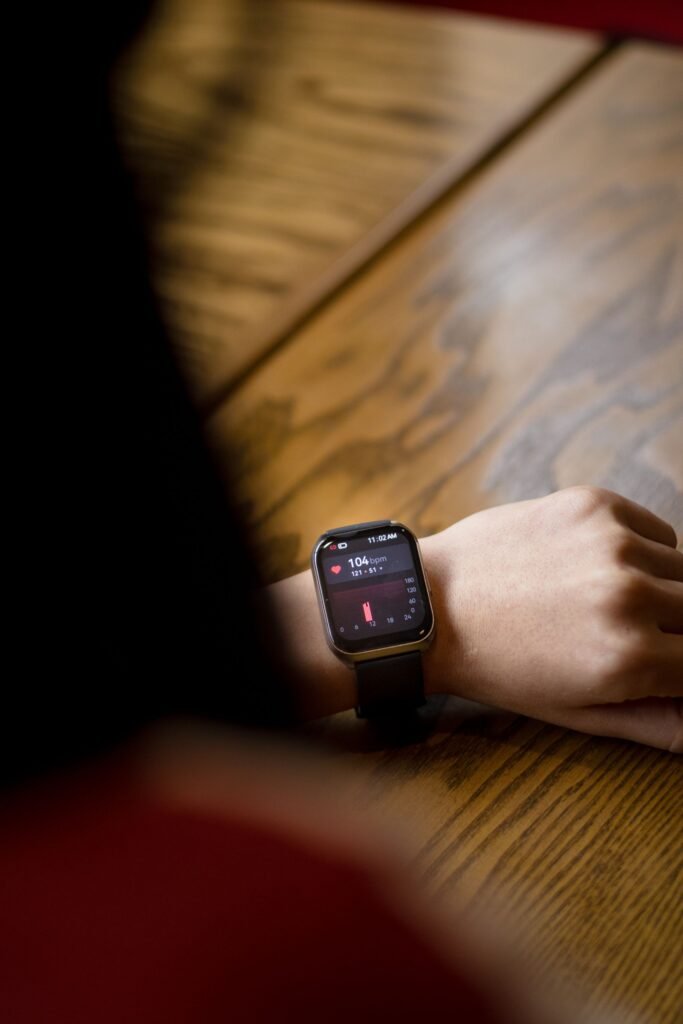
Reading a tiny watch screen is hard for anyone with low vision. The good news is that the mainstream smartwatch makers have spent years building tools for exactly this problem: screen readers that speak every tap, magnifiers that zoom the display, and vibration patterns that tell you the time without a sound. The hard part is knowing which watch does it best.
This guide compares the accessibility tools on the Apple Watch, Google Pixel Watch and Samsung Galaxy Watch, explains where a simple talking watch is the smarter buy, and shows how to set everything up. Feature details come from Apple, Google and Samsung support pages and from the World Health Organization. I have not tested these watches with a screen reader myself, so treat my picks as a feature based comparison and try a watch in person (or check the return policy) before you commit.
Quick answer
If you use an iPhone, the Apple Watch has the deepest set of vision tools, including VoiceOver, Zoom up to 15x, Screen Curtain and a silent haptic clock called Taptic Time. On Android, the Pixel Watch and Galaxy Watch both offer TalkBack and magnification. If you only want to hear the time, a talking watch costs far less and has nothing to learn.
Why Accessibility Matters More Than Screen Size
Vision loss is common, and it rises with age. The WHO estimates that at least 2.2 billion people worldwide have a near or distance vision impairment, and most people with vision impairment or blindness are over 50. In at least 1 billion of those cases the impairment could have been prevented or has not yet been addressed. For many of these people, a watch that only works if you can read a 1.5 inch display is simply not usable.
If you are shopping for an older parent, our guide to the best smartwatch for seniors covers safety features and general ease of use. This article goes deeper on the vision side.
Accessibility Features Compared: Apple, Google and Samsung
All three platforms ship with a screen reader and a magnifier. The differences show up in the extras. Apple documents the largest number of vision specific tools, while Google and Samsung cover the essentials and also support larger text and color adjustments.
| Feature | Apple Watch | Pixel Watch | Galaxy Watch |
|---|---|---|---|
| Screen reader | VoiceOver | TalkBack | TalkBack (called Screen reader on older models) |
| Magnification | Zoom, up to 15x | Triple tap to zoom, pinch to adjust | Triple tap to zoom, bezel or two fingers to pan |
| Larger or bolder text | Text Size, Bold Text, X-Large watch face | Font size setting | Font size (small, medium, large) |
| Color and contrast | Grayscale, Reduce Transparency | Color correction modes, Reduce animations | Greyscale, color inversion, color filter |
| Silent haptic clock | Taptic Time (Digits, Terse, Morse Code) | Haptic feedback in TalkBack settings | Not documented on the support page I read |
| Screen off privacy | Screen Curtain | Not documented on the support page I read | Not documented on the support page I read |
| Phone needed | iPhone | Android | Android |
Sources: Apple Support (Apple Watch accessibility, published June 11, 2026), Google Pixel Watch Help, Samsung Support. Menus differ by model and software version, and Samsung’s page was written for older models, so confirm on your exact watch.
Apple Watch: The Most Complete Toolkit
Apple lists a long set of vision tools under Settings, Accessibility, Vision. VoiceOver reads what is on screen and lets you navigate by touch. You can switch it on during first setup by triple clicking the Digital Crown, which matters if you are setting the watch up without help. Zoom works as a built in magnifier, adjustable up to 15 times the native size, and you move around the zoomed screen with the Digital Crown or two fingers.
Two features stand out for people with serious vision loss:
- Taptic Time: hold two fingers on the watch face and feel the time as a pattern of taps. You can choose Digits, Terse or Morse Code. It works in Silent Mode, so nobody around you hears anything.
- Screen Curtain: with VoiceOver running, this turns the display off while navigation keeps working, so a bystander cannot read your messages over your shoulder. It is useful when you listen through Bluetooth earbuds.
For milder low vision, the X-Large watch face fills the screen with the time, and Bold Text, Text Size, Grayscale, Reduce Motion and Reduce Transparency add comfort. A reviewer who tested the Series 9 also noted that Apple Watch can connect to a Bluetooth braille display. On price, Apple’s own site lists the Apple Watch SE 3 from $249, which makes it the cheapest way into this feature set.
Pixel Watch: Solid TalkBack for Android Users
Google’s Pixel Watch runs Wear OS and uses the same TalkBack screen reader familiar from Android phones. You switch it on under Settings, Accessibility, or from the Pixel Watch app on your phone. During first setup you can triple tap the side button next to the crown to start TalkBack straight away. Navigation is simple: swipe to move between items, double tap to activate, and use two fingers to scroll. TalkBack also supports BrailleBack for compatible braille displays, and you can tune speech rate, verbosity and haptic feedback.
Magnification works with a triple tap, and you drag two fingers to pan or pinch to change the zoom level. Google also provides a font size control, color correction modes for color blindness, and a Reduce animations option. One thing to know: Google states that features vary by device and software version, so check your model.
Galaxy Watch: Good Magnification and Color Controls
Samsung’s watches offer TalkBack on the Galaxy Watch4 and newer, and the Visibility enhancements menu holds the rest. Triple tap to magnify, pinch to adjust zoom, then turn the bezel or drag two fingers to pan (the bezel option applies to models that have a rotating bezel). You can also pick a font size, switch to greyscale, invert colors or add a color filter. The color filter is a plus for people with conditions where contrast matters more than size.
Galaxy Watches pair with Android phones. If you already carry a Samsung phone, the pairing is straightforward, and you can adjust all of these settings from the Galaxy Wearable app as well as on the watch.
Smartwatch or Talking Watch? A Simple Way to Choose
Not everyone wants a full smartwatch. Talking watches such as the Hearkent and Five Senses models announce the time with a button press, and some add alarms and reminders. They are not smartwatches, so you will not get apps, messages or health tracking. They also cost much less and do not need a phone.
Choose a smartwatch if you want
- ✓ Spoken messages, calls and navigation
- ✓ Heart rate, steps and sleep tracking
- ✓ Fall detection and emergency features
- ✓ Adjustable text, zoom and contrast
Choose a talking watch if you want
- ✓ Only the time, said out loud
- ✓ No phone, no app, no setup
- ✓ A low cost, low stress option
- ~ Be aware: no notifications or health data
Our Picks by Situation
Tips Before You Buy
- Match the phone first. Apple Watch needs an iPhone, and Pixel and Galaxy watches need an Android phone. A great watch is useless if it does not pair with the phone you own.
- Practice with the phone’s screen reader. TalkBack and VoiceOver on the watch follow the same ideas as on the phone, so a few days on the phone makes the watch much easier.
- Try before you commit. Ask a store to let you test the screen reader, or buy from a retailer with an easy return window.
- Use haptics and audio together. Silent taps are great in meetings, and speech is better when you are alone. Most people end up using both.
- Add safety features. A watch that can detect a hard fall and call for help is valuable if you also have mobility concerns. Our guide to smartwatch fall detection for seniors explains what to expect.
- Do not skip eye care. Many causes of vision loss are treatable. A watch is a helpful tool, not a replacement for an eye exam.
Frequently Asked Questions
What is the best smartwatch for the visually impaired?
For iPhone owners, the Apple Watch has the most documented vision tools, including VoiceOver, Zoom, Screen Curtain and Taptic Time. For Android, the Pixel Watch and Galaxy Watch both offer TalkBack and magnification. The best choice depends on your phone.
Can a blind person use an Apple Watch?
Yes. VoiceOver reads the screen aloud and lets you navigate by touch, and you can turn it on during setup by triple clicking the Digital Crown. Taptic Time and Speak Time announce the time through taps or speech.
Does the Galaxy Watch have a screen reader?
Yes. Galaxy Watch4 and newer models call it TalkBack, and earlier models call it Screen reader. You turn it on under Settings, then Accessibility, or from the Galaxy Wearable app.
Is a talking watch better than a smartwatch for low vision?
It depends on what you need. A talking watch is simpler and cheaper, but it only tells the time and offers basic extras. A smartwatch can read messages and track health, but it takes time to learn.
Do I need someone to help set up accessibility features?
Not always. Apple and Google both let you start the screen reader during initial setup with a button shortcut. Some other settings may be easier with sighted help the first time, so it is worth asking a friend or family member.
Final Verdict
The Bottom Line
Start with your phone. iPhone users get the broadest vision toolkit from an Apple Watch, while Pixel and Galaxy watches give Android users a proper screen reader and zoom. If you only need the time, a talking watch is the calmer, cheaper answer. Whichever you pick, test the screen reader before you keep the watch.
This article is for general information and is not medical advice. Features and menus change with software updates, so check the manufacturer’s support page for your model.
Featured image: Pexels.
About this article: GeekBlog covers U.S. technology news, AI, phones, smartwatches and gaming. Every story is written and checked under our Editorial Policy. Spotted a mistake or have a story tip? Contact our editors.
