


Before you download, open, or share files from the internet, you need to be sure they’re safe. And how do you do that? I simply use a file scanner to check for known threats like malware, viruses, and more. You can even use them to scan suspicious files already sitting on your computer. But be mindful about uploading files with personal details, because some scanners may share scan results with the security community, of course, with your consent.
Here’s how file scanners work: You upload a file, paste a URL, or input a hash. The scanner runs it through one or multiple antivirus engines. When it’s done, it gives you a detailed security report that tells you if the file is clean or dangerous. These are the best free online file checkers I use every other day.
7
VirusTotal File Checker

VirusTotal is one of the most trusted names in online security. Owned by Google, it lets you scan URLs, files, and hashes for free. It’s a user-friendly tool designed for everyone, even if you’re not tech-savvy. Using powerful antivirus engines, it checks your file against known threats and gives you a detailed report.

Related
What Are MD5, SHA-1, and SHA-256 Hashes, and How Do I Check Them?
You’ll sometimes see MD5, SHA-1, or SHA-256 hashes displayed alongside downloads during your internet travels, but not really known what they are.
To scan a file, head to the VirusTotal File Checker, click the “File” tab, select your file (up to 650MB), and hit “Confirm upload.” To scan a file link, copy the URL, paste it into the URL tab, and click “Search.”

Note that you can only scan one file at a time.
Check the scan results closely, especially the community score and the vendor analysis for third-party opinion about your scan. You can also sign up (free) to access richer visual reports and graphs. If threats are found, VirusTotal shares that info with its broader community.
6
NordVPN File Checker

NordVPN’s File Checker is another trusted file scanner tool in my arsenal. I use it to screen ebooks and software I download from sites like CNET downloads. It’s great for scanning files you already have on your PC too, super helpful when you run into a file you don’t remember downloading.
It scans all kinds of files, including documents, images, videos, and more. It’s also free, but keep in mind it has a smaller file size limit of 50MB compared to VirusTotal’s 650MB, which I still find sufficient for most of my everyday needs.
To scan a file, visit the NordVPN File Checker, click “Add file,” and hit “Analyze.” To scan a file link, go to the NordVPN Link Checker, paste the link, click “Analyze,” and wait.

You can even upload a file hash for scanning. Whether you scan a file or a hash, you can only check one at a time. NordVPN File Checker’s scan result isn’t as detailed as VirusTotal’s, but it tells you whether the file is safe or not.

MetaDefender File Checker is another robust platform I use to scan files, links, hashes, and websites. It provides deep insights, including threat analysis and scan history of the file. MetaDefender is owned by OPSWAT, a well-known cybersecurity organization, and its file checker is super easy to use.
To scan a file, go to the MetaDefender File Checker, click “Add file,” upload your file and it will automatically analyze it. No file size limit is stated. However, you’re limited to a daily scan and search quota.

To scan a file link, hash, or website, head to the portal, choose “Search a URL” or “Lookup,” paste your target, and hit “Scan” or “Search” respectively.
You can only scan one file at a time and reports take a only a few seconds. Scan results include rich details, plus you can view the top five latest threats.
4
FortiGuard Labs File Checker

If you want a basic file scanner that does the job, FortiGuard File Checker is a good pick. It has a simple interface and gets right to the point. Upload your file (max 10MB) or enter a hash, and it runs it through Fortinet’s antivirus engine. You can even upload known malware for analysis. There’s a helpful guide explaining how.
My major gripe is that it doesn’t email scan results like it says it does, and the file size limit is tiny compared to others. It’s also somewhat confusing to use.
To use it, go to FortiGuard Labs File Checker, click “Choose File,” upload the file, select “Send as anonymous,” pick “This is a request for detecting the sample,” and click “Submit.”
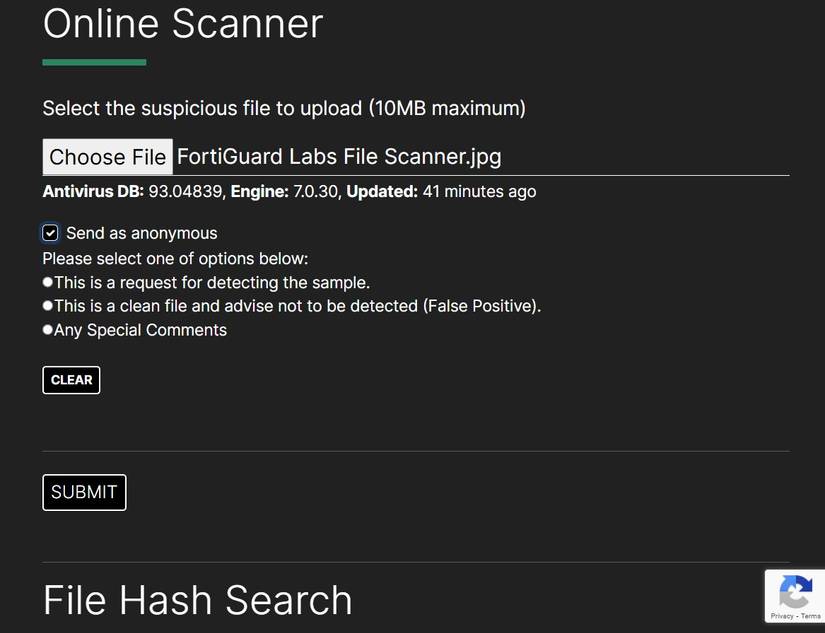
To scan a file hash, just paste it into the search box and hit search. You’ll get a quick, simple status update. For more features, you can check out Fortinet’s broader product suite.
3
Jotti’s Malware Scan

If you want to scan multiple files at once, Jotti’s Malware Scan is a great option I highly recommend. Unlike most others, this tool lets you upload up to five files at once, each up to 250MB. That’s up to 2.5GB total.
It also features the simplest and most minimalist design, but don’t be fooled. It scans your files through some of the best antivirus engines like Bitdefender and more, giving you reliable results.
To scan files, visit Jotti’s File Malware Scanner, click “Browse” or drag in up to five files, and wait.

To scan a file hash (MD5, SHA1, SHA256, SHA512), go to Jotti’s Hash Malware Scanner, paste the hash, click “Search,” and check the report. The results show what each partner scanner found as well as other essential details about the file or hash.
2
Internxt Virus Scanner

For large file scans, Internxt Virus Scanner is my go-to file checker. It supports files up to 1GB at a go. That makes it ideal for checking large PDFs, videos, or other big files that are too large for VirusTotal or Jotti’s Malware Scanner’s single file scan.
To use it, head to the Internxt Virus Scanner, and simply drag and drop your file on the Virus Scanner toolbar, or click “Choose File” and hit “Scan now,” then wait for the result.

It offers a decent scan report that lets you know if the file is safe or not, plus other important information you need to know. On top of that, Internxt offers 1GB of free cloud storage where you can safely store clean files. You also get up to 3 months of free antivirus from Bitdefender via their partnership, making it a robust offering. Another cool thing I like about the Internxt Virus Scanner is that it works across platforms and has mobile apps for Android and iOS.
1
Filescan.io

If you want pro-level malware analysis, Filescan.io is the way to go. It’s also owned by OPSWAT, and is great for scanning files or URLs for both known and unknown threats. What I like most about Filescan is that you can scan more than 10 files at once, as long as each is under 100MB, which is 1GB total. That’s more flexible than Jotti’s for larger batch scans.
To use it, go to Filescan.io, drag and drop your files, check the appropriate boxes, and click “Upload.” Wait for the results to come in.

The scan results are super detailed compared to most of the other scanners I’ve used. And if you’re a cybersecurity expert, you can also perform threat hunting on this platform.
Never open a file you’re unsure about without scanning it first, whether it’s a doc, PDF, image, or executable (.exe file). This goes for files from both known and unknown sources. It’s one of the easiest ways to keep your system safe. In fact, try scanning with more than one tool. If multiple scanners flag a file, that’s your cue to stay away. These file checkers work across desktop and mobile, so you can stay protected no matter what device you’re on.
