Close Menu
GeekBlog

    Subscribe to Updates

    Get the latest creative news from FooBar about art, design and business.

    What's Hot

    Elon Musk Calls His Airstream a Palace. The Neighbors Are Suing Over What It Is Parked Next To.

    September 20, 2026

    Apple Watch Series 12’s New Audio Intelligence Needs an iPhone 16, Not Just the New Watch

    September 20, 2026

    King Charles Got the AI Bosses to Scotland. OpenAI Sent Its CFO.

    September 20, 2026
    Facebook X (Twitter) Instagram Threads
    GeekBlog
    • Home
    • Mobile
    • Tech News
    • Blog
    • Gaming
    • Smartwatch
    • How-To Guides
    • AI & Software
    Facebook
    GeekBlog
    Home»Tech News»How to Use Apple’s Live Translation on Your AirPods
    Tech News

    How to Use Apple’s Live Translation on Your AirPods

    Ethan CaldwellBy Ethan CaldwellMarch 24, 2026Updated:June 14, 20263 Mins Read
    Share Facebook Twitter Pinterest LinkedIn Tumblr Email Copy Link
    How to Use Apple’s Live Translation on Your AirPods
    Share
    Facebook Twitter LinkedIn Pinterest Email Copy Link

    Recommended for you:

    Delve halts demos, Insight Partners scrubs investment post amid ‘fake compliance’ allegations
    Tech News·Mar 24, 2026

    Delve halts demos, Insight Partners scrubs investment post amid ‘fake compliance’ allegations

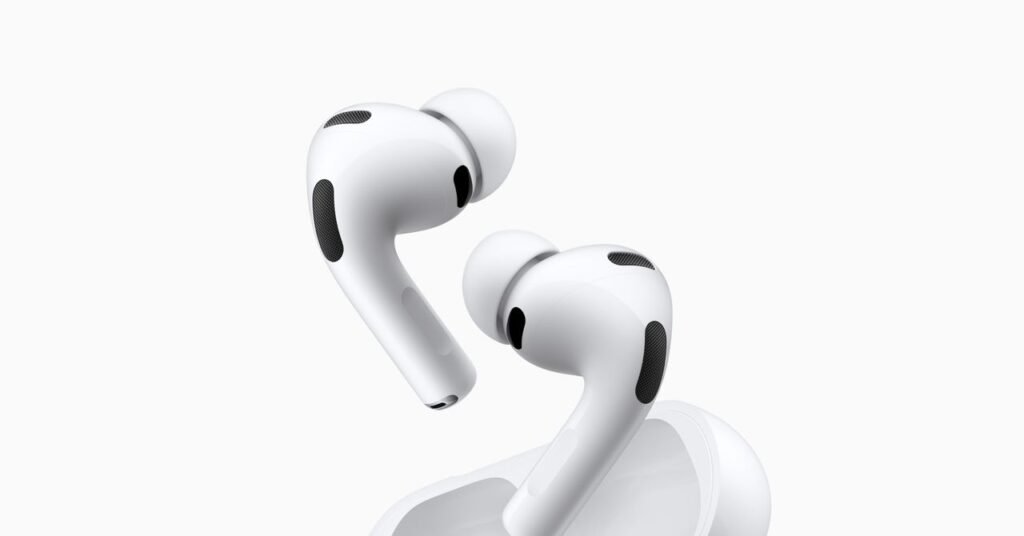
    At the same time Apple announced the AirPods Pro 3 last year, the company also introduced a new feature called Live Translation. It makes the idea of the Babel fish, so evocatively described in The Hitchhiker’s Guide to the Galaxy, a reality: Something sitting in your ear that can instantly translate between languages, on demand.

    Rather than an exotic fish though, here we have wireless headphones from Apple. This isn’t actually exclusive to the latest earbuds, despite the launch timing—it’ll work with the AirPods 4 with active noise cancellation and the AirPods Pro 2, as well as the AirPods Pro 3. It also works with the recently updated AirPods Pro Max, but just the 2026 version, not the original version of the Max.

    There are some requirements on the iPhone side too: an iPhone 15 Pro or iPhone 15 Pro Max, or any iPhone 16 or iPhone 17 model, are needed. You also have to have downloaded and installed the latest iOS 26 software update on your phone.

    With those prerequisites out of the way, you can get your very own instant language interpreter in your ears. From FaceTime video calls to foreign trips, it’s a feature that can be hugely useful in understanding others and making yourself understood.

    Set Up Live Translation

    Download the languages you need in advance.

    Courtesy of Apple

    This works via Apple Intelligence, so as well as having checked all the requirements that are mentioned above, you also need to turn on your iPhone’s AI capabilities if they’re not enabled already. From Settings in iOS, tap Apple Intelligence & Siri, and make sure the Apple Intelligence toggle is switched on.

    Next, you need to specify the languages you want to work with. You need both the languages you’re translating from and the languages you’re translating too, so make sure you’re fully covered before you try and strike up a conversation.

    We’re assuming you’ve already been through the AirPods setup process and they’re connected to your iPhone. Pop them in (or on) your ears and find the AirPods in the iOS Settings menu. Tap on the name you’ve given the headphones, then Languages to download whichever ones you need.

    Apple says that all the processing required for Live Translation is handled privately on your phone. Your conversations aren’t being piped back to Apple’s servers so they can be translated between languages. (It’s one of the reasons you need a newer iPhone and newer headphones, so the necessarily work can be done on-device).

    Use Live Translation

    Image may contain Text

    You can launch the feature from the Live tab of the Translate app.

    Courtesy of Apple

    With all the setup out of the way, you can get started with a Live Translation in a few ways. You can head to the Apple Translate app on your iPhone, tap the Live button at the bottom, choose the relevant languages, and then select Start Conversation.

    Recommended for you:

    LG’s next-gen 120Hz display promises a huge jump in laptop battery life
    Tech News·Mar 24, 2026

    LG’s next-gen 120Hz display promises a huge jump in laptop battery life

    Source: www.wired.com

    AirPods
    Share. Facebook Twitter Pinterest LinkedIn Tumblr Telegram Email Copy Link
    Previous ArticleDelve halts demos, Insight Partners scrubs investment post amid ‘fake compliance’ allegations
    Next Article HP refreshes EliteBook lineup and introduces new AI workstations
    Ethan Caldwell

      Ethan Caldwell is GeekBlog's resident Apple specialist, covering the entire Apple ecosystem - iPhone, iPad, Mac, Apple Watch, AirPods and the software that ties them together. A longtime iOS user and gadget collector, Ethan tracks Cupertino's every move, breaking down Apple keynotes, A- and M-series chip benchmarks, iOS feature updates and the rumor mill into clear, practical takes that help readers decide whether the latest Apple hardware is worth the upgrade.

      Related Posts

      8 Mins Read

      Elon Musk Calls His Airstream a Palace. The Neighbors Are Suing Over What It Is Parked Next To.

      8 Mins Read

      King Charles Got the AI Bosses to Scotland. OpenAI Sent Its CFO.

      8 Mins Read

      The Godfather of AI Gave Congress One Year. Every AI Bill on the Table Dies in January.

      9 Mins Read

      Ozempic’s Maker Just Put Claude in the Lab. Nine Out of Ten Drugs Still Fail.

      8 Mins Read

      $1,000 in Microsoft Ten Years Ago Is Worth About $8,900 Today. The Hard Part Was Holding It.

      8 Mins Read

      A One-Month-Old AI Company With No Website Is Worth Almost $4 Billion. Here Is What It Is Building.

      Top Posts

      Best Free Online Music Apps in 2026

      July 7, 20262 Views

      Fox Is Buying Roku for $22 Billion. Here’s What That Really Means for You

      June 24, 20262 Views

      How to Fix Wi-Fi Dead Spots in Your Home

      September 28, 20252 Views
      Stay In Touch
      • Facebook

      Subscribe to Updates

      Get the latest tech news from FooBar about tech, design and biz.

      Most Popular

      How to Convert HEIC to JPG on iPhone, Mac, Android and Windows

      September 3, 20266 Views

      Gal Gadot’s Lawyers Spent Six Months on One AI Clause. Then SAG Called Them for Pointers.

      September 2, 20265 Views

      How to Spot AI Generated Images in 2026 (The Old Tricks Stopped Working)

      September 3, 20263 Views
      Our Picks

      Elon Musk Calls His Airstream a Palace. The Neighbors Are Suing Over What It Is Parked Next To.

      September 20, 2026

      Apple Watch Series 12’s New Audio Intelligence Needs an iPhone 16, Not Just the New Watch

      September 20, 2026

      King Charles Got the AI Bosses to Scotland. OpenAI Sent Its CFO.

      September 20, 2026

      Subscribe to Updates

      Get the latest creative news from FooBar about art, design and business.

      HEICJPG.online - Convert HEIC to JPG online
      Facebook
      • About Us
      • Contact us
      • Privacy Policy
      • Disclaimer
      • Terms and Conditions
      • Editorial Policy
      • Cookie Policy
      © 2026 GeekBlog

      Type above and press Enter to search. Press Esc to cancel.