

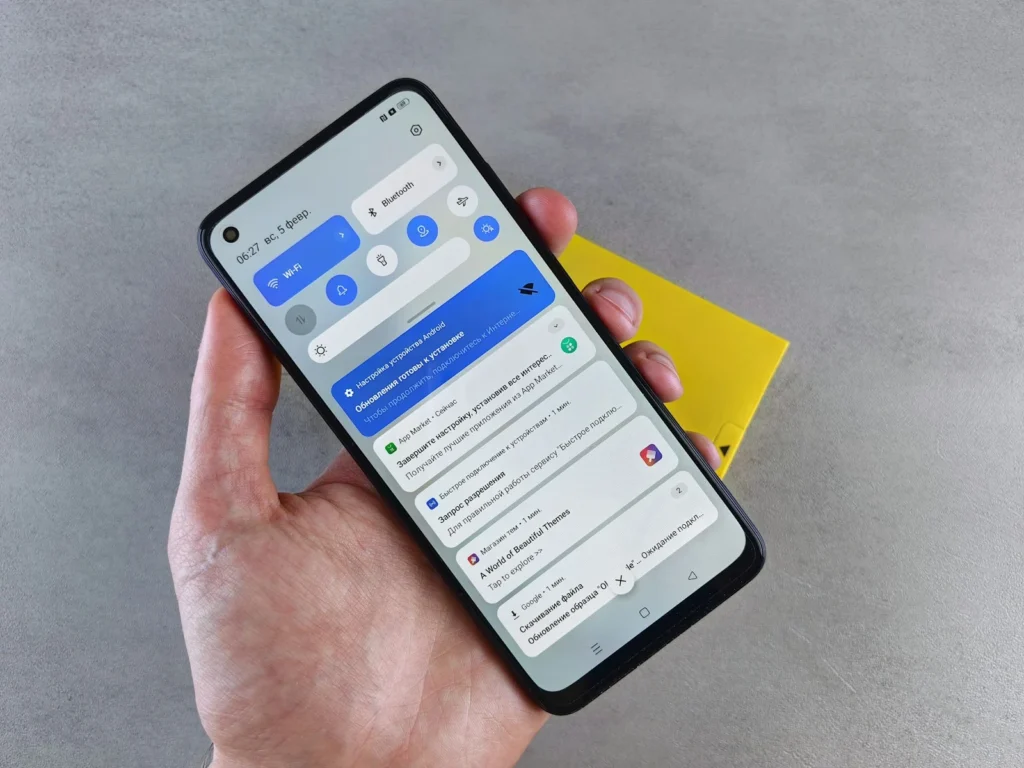
An Android phone that felt instant on day one can start to stutter after a couple of years of apps, updates and background clutter. The good news is that most of that lag comes from software, and a handful of built in settings can claw a lot of it back. This guide walks through the tweaks that make the biggest visible difference, with menu paths for Google Pixel phones on Android 16 and Samsung Galaxy phones on One UI 8.
1. Speed up animations in Developer options
Every time you open an app or go back to the home screen, Android plays a short animation. Shortening those animations is the single fastest way to make a phone feel quicker, because the system responds the moment you tap instead of waiting for a transition to finish.
First, unlock Developer options:
- Pixel: open Settings, then About phone, and tap Build number seven times. Enter your PIN when asked.
- Samsung: open Settings, then About phone, then Software information, and tap Build number seven times.
You will see a message saying you are now a developer. On a Pixel, the new menu lives under Settings, System, Developer options. On a Galaxy, it appears at the very bottom of the main Settings list.
Inside Developer options, scroll to the Drawing section and change these three entries:
- Window animation scale to 0.5x
- Transition animation scale to 0.5x
- Animator duration scale to 0.5x
Turning them off entirely feels abrupt, so half speed is the sweet spot for most people.
2. Use the highest refresh rate your screen supports
Most current Android phones have 90Hz or 120Hz displays. A higher refresh rate redraws the screen more often, so scrolling and swiping look much smoother. Some phones ship with a battery friendly default or drop to 60Hz in power saving mode.
- Pixel: open Settings, then Display and touch, and turn on Smooth Display. It lets the phone switch up to its top refresh rate when content moves.
- Samsung: open Settings, then Display, then Motion smoothness. Choose Adaptive, which raises the rate up to 120Hz when needed. Standard locks the screen at 60Hz.
On Galaxy phones, turning on Power saving mode or choosing the highest screen resolution on some models can switch the display back to Standard, so check this setting if scrolling suddenly feels choppy.
3. Keep background apps on a short leash
Apps that keep running when you are not using them eat memory, processor time and battery. Android already manages this, but you can tighten things up.
On a Pixel, make sure Adaptive Battery is on. Google currently documents the path as Settings, Battery, Battery Saver, Adaptive Battery, then Use Adaptive Battery. It learns which apps you rarely open and limits them. For a single app that keeps waking up, go to Settings, Apps, See all apps, pick the app, tap App battery usage and turn off Allow background usage, or set it to Optimized.
On a Samsung, go to Settings, Battery, Background usage limits. Turn on Put unused apps to sleep, then add apps you rarely need to Deep sleeping apps. Deep sleeping apps never run in the background and only work when you open them. Put messaging and alarm apps in Never auto sleeping apps so you do not miss anything.
Shopping apps, games, coupon apps, social apps you check once a week.
Messaging, email, alarms, banking alerts, fitness trackers and anything that syncs a smartwatch.
If notifications stop arriving from an app, move it back to unrestricted.
4. Clear the cache of apps that act up
Apps store temporary files to load faster. Over time that cache can grow large or become corrupted, and an app may start to freeze, crash or load slowly. Clearing the cache is safe: it removes temporary data but keeps your account, settings and saved files.
- Pixel: Settings, Apps, See all apps, choose the app, Storage and cache, then Clear cache.
- Samsung: Settings, Apps, choose the app, Storage, then Clear cache.
Avoid Clear storage unless you are ready to set the app up again. There is no need to clear every cache on a schedule, so focus on apps that actually misbehave.
5. Disable apps you never use
Carrier apps, duplicate app stores and trial games that come preinstalled can run updates and background services you never asked for. Many of them cannot be uninstalled, but most can be disabled, which stops them from running and hides them from the app drawer.
- Open Settings, then Apps (on a Pixel, tap See all apps).
- Pick an app you do not use.
- Tap Uninstall if it is offered, otherwise tap Disable.
Leave anything you do not recognize alone if it looks like a system component, such as services with Google, Samsung or Android in the name that you never opened yourself. Disabling the wrong system app can break features like the camera or calls.
Which tweak helps most?
| Tweak | What you notice | Battery impact |
|---|---|---|
| Animation scales at 0.5x | Apps and menus open faster | None to slight gain |
| High refresh rate | Smoother scrolling | Uses more battery |
| Background limits | Fewer slowdowns over the day | Saves battery |
| Clearing app cache | Fixes one misbehaving app | Neutral |
| Disabling bloatware | Less clutter, fewer updates | Small gain |
FAQ
Is turning on Developer options safe?
Yes. Unlocking the menu changes nothing by itself. Problems only come from changing unfamiliar settings inside it, so stick to the animation scales.
Should I use a task killer or RAM cleaner app?
No. Android manages memory on its own, and forcing apps closed makes them reload from scratch, which can slow the phone and drain more battery.
Will a factory reset make my phone faster?
It often helps an older phone that has years of leftover apps and settings, but back up your photos, messages and two factor codes first. Try the steps above before going that far.
Do these steps work on other Android brands?
Yes. The setting names are standard Android, but menu locations differ by brand. Use the search bar at the top of Settings to find each option quickly.
The verdict
Faster animations and a high refresh rate change how the phone feels within seconds, while background limits, targeted cache clearing and removing bloat keep it from slowing down again. Set them once, check back every few months, and an older Pixel or Galaxy can stay pleasant to use for a long time.
Updated October 2026: rewritten as a step by step guide with current menu paths for Pixel phones on Android 16 and Galaxy phones on One UI 8.
Featured photo: Andrey Matveev on Unsplash.
About this article: GeekBlog covers U.S. technology news, AI, phones, smartwatches and gaming. Every story is written and checked under our Editorial Policy. Spotted a mistake or have a story tip? Contact our editors.
