

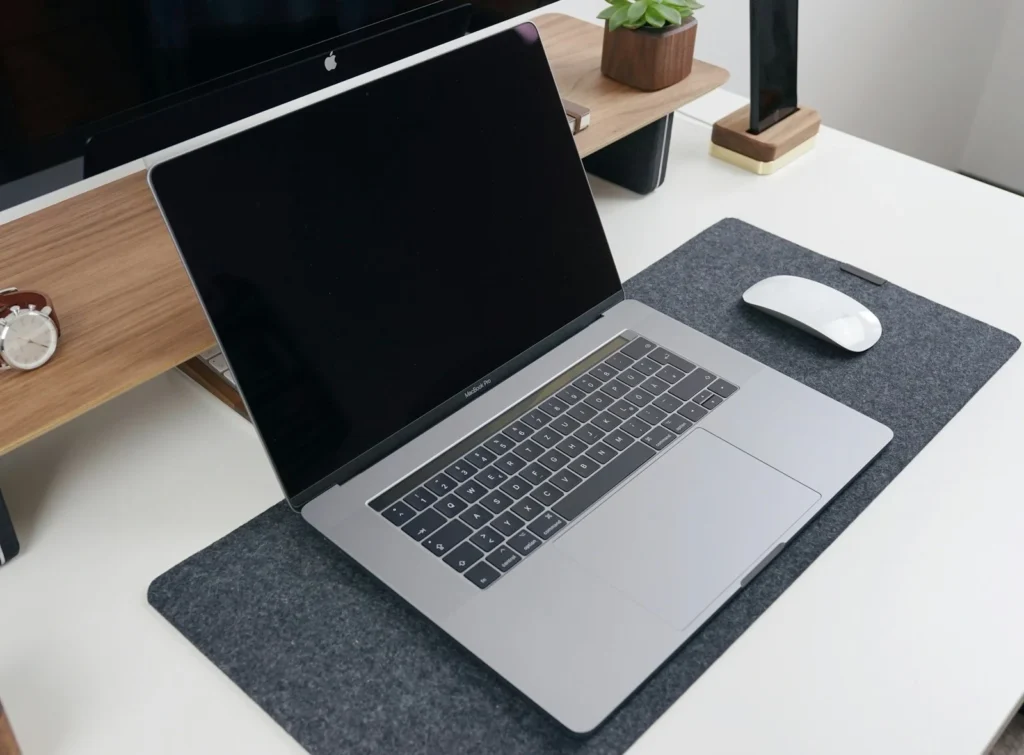
Yes, your MacBook trackpad can work as a tiny digital scale. A free open source macOS app called TrackWeight reads the pressure data from the Force Touch trackpad and converts it into an estimated weight in grams. It is a clever experiment rather than a kitchen tool, but it is real, it costs nothing and it runs on most MacBooks made since 2015.
How a trackpad can weigh things
Apple added Force Touch trackpads to MacBooks so the laptop could tell a light tap from a firm press. Under the glass there are pressure sensors, and the Taptic Engine fakes the feeling of a click. macOS uses that pressure data for features like Quick Look and pressure sensitive drawing, but ordinary apps only get a simplified version of it.
TrackWeight goes deeper. It relies on a customized fork of the Open Multi Touch Support library, which taps into the private multitouch framework inside macOS and exposes raw touch information such as position and pressure. The app takes the pressure value and shows it as weight. According to the project page, the readings that come from that framework are already effectively in grams, and the developer calibrated the app by setting the MacBook on a regular digital scale and comparing results against known weights.
The app itself is written in Swift with SwiftUI, and the developer credits earlier open source work on trackpad access that made the project possible.
Why you have to keep a finger on the trackpad
This is the strange part that surprises most people. A MacBook trackpad is a capacitive surface, like a phone screen. It only reports pressure when it detects something conductive touching it, which in practice means a finger. A coin purse or a lemon on its own does not register as a touch, so the sensors never start reporting.
The workaround is simple: rest one finger lightly on the trackpad, then place the object on it while keeping your finger still. The app subtracts the baseline and shows the difference. Because your finger adds a little pressure of its own, how steady you are affects the result.
Free, MIT License
13 Ventura or later
MacBook Pro 2015 or newer, MacBook 2016 or newer
Experimental, latest build from July 2025
How accurate is it?
The developer shared a comparison in which the MacBook sat on a conventional scale while he pressed on the trackpad, and the two readings tracked each other closely. That is encouraging, but it is the creator checking his own app on his own machine. There are no independent accuracy figures, and every trackpad, battery level and surface can behave a little differently.
The project page is direct about this. Its disclaimer says TrackWeight is for experimental and educational purposes and should not be used for critical or commercial measurements, and it recommends checking anything important against a calibrated scale. Treat it as a fun way to estimate whether a letter is about 20 grams or 40 grams, not as a replacement for a postal or kitchen scale.
How to try TrackWeight safely
- Confirm your Mac qualifies. Open the Apple menu, choose About This Mac, and check the model year and macOS version.
- Download the app from the Releases section of the TrackWeight project on GitHub. The project also lists a Homebrew cask through the developer’s own tap if you prefer installing from Terminal.
- If macOS blocks the first launch, open System Settings, go to Privacy and Security, and allow the app there. Only do this for a download you got from the official project page.
- Put the MacBook on a flat, hard table, not your lap or a bed.
- Rest one finger on the trackpad, wait for the reading to settle, then gently place the object on the glass.
Limitations to know before you start
- Finger required. No touch, no reading. Shaky hands mean shaky numbers.
- Metal objects can confuse it. Coins, keys and other metal items may register as a touch on their own. The project suggests putting a sheet of paper or a cloth under them.
- Small items only. The object has to fit on the trackpad without touching the keyboard or the edges of the case.
- Mac laptops only. Desktop Macs and the separate Magic Trackpad are not listed as supported, and the app does not run on Windows or iPad.
- Not an Apple feature. It depends on a private macOS framework, so a future macOS update could break it without warning.
Where the project stands in October 2026
TrackWeight went viral in July 2025, and the GitHub repository has since collected thousands of stars. The newest build on the Releases page still dates from late July 2025, after a quick run of early versions that added a trackpad selector, new icons and automated builds. The project remains labeled as experimental, so think of it as a finished proof of concept rather than an app with regular updates. If it stops working after a macOS update, check the project page for news before trying anything else.
FAQ
Does TrackWeight work on the newest MacBook Air and MacBook Pro models?
The project lists Force Touch trackpads as the requirement, and current MacBook Air and MacBook Pro models use them. Results may vary by model, so compare a reading with an object of known weight first.
Can I use it with a Magic Trackpad?
The official requirements only mention MacBook trackpads. The app has a trackpad selector, but external trackpads are not listed as supported.
Is TrackWeight safe to install?
The full source code is public, which lets anyone inspect it. Download it only from the official GitHub project, and keep in mind that it is a hobby project, not an app from the Mac App Store.
Can it weigh a phone or a coffee mug?
Do not try. Heavier objects put real stress on the trackpad mechanism. Keep it to light, small things.
The verdict
TrackWeight is one of the most charming Mac hacks in years and a neat demonstration of the sensors already hiding in your laptop. Install it, weigh a few envelopes and snacks for fun, but keep a real scale for anything where a few grams actually matter, and never put your trackpad under serious weight.
Updated October 2026: rewritten as an explainer covering how TrackWeight works, its requirements, accuracy caveats and current project status.
Featured photo: Nikolay on Unsplash.
About this article: GeekBlog covers U.S. technology news, AI, phones, smartwatches and gaming. Every story is written and checked under our Editorial Policy. Spotted a mistake or have a story tip? Contact our editors.
