

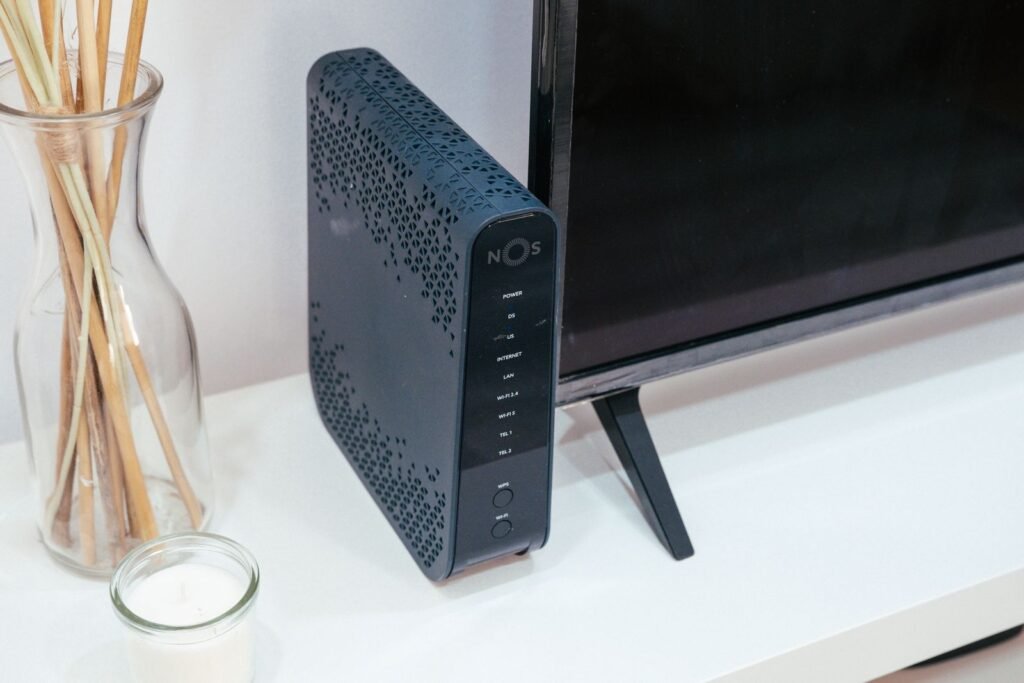
Put mesh Wi-Fi nodes 20 to 30 feet apart when they talk to each other wirelessly, and never more than about 50 feet. In room terms that means one or two rooms apart, or one floor apart, with each node placed roughly halfway between the main router and the area you are trying to cover. Off the floor, out in the open, and with as few walls in between as you can manage. If you run an Ethernet cable to a node instead, the distance limit disappears and you can put it wherever the coverage is needed.
Quick answer
Wireless mesh nodes: 20 to 30 feet apart, 50 feet maximum, no more than two rooms or one floor from the nearest node. Place each satellite halfway between the router and the dead zone, not in the dead zone itself. Keep every node at waist to eye level on a hard surface in open air. Aim for one wireless hop between any node and the router. With an Ethernet backhaul, spacing does not matter.
Most mesh problems are placement problems. The hardware is rarely the issue: a satellite parked in the far corner of the house where the signal was already weak simply relays a weak signal, and every device connected to it inherits that weakness. Below is the spacing guidance the major vendors actually publish, what changes with Wi-Fi 7 and the 6 GHz band, how to read the placement feedback in the eero, Google, Orbi and Deco apps, and how to tell whether a node is in the right spot. If your problem is a single weak room rather than a whole mesh layout, start with our guide on how to fix Wi-Fi dead spots in your home.
Mesh placement at a glance
Sources: eero, Google Nest and Netgear support documentation, plus general 802.11 range behavior. Figures assume typical wood frame US construction.
The one rule that matters: halfway, not at the dead zone
A mesh satellite has two jobs. It serves your phones and laptops on its front end, and it maintains a wireless link back to the router, called the backhaul, on its back end. The speed any device gets through that satellite can never exceed the speed of the backhaul link. So if you put the satellite in the room where Wi-Fi was already unusable, the backhaul link is unusable too, and the node just broadcasts a strong looking network that delivers almost nothing.
The fix is counterintuitive. Move the node toward the router, into a spot where the router’s signal is still solid, and let the satellite’s own front end reach the dead zone from there. Google’s placement guidance says exactly this: pick the direction of the area you want to cover and put the point about halfway there. In practice that usually means the satellite ends up in a hallway, at the top of the stairs, or in the room adjacent to the problem room rather than inside it.
Tip
Before you buy or move anything, stand where you plan to put the satellite with a phone connected to the router’s network and run a speed test. If that spot already gets less than about a third of the speed you see next to the router, it is too far. Back up toward the router until it does.
How far apart to put mesh nodes
Vendors phrase the answer differently, in feet, in rooms, or in LED colors, but they converge on the same physical reality: a 5 GHz backhaul link in a normal home is happy at 20 to 30 feet with one or two interior walls in the way, tolerable at 40 to 50 feet, and unreliable beyond that. Here is what each of the major systems actually publishes.
| System | Official spacing guidance | How the app tells you it is wrong |
|---|---|---|
| Amazon eero | 20 to 30 feet apart, no more than 50 feet when wireless. Spacing is flexible if the eeros are wired together. | The eero app runs a placement check during setup and flags a unit that is too far from the others. |
| Google Nest Wifi Pro / Nest Wifi | Not more than two rooms from the router or another point. Nest Wifi Pro is rated at up to 2,200 sq ft per unit. | Run the mesh test in the Google Home app. Any point that reports a weak connection needs to move closer. |
| Netgear Orbi | Roughly one satellite per floor or per four to five rooms. Satellites add 2,700 to 3,300 sq ft each depending on the model. | The satellite’s ring LED: blue is good, amber means move it closer, magenta means it cannot reach the router at all. |
| TP-Link Deco | Within a reasonable range of the main Deco, generally read as one to two rooms. Set the new unit up in the same room as the main Deco first, then move it. | The Deco app shows a signal quality rating for each unit. Anything below Good means it is too far or blocked. |
| Any system, wired | No distance limit. Place nodes purely for client coverage. | Confirm in the app that the node shows a wired or Ethernet backhaul rather than wireless. |
Notice that nobody promises the coverage number printed on the box. A 3,000 sq ft rating assumes an open floor plan and ideal placement. In a real house with plaster, tile, a brick chimney or a fridge in the signal path, plan on the low end of every range above and treat the rating as a ceiling rather than a target.
Where to place each node
Distance is only half of it. Two nodes 25 feet apart with a line of sight down a hallway will outperform two nodes 15 feet apart with a bathroom full of tile and pipes between them. These placement rules apply to every node, including the main router.
Height and surface
Put nodes at roughly waist to eye level, halfway between floor and ceiling, on a hard flat surface such as a shelf, sideboard or desk. Never on the floor and never on top of a tall cabinet pressed against the ceiling. Wi-Fi radiates outward and slightly downward from the antennas, so a node on the floor wastes half its pattern on the slab beneath it.
Out in the open
A node inside a media console, behind a TV, in a closet or in a drawer of the router cabinet loses a large chunk of its range before the signal even leaves the furniture. eero’s guidance is blunt about this: keep them out in the open, not inside a console or cabinet. If it looks ugly on the shelf, that is still the right shelf.
Line of sight, or the next best thing
Nodes perform best when they can literally see each other. When they cannot, choose spots where the path between them crosses interior doors and drywall rather than exterior walls, fireplaces, stairwells full of metal railing, or a kitchen. Wood and drywall are cheap to penetrate. Brick, concrete, tile, metal ducting, mirrors, aquariums and large appliances are not.
Things to keep away from
Keep at least a few feet between any node and microwave ovens, refrigerators, metal furniture, cordless phone bases, fluorescent lights, mirrors, large windows, fish tanks and radiators. All of them either absorb or reflect the signal or, in the case of the microwave, actively jam the 2.4 GHz band while it runs.
Warning
Do not put the main router in the basement utility room or the garage just because that is where the modem lives. That single decision forces every satellite to work from a bad starting point. Run a longer Ethernet cable from the modem to a central location on the main floor instead, or use a satellite there and wire it back.
Placement patterns for common homes
Single story, two nodes
Put the router near the center of the house. Put the second node about halfway between the router and the far end you need to cover, ideally in a hallway or open room rather than a bedroom with the door usually closed. If the house is long and narrow, this ends up looking like a line: router at the one third mark, satellite at the two thirds mark.
Two story, two nodes
Router on the main floor, satellite upstairs. Do not stack them directly on top of each other if the floor between them is concrete or has a bathroom in it. Offset the satellite so the signal path crosses the ceiling at an angle through ordinary floor joists, and favor a spot near the top of the stairs, since a stairwell is an open air channel between floors.
Three or more nodes
Arrange satellites in a star around the router, each with its own direct link, rather than in a chain where the third node talks only to the second. Every extra wireless hop roughly halves throughput and adds latency. If a room is so far away that it can only be reached through another satellite, that is the room to run a cable to.
Wi-Fi 7 and 6 GHz: why the newest systems want nodes closer
A common question from people setting up Wi-Fi 7 mesh kits is whether a satellite can sit right at the edge of the 6 GHz signal. It can, but you will not get what you paid for. The 6 GHz band carries more data but travels noticeably less far than 5 GHz and penetrates walls worse. Theoretical open air range is about 115 feet for 6 GHz versus roughly 150 feet for 5 GHz, and in a real home you discount both numbers by 40 to 90 percent depending on construction.
Most tri band and quad band Wi-Fi 7 systems try to use 6 GHz for the backhaul because it is clean and wide, then silently fall back to 5 GHz when the link gets weak. A satellite placed at the edge of 6 GHz coverage therefore spends its life on 5 GHz backhaul anyway, or worse, flapping between the two. If you want the 6 GHz backhaul you bought, keep nodes toward the short end of the 20 to 30 foot range, keep them in line of sight, and accept that a solid 5 GHz link at 40 feet is better than a marginal 6 GHz link at 45.
Note
Multi Link Operation in Wi-Fi 7 lets a node use two bands at once for its backhaul, which helps stability at the edge. It does not extend range. Placement rules are the same as they were for Wi-Fi 6.
Wired backhaul changes everything
Every spacing rule in this article exists because a wireless backhaul degrades with distance and walls. Connect a satellite to the router with Ethernet and none of it applies. The node gets full speed regardless of where it sits, can be placed directly in the dead zone, and can serve as the anchor for further wireless satellites without the one hop penalty.
If pulling cable is not an option, MoCA adapters over existing coax cable behave almost as well as Ethernet and are the best kept secret in mesh setups. Powerline adapters are the last resort: they work, but performance depends entirely on how the house is wired and can collapse when a vacuum cleaner or a phone charger shares the circuit. Whatever you use, check the app afterward to confirm the node reports a wired connection, because some systems keep using the wireless link until the Ethernet port is enabled in settings.
How to check that a node is in the right place
Every major mesh app reports backhaul quality, and it is the only number that matters when judging placement. Use the vendor’s own indicator first, then a signal reading if you want to be precise.
| Backhaul signal at the satellite | What it means | Action |
|---|---|---|
| Stronger than about minus 60 dBm | Excellent. Full speed backhaul, room to spare. | You could move the node a little further toward the dead zone if coverage there is still thin. |
| minus 60 to minus 67 dBm | Good. This is the sweet spot for most homes. | Leave it. |
| minus 68 to minus 72 dBm | Marginal. Works for browsing, struggles with 4K streaming and video calls at busy times. | Move the node one room closer to the router or raise it off the floor. |
| Weaker than minus 72 dBm | Poor. The node is relaying a weak signal and may be slower than no node at all. | Relocate it or wire it. |
To find the dBm value: the eero app shows it under each device’s details as connection quality; Google Home reports it as the result of the mesh test; the Orbi app shows it in the satellite status page and mirrors it with the ring LED; the Deco app shows a signal rating per unit and a numeric value under the unit’s details. On a Windows laptop standing next to the satellite you can also run netsh wlan show interfaces and read the signal percentage, where roughly 70 percent and up is healthy.
C:\> netsh wlan show interfaces

    Name                   : Wi-Fi
    State                  : connected
    SSID                   : HomeMesh
    Radio type             : 802.11ax
    Band                   : 5 GHz
    Channel                : 44
    Receive rate (Mbps)    : 1201
    Transmit rate (Mbps)   : 1201
    Signal                 : 84%
The reading is taken from wherever the laptop is, so to test a candidate node location, stand there with the laptop connected to the router (temporarily unplug the satellite so it cannot connect to that instead) and read the signal. That number is what the satellite’s backhaul will see.
Troubleshooting placement problems
The satellite shows a strong signal but speeds are slow
You are probably looking at the client link, not the backhaul. A phone next to the satellite always sees a great signal. Check the node’s own connection quality in the app. If the backhaul is weak, move the node toward the router.
Devices stay connected to the far node
Phones and laptops decide when to roam, not the mesh, and many cling to a weak node long after a better one is available. Space nodes so their coverage overlaps only slightly rather than heavily, and enable any band steering or client steering options in the app. Overlapping too much is a common side effect of placing nodes closer than necessary.
Speed halves at the third node
The third node is chaining through the second. Rearrange into a star so each satellite has its own direct link to the router, move the router to a more central spot, or wire the middle node so that it becomes a second wired anchor.
Everything was fine, then it got worse
Something new is in the signal path. A rearranged bookcase, a new TV in front of the node, a mirror, a smart speaker sitting on top of it, or a neighbor’s new router on the same channel. Move the node back into the open first, then let the system rescan channels from the app.
The node keeps dropping offline
Either the backhaul is at the very edge or the node is overheating in an enclosed space. Give it air and move it one room closer. If it drops only at certain times of day, a microwave or a neighbor’s network is the usual culprit. Our guide to connecting to Wi-Fi on every device covers the client side of reconnecting once the node is stable.
Frequently asked questions
How far apart should mesh Wi-Fi nodes be?
Aim for 20 to 30 feet between nodes that connect wirelessly, with 50 feet as the practical ceiling in a wood frame home. In room terms, keep each node within one or two rooms of the next one, or one floor away. Reduce those figures for brick, concrete or plaster walls, and ignore them entirely for nodes connected by Ethernet.
Should the mesh node go in the room with bad Wi-Fi?
No. Put it about halfway between the router and that room. A satellite in the dead zone has a weak link back to the router and relays a weak connection. Halfway placement gives the satellite a strong backhaul and lets its own radio cover the problem room from nearby.
How close should the mesh node be to the main router?
Not closer than about 15 feet. Nodes placed in the same room or right next to the router overlap almost completely, waste a unit and make devices hop between them unnecessarily. Twenty feet with a wall in between is a sensible minimum for a second node.
Can I place a Wi-Fi 7 satellite at the edge of the 6 GHz signal?
You can, but the backhaul will fall back to 5 GHz most of the time, so you gain nothing from the 6 GHz radio. 6 GHz has shorter range and worse wall penetration than 5 GHz. Keep Wi-Fi 7 nodes toward the closer end of the 20 to 30 foot range and in line of sight if you want the 6 GHz link to hold.
Do mesh nodes need to be on the same floor?
No. One node per floor is the normal layout for a two story house. Offset the upstairs node so the signal crosses the floor at an angle through ordinary joists rather than straight through a bathroom or a concrete slab, and favor a location near the top of the stairs.
Is wired backhaul worth the effort?
Yes, if you can run a cable at all. A wired satellite delivers full speed regardless of distance, can sit directly in the dead zone, and removes the one hop penalty for any wireless satellites beyond it. MoCA over existing coax is the next best option; powerline adapters are the fallback.
The bottom line
Mesh placement comes down to three habits. Keep wireless nodes 20 to 30 feet apart and never past 50. Put each satellite halfway to the problem, not at the problem. And keep every unit up off the floor, out of cabinets, and away from anything made of metal, glass or water. Check the backhaul reading in the app after every move, and if a room still cannot be reached with a good link, that is the room that gets an Ethernet cable.
