

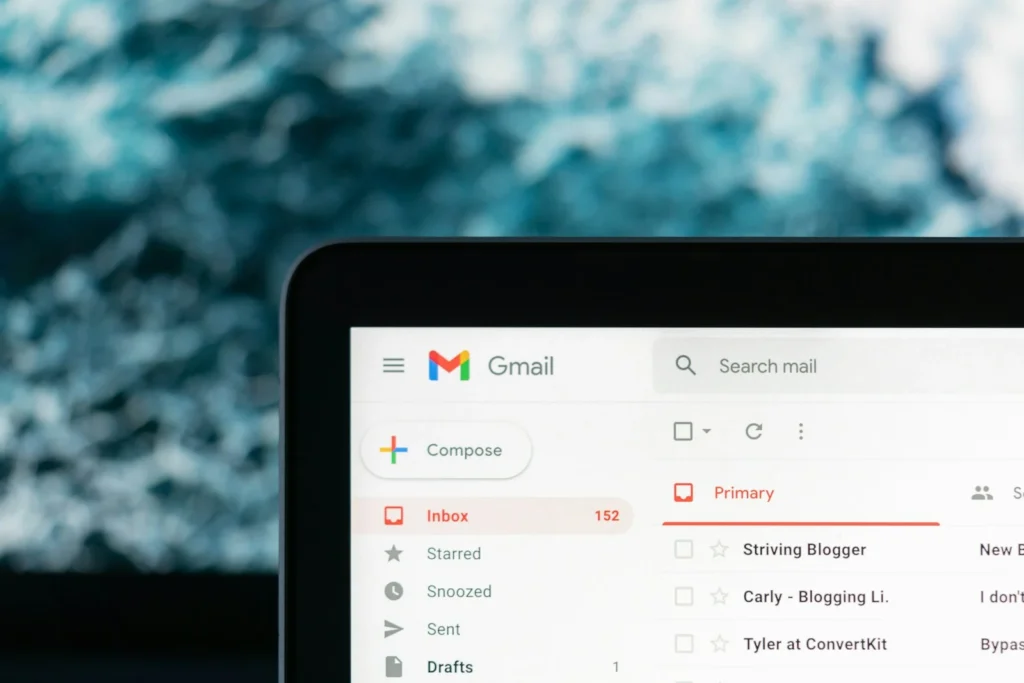
Every free Google account comes with up to 15 GB of storage, and Gmail has to share it with Google Drive and Google Photos. Once that space is full, new email stops arriving. You can win back room for free in two ways: clean out what is eating your quota, or move your old mail into a second Google account that has its own free storage. Both work in 2026, but the classic POP transfer trick is being retired, so the steps below use methods that still work.
Where your 15 GB actually goes
Google counts three services against the same pool: Gmail messages and attachments, files in Google Drive, and photos and videos in Google Photos. Many people blame email when the real culprit is a phone that backs up every video to Photos. Check the breakdown before you start moving things around. Open the storage page in your Google account settings or the Google One app, and you will see exactly how much each service uses.
Messages, attachments, plus everything sitting in Spam and Trash.
Uploaded files, Docs, Sheets and Slides, and anything shared that you copied.
Photos and videos backed up from your phone, often the biggest of the three.
A note for new accounts: Google has changed its wording to up to 15 GB, and in 2026 it began testing a policy in some regions where newly created accounts start with less space until a phone number is added. If you create a second account for archiving, add and verify a phone number so it gets the full allowance.
Step 1: Free up space without moving anything
Quick cleanup often recovers several gigabytes. Paste these searches into the Gmail search bar one at a time, select the results and delete what you do not need:
- larger:10M finds messages bigger than 10 MB, usually old videos and large attachments.
- has:attachment older_than:2y finds attachments more than two years old.
- category:promotions and category:social surface newsletters and notifications you never read.
Then open Spam and Trash and empty both, because deleted mail keeps counting against your quota until it is gone. The storage page in your Google account also has a cleanup tool that lists large files and items you can safely remove across Gmail, Drive and Photos.
Step 2: Back up your mail with Google Takeout
Before you move or delete years of email, make a local copy. Go to Google Takeout while signed in to your main account, deselect everything, then select Mail. Choose a delivery method and file size, and start the export. Google prepares an archive and emails you a download link. Your messages arrive as an MBOX file, a standard format that most desktop email apps can open. Large mailboxes can take hours or even days to prepare, so start this first and keep the file on an external drive.
Step 3: Move old mail to a second free account
The idea is simple. A second Google account has its own free storage, so it can hold your old email while your main account starts fresh. Gmail keeps IMAP access permanently turned on, which lets a desktop email app see both accounts side by side and copy messages between them.
- Create a new Google account to use as your archive, and add a phone number and recovery email.
- Install a desktop email app. Thunderbird is free on Windows, Mac and Linux, and Apple Mail and Outlook work too.
- Add both Gmail accounts to the app. Use the Sign in with Google option when it appears, since Gmail no longer accepts a plain password from email apps.
- Let both accounts finish syncing their folder lists.
- In the archive account, create a folder named something like Main archive 2025.
- In the main account, open All Mail, sort by date and select a batch of older messages.
- Drag the batch into the folder in the archive account. Work in batches of a few thousand messages so the app does not stall.
- Once a batch shows up in the archive account in Gmail on the web, delete those messages from the main account and empty its Trash.
Copying tens of thousands of messages takes time, so leave the app running overnight if needed. Folders you drag across become labels in the archive account, which keeps your organization intact.
Is paying for storage the better choice?
If juggling two accounts sounds tiring, Google One paid plans add storage to your existing account for a monthly or yearly fee, and you can share that space with family members. The free approach suits people who mainly need room for a big old mailbox they rarely open. Paying makes more sense if your Photos library is the real space hog and keeps growing.
FAQ
Is the 15 GB only for Gmail?
No. It is shared across Gmail, Google Drive and Google Photos, so large photo or file backups can fill your inbox quota too.
Can I still use POP to move mail between Gmail accounts?
Only if you already had it set up. Google stopped offering POP fetching to new users after the first quarter of 2026 and will end it for existing users in January 2027. Use a desktop email app with IMAP instead.
Will I lose emails during the move?
Not if you back up with Google Takeout first and only delete from the main account after checking that each batch arrived in the archive account. Drafts and Spam are worth reviewing by hand.
Is having two Google accounts allowed?
Yes. Google lets you create and use multiple personal accounts, and each one gets its own storage allowance.
The verdict
Start with a cleanup, because large attachments, Spam and Trash often free more space than you expect. If you still need room, back up with Google Takeout and move older mail into a second free account using a desktop email app over IMAP. It takes an evening of setup, costs nothing, and keeps every message you ever received.
Updated October 2026: rewritten for Google’s POP retirement, with current cleanup searches, Google Takeout backup and the IMAP method for moving mail to a second free account.
Featured photo: Justin Morgan on Unsplash.
About this article: GeekBlog covers U.S. technology news, AI, phones, smartwatches and gaming. Every story is written and checked under our Editorial Policy. Spotted a mistake or have a story tip? Contact our editors.
