

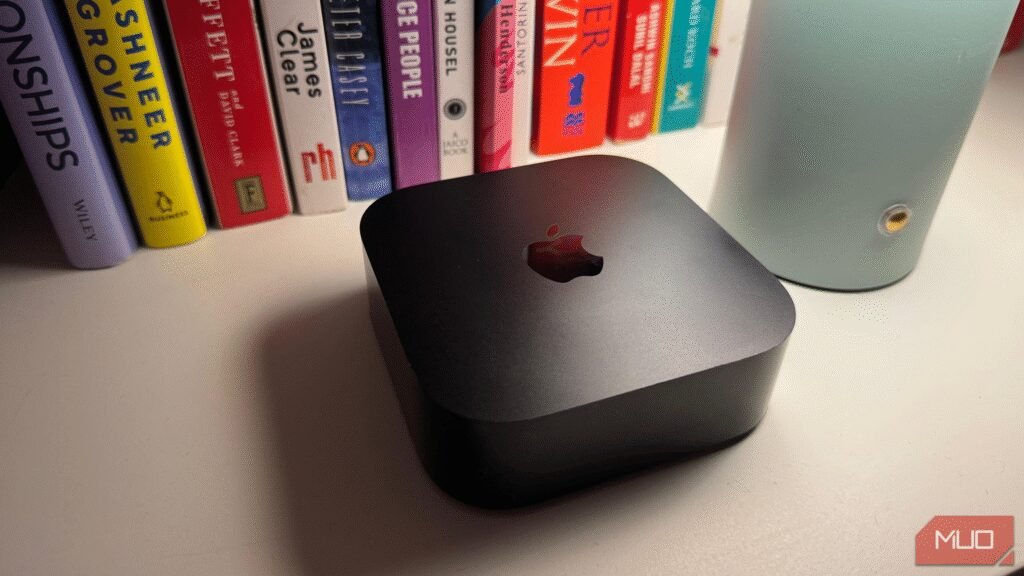
Apple doesn’t make it easy for Android users to play nice with its ecosystem, and the Apple TV streaming box is no exception. However, despite Apple’s tight ecosystem, I’ve managed to turn my Android phone into a reliable remote for my Apple TV.
There’s No Official Apple TV Remote App for Android
One of the reasons I can’t love Apple TV as much as I want to is its lack of compatibility with Android devices. Apple doesn’t provide an official Apple TV Remote app for Android. The only official way to control an Apple TV is by using either the Siri Remote or an iPhone.
Thankfully, third-party developers have stepped in to fill the gap, and a couple of apps work surprisingly well. Of course, you won’t get the same tight integration as with iOS, but for basic navigation, playback, and volume control, some of these apps are more than good enough.
How to Control Your Apple TV Using Your Android Device
As with most app categories, there are many apps on the Google Play Store that let you control an Apple TV. I’ve tried most of them, and while it took some time to find one that came close to perfect, I believe I’ve finally found the best option.
The app I’ve been using is called Remote for Apple TV. It’s completely free (though it does include some ads) and offers both click-based and touchpad controls without locking basic features behind a paywall—something that can’t be said for most other Apple TV remote apps for Android.
Once you install the app, it connects automatically to your Apple TV over Wi-Fi. It’s a one-time pairing process—you just need to grant access on your TV once, and the app remembers your device for future sessions. The interface is clean and straightforward, with three tabs at the bottom.
The main Remote tab gives you basic controls: D-pad or swipe controls, a dedicated play/pause button, home and back buttons, and even a keyboard for easier text input, which makes typing into search bars far less frustrating. Below the media controls, you’ll see your three favorite apps for quickly launching them on Apple TV.
The Apps tab lists everything installed on your Apple TV, letting you open apps directly from your phone. The Settings tab lets you customize the experience with options like vibration feedback, tap sounds, and language.
Similar to Apple’s own remote app, this one can even wake your Apple TV without needing to press any physical buttons on the TV remote. This means even if your remote isn’t nearby, you can wake and control the Apple TV with just the app. Here’s how you can get the Remote for Apple TV app running on your Android phone:
- Install and open the Remote for Apple TV app on your Android phone.
- Tap Not connected at the top of the screen.
- Select your Apple TV device from the list.
- Enter the pairing code shown on your Apple TV screen.
And that’s it. Your phone is now ready to act as a fully functional remote. Just make sure both your phone and Apple TV are on the same Wi-Fi network, or the pairing will fail. Also, the app may take a moment to connect. If it fails, tap Not Connected again to retry the pairing process.
Use Your Phone’s IR Blaster (If Available)
Alternatively, if you don’t want to use third-party apps due to ads or unintuitive user interfaces, you can try using an IR Blaster on your phone (if it supports one) to control your Apple TV.
Smartphones from brands like OnePlus, Oppo, Xiaomi, and Vivo offer built-in IR Blasters and come with native apps that can control devices like an Apple TV. However, mainstream phones like those by Google or Samsung don’t include IR Blasters, so you’ll need to rely on a third-party app instead.
You can check if your phone has an IR Blaster by looking at the top edge of the phone for a small extra sensor, or by visiting the manufacturer’s official specs page.
I used the Oppo Find N5’s built-in IR Blaster and IR Remote app to control my Apple TV, and it surprisingly worked well. While it doesn’t offer features like keyboard input or quick app launching, the best part is that it works without a Wi-Fi connection, so even if you’re offline, this feature still works.
All in all, while there’s no official way to control an Apple TV using an Android phone, there are still plenty of ways you can manage it using an Android device. And even though these unofficial methods work quite well, I do wish Apple would come up with an official solution soon—especially since the company already offers a few apps and services on Android.
About this article: GeekBlog covers U.S. technology news, AI, phones, smartwatches and gaming. Every story is written and checked under our Editorial Policy. Spotted a mistake or have a story tip? Contact our editors.
