Close Menu
GeekBlog

    Subscribe to Updates

    Get the latest creative news from FooBar about art, design and business.

    What's Hot

    Stop falling for scams when Norton’s antivirus software is 70% off right now

    March 28, 2026

    Acer Promo Codes and Deals: Save 40% on Bundles

    March 28, 2026

    Playing Wolfenstein 3D with one hand in 2026

    March 28, 2026
    Facebook X (Twitter) Instagram Threads
    GeekBlog
    • Home
    • Mobile
    • Tech News
    • Blog
    • How-To Guides
    • AI & Software
    Facebook
    GeekBlog
    Home»How-To Guides»7 Best Windows File Explorer Shortcuts I Use Daily
    How-To Guides

    7 Best Windows File Explorer Shortcuts I Use Daily

    Michael ComaousBy Michael ComaousAugust 2, 20254 Mins Read
    Share Facebook Twitter Pinterest LinkedIn Tumblr Email Copy Link
    7 Best Windows File Explorer Shortcuts I Use Daily
    Share
    Facebook Twitter LinkedIn Pinterest Email Copy Link

    Much of what I do on a day-to-day basis involves a lot of typing. As a result, wherever possible, I prefer to not have to break my flow by reaching for a mouse. Here are some of the shortcuts I use the most with Windows File Explorer.

    Windows+E (Open File Explorer)

    If I don’t use Command Palette to open File Explorer (which is what I do most of the time), I use Windows+E to quickly open up File Explorer.

    As a general rule, shortcuts that involve the Windows key will work from within any app, except for some fullscreen applications, which sometimes block them.

    By default, that shortcut will take you to your File Explorer’s Home page.

    However, if you’d like it to open to somewhere else, click the three-dot menu icon along the top, go to “Options,” then pick something else from the Open File Explorer To drop-down menu.

    Ctrl+T (Open a New File Explorer Tab)

    File Explorer picked up browser-like tabs, which is one of the best additions the program has seen in decades. Since the feature was introduced, I only really use separate windows if I expect I’ll need move files between them.

    The Home tab open in File Explorer.

    If you want to open a new tab, just tap Ctrl+T while File Explorer is open.

    Way too many tabs open in File Explorer.

    Like with Windows+E, Ctrl+T opens to whatever folder you have specified in the “Open File Explorer” drop-down menu.

    Ctrl+N (New File Explorer Window)

    When I need to move files between folders, there is no substitute for having two windows side-by-side.

    The quickest way to open up a new File Explorer window is by tapping Ctrl+N.

    Many File Explorer windows open.

    This is probably my second most used File Explorer shortcut, since there isn’t a convenient “Open New Window” button in File Explorer’s UI. You’re stuck opening a new tab and then dragging it off or launching another instance of File Explorer however you do it normally.

    Ctrl+Shift+N (New Folder)

    When you create a new folder, you have to name it something, even if that is just asdfasdfasf, which requires using your keyboard.

    Rather than right-click and use the context menu to create a new folder, I press Ctrl+Shift+N instead. That way, all I have to do is start typing once the new folder has been created to name it.
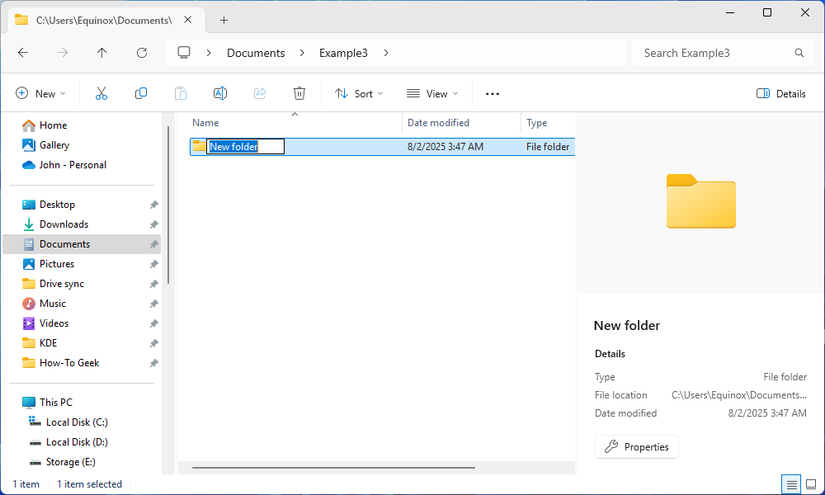
    Naming a new folder after pressing Ctrl+Shift+N.

    It probably doesn’t save me any significant amount of time, but it feels more efficient somehow.

    Windows+Arrow Keys

    It is easy enough to click and drag a Window around on your screen, but if you want to snap a window to one particular side of the screen, shortcuts are potentially faster, especially if your hands are already on the keyboard.

    To snap a window to one side of the screen, hold the Windows key, then tap the appropriate arrow key.

    Notepad snapped to the left side of the screen.

    For example, if I wanted to snap my current window to the left side of the screen, I’d tap Window+Left Arrow.

    It isn’t a File Explorer exclusive shortcut, but I probably use it the most with File Explorer.

    Ctrl+F (Search)

    Despite my best efforts to organize my files, I inevitably wind up with a few folders that are completely overflowing with random stuff. That means I do a lot of searches.

    Rather than click the search bar, I just tap Ctrl+F any time I need to find some obscure file I downloaded three months ago and mostly forgot about.

    Unfortunately, this doesn’t do anything to help Windows 11’s sluggish search. For that, you need to ensure Windows 11 has properly indexed your drives.

    Ctrl+W (Close File Explorer)

    Ctrl+W is a bit like File Explorer’s miniature version of Alt+F4—it closes your current window instantly.

    I’ll most frequently use this after I’ve used Ctrl+V to paste a file and I’m finished in a folder.

    There is also something very satisfying about smacking Ctrl+W when you’re finally finished rather than just clicking the “X” button.


    Shortcuts might not be as easy to pick up as clicking things in a graphical user interface (GUI), but once you get used to them, they can speed up your workflow, especially if you’re doing a lot of writing.

    They also really shine on a laptop, where your hands are usually closer to the keyboard than when you’re using a desktop with a mouse.

    Daily Explorer File Shortcuts Windows
    Share. Facebook Twitter Pinterest LinkedIn Tumblr Telegram Email Copy Link
    Previous ArticleThese new watches from Orient are stylish, colourful and affordable
    Next Article Google releases Gemini 2.5 Deep Think for AI Ultra subscribers
    Michael Comaous
    • Website

    Michael Comaous is a dedicated professional with a passion for technology, innovation, and creative problem-solving. Over the years, he has built experience across multiple industries, combining strategic thinking with hands-on expertise to deliver meaningful results. Michael is known for his curiosity, attention to detail, and ability to explain complex topics in a clear and approachable way. Whether he’s working on new projects, writing, or collaborating with others, he brings energy and a forward-thinking mindset to everything he does.

    Related Posts

    2 Mins Read

    Microsoft keeps insisting that it’s deeply committed to the quality of Windows 11

    2 Mins Read

    Microsoft is cutting down Copilot “bloat” in Windows 11

    3 Mins Read

    Microsoft Is Finally Ready to Make Windows 11 Less Terrible After Bloating It With AI Crap

    2 Mins Read

    Microsoft will no longer auto-install M365 Copilot app on Windows PCs

    3 Mins Read

    File Your Taxes With TurboTax Full Service Now Before Prices Go Up

    3 Mins Read

    Windows 11 is readying support for 1,000+ Hz monitors, assuming you got one

    Top Posts

    The Mesh Router Placement Strategy That Finally Gave Me Full Home Coverage

    August 4, 2025913 Views

    Discord will require a face scan or ID for full access next month

    February 9, 2026767 Views

    Trade in your old phone and get up to $1,100 off a new iPhone 17 at AT&T – here’s how

    September 10, 2025336 Views
    Stay In Touch
    • Facebook

    Subscribe to Updates

    Get the latest tech news from FooBar about tech, design and biz.

    Most Popular

    The Mesh Router Placement Strategy That Finally Gave Me Full Home Coverage

    August 4, 2025913 Views

    Discord will require a face scan or ID for full access next month

    February 9, 2026767 Views

    Trade in your old phone and get up to $1,100 off a new iPhone 17 at AT&T – here’s how

    September 10, 2025336 Views
    Our Picks

    Stop falling for scams when Norton’s antivirus software is 70% off right now

    March 28, 2026

    Acer Promo Codes and Deals: Save 40% on Bundles

    March 28, 2026

    Playing Wolfenstein 3D with one hand in 2026

    March 28, 2026

    Subscribe to Updates

    Get the latest creative news from FooBar about art, design and business.

    Facebook
    • About Us
    • Contact us
    • Privacy Policy
    • Disclaimer
    • Terms and Conditions
    © 2026 GeekBlog

    Type above and press Enter to search. Press Esc to cancel.

    Ad Blocker Enabled!
    Ad Blocker Enabled!
    Our website is made possible by displaying online advertisements to our visitors. Please support us by disabling your Ad Blocker.