

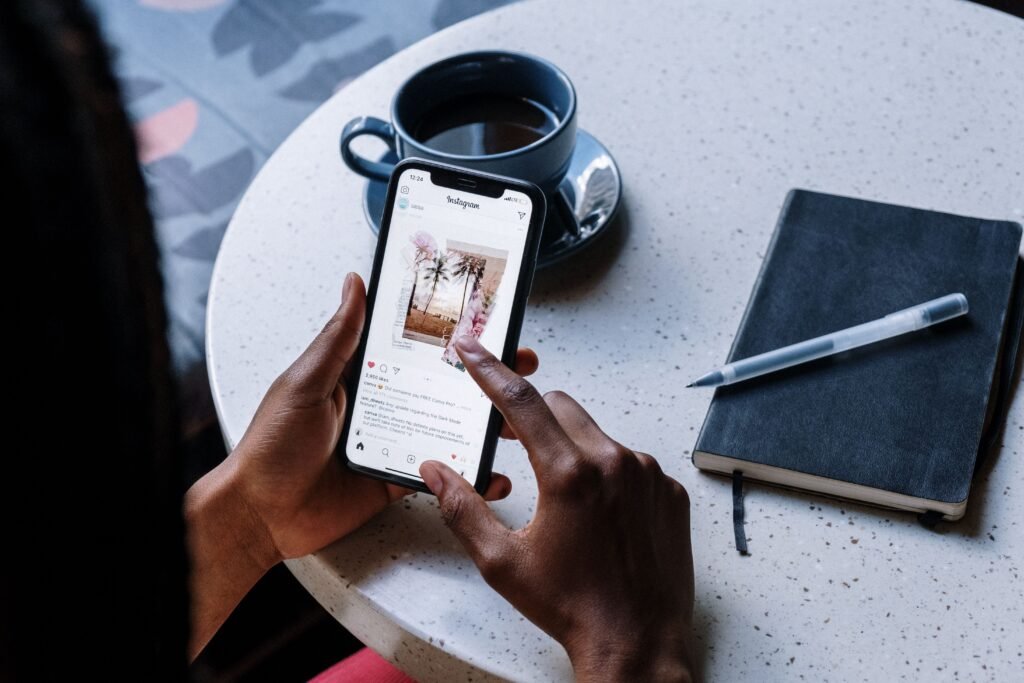
Somewhere in your iPhone’s settings there is a screen labeled VPN, and it has been there for years. People find it, notice it does not ask them to pay anything, and conclude they have been buying a subscription they never needed.
That conclusion is wrong, and the reason it is wrong is worth understanding, because it is the difference between thinking you are protected on hotel Wi-Fi and actually being protected.
The short version: iOS ships a VPN client. It does not ship a VPN service. Those are not the same product, and the client is useless without the service.
🔐 The short version
- The built-in VPN screen is a connection form, not a service. It asks for a server address, an account and a shared secret, because it expects you to already have a server.
- It supports IKEv2, IPsec and L2TP. These are the protocols corporate networks and self-hosted servers use.
- It does not support WireGuard natively. That still requires an app.
- Filling it in with nothing gets you nothing. There is no free Apple VPN hiding behind that screen.
- iCloud Private Relay is the feature people are actually thinking of, and it comes with iCloud+. It hides your IP and encrypts Safari traffic.
- Private Relay is not a VPN either. It covers Safari and some unencrypted app traffic, not everything your phone sends.
What That Screen Is Actually For
Open Settings, go to General, then VPN & Device Management, then VPN, then Add VPN Configuration. You will be asked for a type, a description, a server, a remote ID, and then a username and password or a shared secret.
Notice what it never asks: where you would like to appear to be browsing from. There is no country list. That absence is the whole story. A commercial VPN sells you access to servers in dozens of countries. Apple’s screen assumes you already know which server you are connecting to, because it is yours or your employer’s.
Apple’s own documentation frames this as a deployment feature. The company describes using a VPN payload to enter settings for devices enrolled in a device management service, where an administrator configures the connection and users cannot change it. That is the intended audience: IT departments pushing a corporate network configuration to a fleet of company phones.
The three realistic uses for it, in order of how common they are:
| If you are… | What you put in that screen |
|---|---|
| Connecting to a work network | An IKEv2 or IPsec config your IT team gives you, usually pushed automatically. |
| Self-hosting on a VPS | The address and credentials of a server you rented and configured yourself. |
| Tunneling home | Details for a VPN server running on your own router or home NAS. |
| Just wanting privacy on cafe Wi-Fi | Nothing. This screen cannot help you. |
The Protocol Detail That Actually Matters
If you do have a server, one choice here is worth getting right.
IKEv2 is the option to pick on a phone, and the reason is specific to mobile devices. It handles the transition between Wi-Fi and cellular without dropping the tunnel. Walk out of a coffee shop mid-download and an IKEv2 connection re-establishes itself in the background rather than dying and leaving your traffic exposed while you fail to notice. Older protocols handle that switch badly, which on a phone is the situation you are in constantly.
L2TP is also offered and is largely there for compatibility with equipment that predates better options. If you are configuring something new, there is no good reason to choose it.
The notable absence is WireGuard. It is the protocol most self-hosters actually want in 2026, it is faster and considerably simpler to audit, and iOS has no native support for it. You need the WireGuard app or a provider that wraps it. So even the self-hosting crowd, the people this screen was built for, frequently end up installing something.
What Apple Ships That Does Protect You
Here is the feature people are usually reaching for when they go looking for a built-in VPN, and it is in a completely different part of settings.
iCloud Private Relay arrived with iOS 15 in 2021 and is included with an iCloud+ subscription. When it is on, Safari traffic is sent through two separate relays. Apple can see who you are but not what you are visiting. The second relay, run by a different company, can see the destination but not who you are. No single party holds both halves, which is a genuinely stronger arrangement than a conventional VPN, where the provider sees everything and you simply have to trust them.
It also hides your IP address from the sites you visit, which is most of what people want from a VPN for everyday browsing.
The catch is scope, and it is a big catch.
Private Relay handles Safari and some unencrypted traffic from other apps. It does not tunnel everything. If an app talks to its own servers over its own encrypted connection, which is what nearly every app does now, Private Relay is not in that path and that app still sees your real IP address.
For ordinary browsing on a network you do not trust, that is usually enough. For anything where you need every connection from the device to leave through one tunnel, it is not.
So Do You Need a Paid VPN or Not
An honest answer depends on which of two problems you have, and most people only have the first one.
The public Wi-Fi threat is smaller than it was
The classic argument for a VPN was that anyone on the same cafe network could read your traffic. That was a real problem in 2012. Today essentially all web traffic is encrypted in transit by HTTPS, so the person at the next table sees which sites you connect to, not what you do on them.
A VPN still hides those destinations from the network operator and your IP from the sites you visit. Those are genuine benefits. They are just narrower than the marketing implies, and Private Relay already delivers most of them for Safari without a separate subscription.
Where a paid VPN still earns its money is when you need coverage across every app rather than just the browser, when you want to choose which country you appear to be in, or when you are on a network that actively blocks or inspects traffic. None of those are solved by the built-in screen and only the first is partly solved by Private Relay.
If you do subscribe, the thing to check is what the provider logs, because with a commercial VPN you have moved your trust from your internet provider to them. That is a lateral move unless the provider is genuinely better. It is the same reasoning that applies to any privacy tool that sits between you and the internet, and the same reason we have written before that deleting an app is often not enough to remove your data from it.
What to Actually Do Tonight
Three things, in order of effort.
First, check whether Private Relay is on. It lives under your name at the top of Settings, then iCloud, then Private Relay. It requires an iCloud+ plan, and a surprising number of people who pay for extra iCloud storage have never switched it on.
Second, leave the VPN screen alone unless you have a server. There is nothing to enable there and no free tier waiting behind it.
Third, if you want to reduce what leaks without paying anyone, the browser settings do more than the VPN screen will. Safari’s tracking prevention and the privacy toggles most people never open are worth a pass, and we collected the ones that matter in our rundown of the iPhone settings worth changing. Reducing what you hand over in the first place beats routing it somewhere else. Tools that generate throwaway identifiers work on the same principle, which is why disposable email aliases have become a standard privacy layer.
The Bottom Line
The iPhone’s built-in VPN is real, and it is not the thing people hope it is. It is an empty form waiting for a server address, aimed at IT administrators and the small number of people running their own infrastructure. If you do not have a server, it does nothing at all.
The genuinely useful built-in privacy feature is iCloud Private Relay, it is one screen away, and it covers Safari rather than the whole device. Knowing which of those two you found is the difference between a real privacy improvement and a false sense of one.
