Close Menu
GeekBlog

    Subscribe to Updates

    Get the latest creative news from FooBar about art, design and business.

    What's Hot

    Bose’s $99 Wired Earbuds Have No Battery, and That Is the Whole Point

    September 30, 2026

    Google’s Health Guardian Is Live: Free on Pixel Watch, Behind a Paywall on Fitbit Air

    September 30, 2026

    The Tinder Swindler Is Building an Anti-Fraud Dating App. The Industry Wants It Blocked First.

    September 30, 2026
    Facebook
    GeekBlog
    • Home
    • Mobile
    • Tech News
    • Blog
    • Gaming
    • Smartwatch
    • How-To Guides
    • AI & Software
    Facebook
    GeekBlog
    Home»How-To Guides»7 Best Windows File Explorer Shortcuts I Use Daily
    How-To Guides

    7 Best Windows File Explorer Shortcuts I Use Daily

    Michael ComaousBy Michael ComaousAugust 2, 20254 Mins Read
    Share Facebook Twitter Pinterest LinkedIn Tumblr Email Copy Link
    7 Best Windows File Explorer Shortcuts I Use Daily
    Share
    Facebook Twitter LinkedIn Pinterest Email Copy Link

    Much of what I do on a day-to-day basis involves a lot of typing. As a result, wherever possible, I prefer to not have to break my flow by reaching for a mouse. Here are some of the shortcuts I use the most with Windows File Explorer.

    Windows+E (Open File Explorer)

    If I don’t use Command Palette to open File Explorer (which is what I do most of the time), I use Windows+E to quickly open up File Explorer.

    As a general rule, shortcuts that involve the Windows key will work from within any app, except for some fullscreen applications, which sometimes block them.

    By default, that shortcut will take you to your File Explorer’s Home page.

    However, if you’d like it to open to somewhere else, click the three-dot menu icon along the top, go to “Options,” then pick something else from the Open File Explorer To drop-down menu.

    Ctrl+T (Open a New File Explorer Tab)

    File Explorer picked up browser-like tabs, which is one of the best additions the program has seen in decades. Since the feature was introduced, I only really use separate windows if I expect I’ll need move files between them.

    The Home tab open in File Explorer.

    If you want to open a new tab, just tap Ctrl+T while File Explorer is open.

    Recommended for you:

    These Are the Top 9 iPhone Apps Everyone Should Install First
    How-To Guides·Aug 3, 2025

    These Are the Top 9 iPhone Apps Everyone Should Install First

    Way too many tabs open in File Explorer.

    Like with Windows+E, Ctrl+T opens to whatever folder you have specified in the “Open File Explorer” drop-down menu.

    Ctrl+N (New File Explorer Window)

    When I need to move files between folders, there is no substitute for having two windows side-by-side.

    The quickest way to open up a new File Explorer window is by tapping Ctrl+N.

    Many File Explorer windows open.

    This is probably my second most used File Explorer shortcut, since there isn’t a convenient “Open New Window” button in File Explorer’s UI. You’re stuck opening a new tab and then dragging it off or launching another instance of File Explorer however you do it normally.

    Ctrl+Shift+N (New Folder)

    When you create a new folder, you have to name it something, even if that is just asdfasdfasf, which requires using your keyboard.

    Rather than right-click and use the context menu to create a new folder, I press Ctrl+Shift+N instead. That way, all I have to do is start typing once the new folder has been created to name it.
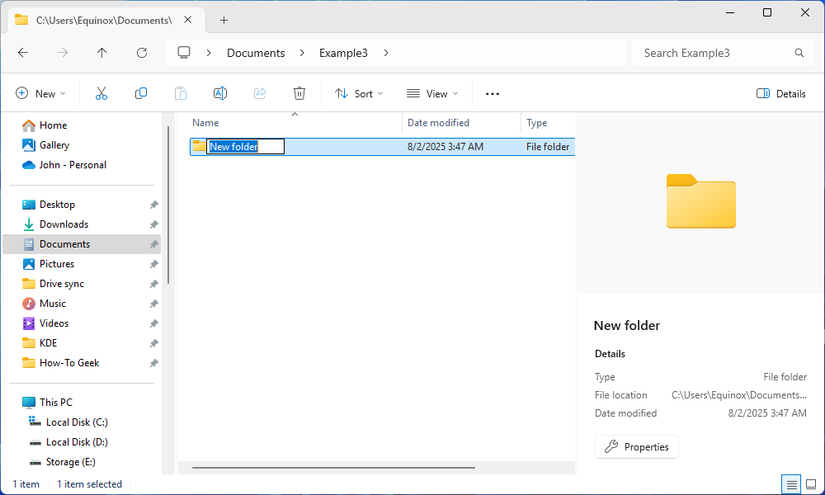
    Naming a new folder after pressing Ctrl+Shift+N.

    It probably doesn’t save me any significant amount of time, but it feels more efficient somehow.

    Windows+Arrow Keys

    It is easy enough to click and drag a Window around on your screen, but if you want to snap a window to one particular side of the screen, shortcuts are potentially faster, especially if your hands are already on the keyboard.

    To snap a window to one side of the screen, hold the Windows key, then tap the appropriate arrow key.

    Notepad snapped to the left side of the screen.

    For example, if I wanted to snap my current window to the left side of the screen, I’d tap Window+Left Arrow.

    It isn’t a File Explorer exclusive shortcut, but I probably use it the most with File Explorer.

    Ctrl+F (Search)

    Despite my best efforts to organize my files, I inevitably wind up with a few folders that are completely overflowing with random stuff. That means I do a lot of searches.

    Rather than click the search bar, I just tap Ctrl+F any time I need to find some obscure file I downloaded three months ago and mostly forgot about.

    Recommended for you:

    How to Scan Files for Malware Before You Download Them
    How-To Guides·Aug 1, 2025

    How to Scan Files for Malware Before You Download Them

    Unfortunately, this doesn’t do anything to help Windows 11’s sluggish search. For that, you need to ensure Windows 11 has properly indexed your drives.

    Ctrl+W (Close File Explorer)

    Ctrl+W is a bit like File Explorer’s miniature version of Alt+F4—it closes your current window instantly.

    I’ll most frequently use this after I’ve used Ctrl+V to paste a file and I’m finished in a folder.

    There is also something very satisfying about smacking Ctrl+W when you’re finally finished rather than just clicking the “X” button.


    Shortcuts might not be as easy to pick up as clicking things in a graphical user interface (GUI), but once you get used to them, they can speed up your workflow, especially if you’re doing a lot of writing.

    They also really shine on a laptop, where your hands are usually closer to the keyboard than when you’re using a desktop with a mouse.

    Windows
    Share. Facebook Twitter Pinterest LinkedIn Tumblr Telegram Email Copy Link
    Previous ArticleThis Windows 11 Pro license also comes with lifetime access to Microsoft Office
    Next Article I tried the Vollebak Full Metal Jacket – it’s the future of outerwear and I get the hype entirely
    Michael Comaous

      Michael Comaous is a dedicated professional with a passion for technology, innovation, and creative problem-solving. Over the years, he has built experience across multiple industries, combining strategic thinking with hands-on expertise to deliver meaningful results. Michael is known for his curiosity, attention to detail, and ability to explain complex topics in a clear and approachable way. Whether he’s working on new projects, writing, or collaborating with others, he brings energy and a forward-thinking mindset to everything he does.

      Related Posts

      9 Mins Read

      Is ChatGPT Confidential? What OpenAI Keeps and Who Can Read It

      11 Mins Read

      Passkeys vs Passwords: What Actually Happens When You Lose the Phone

      10 Mins Read

      7 Ways to Get the Most Out of Your Galaxy Z Fold 7

      10 Mins Read

      Is Google Killing Off the Android TV Discover Tab? What Replaced It and What to Do

      8 Mins Read

      Own a Samsung Phone? 10 Settings I Always Change First for the Best User Experience

      16 Mins Read

      Mesh Wi-Fi Placement: How Far Apart to Put Nodes and Where

      Top Posts

      Best Free Online Music Apps in 2026

      July 7, 20262 Views

      COD Mobile Best Loadouts and Meta Guns (2026 Guide)

      July 2, 20262 Views

      The Mesh Router Placement Strategy That Finally Gave Me Full Home Coverage

      September 9, 20261 Views
      Stay In Touch
      • Facebook

      Subscribe to Updates

      Get the latest tech news from FooBar about tech, design and biz.

      Most Popular

      How to Convert HEIC to JPG on iPhone, Mac, Android and Windows

      September 3, 20266 Views

      Gal Gadot’s Lawyers Spent Six Months on One AI Clause. Then SAG Called Them for Pointers.

      September 2, 20265 Views

      The Mesh Router Placement Strategy That Finally Gave Me Full Home Coverage

      September 9, 20263 Views
      Our Picks

      Bose’s $99 Wired Earbuds Have No Battery, and That Is the Whole Point

      September 30, 2026

      Google’s Health Guardian Is Live: Free on Pixel Watch, Behind a Paywall on Fitbit Air

      September 30, 2026

      The Tinder Swindler Is Building an Anti-Fraud Dating App. The Industry Wants It Blocked First.

      September 30, 2026

      Subscribe to Updates

      Get the latest creative news from FooBar about art, design and business.

      HEICJPG.online - Convert HEIC to JPG online
      Facebook
      • About Us
      • Contact us
      • Privacy Policy
      • Disclaimer
      • Terms and Conditions
      • Editorial Policy
      • Cookie Policy
      • Your Privacy Choices
      © 2026 GeekBlog

      Type above and press Enter to search. Press Esc to cancel.