

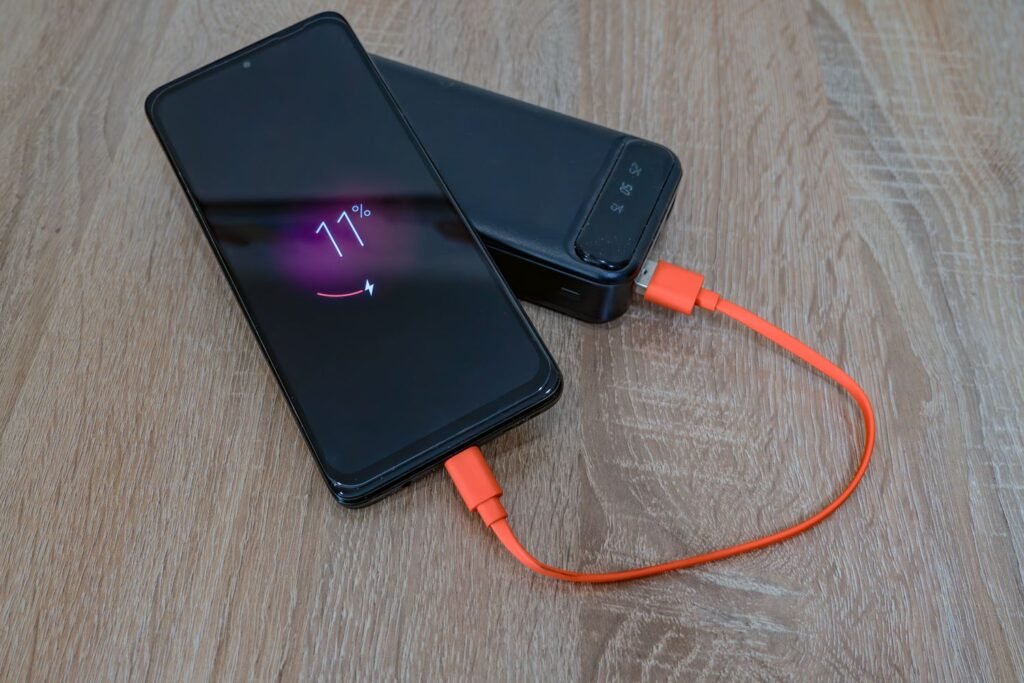
On an iPhone, checking battery health takes three taps. Android, frustratingly, has never made it that simple. The good news: you can absolutely check your Android battery health without rooting, and you don’t need to be technical. Here’s every method, from fastest to most detailed.
⭐ In short – the key facts
- Newer Android versions now show battery health in Settings > Battery.
- The dialer code *#*#4636#*#* opens a hidden battery info menu.
- AccuBattery measures real capacity over a week of normal use.
- Below 80% capacity, a cheap battery replacement is worth it.
4 Ways to Check (No Root)
| Method | How | Speed |
|---|---|---|
| Built-in settings | Settings > Battery > Battery health | Instant |
| Dialer code | Dial *#*#4636#*#* | Instant |
| AccuBattery app | Measures over ~1 week | Most accurate |
| Charge cycles | Settings or app estimate | Rough guide |
Method 1: Built-in settings
Start here – recent Android versions finally added native battery health info. Open Settings > Battery and look for Battery health, Battery information, or Battery usage. Samsung users: Settings > Battery and device care > Battery > Battery information, or the Samsung Members app, which reports a health rating.
Method 2: The secret dialer code
Open your dialer and type *#*#4636#*#* to open a Testing menu, then tap Battery information for health status, temperature, and voltage. It’s basic and not every phone supports it, but it’s instant and read-only. Only ever dial codes you understand.
Method 3: A free app (the reliable route)
AccuBattery is the one most people recommend. It doesn’t read exact capacity on day one; it measures your battery over several charge cycles, comparing energy in versus design capacity, and builds an increasingly accurate estimate. Use your phone normally for a week or two and it’ll give you a genuinely useful capacity percentage.
⚠️ Avoid “battery doctor” apps
Be wary of any app promising to fix your battery, restore capacity, or double your life. Those are digital snake oil, and the aggressive ones can actually harm performance. A good app reports information; it doesn’t perform miracles.
Reading the Results: What’s Normal?
| Capacity | What it means |
|---|---|
| 90%+ | Healthy – no action needed |
| 80–90% | Aging but usable, slightly shorter days |
| Below 80% | Replacement starts to make sense |
| Below 70% | Worn out – a swap feels like a new phone |
🔋 Slow future wear
Avoid sitting at 100% or 0% constantly, keep the phone out of extreme heat (the biggest accelerator of aging), and enable any “adaptive” or “optimized” charging feature. None of this reverses damage, but it meaningfully extends the healthy life of the battery you have.
The Bottom Line
Android makes you work a little harder than iPhone, but the information is there. Check your Settings first, then try the *#*#4636#*#* code, and if neither works, let AccuBattery measure your capacity over a week. Once you know your number, the decision is easy: above 80% you’re fine, below it a cheap battery replacement will likely bring your phone back to life. No rooting, no risk.
